

Build a FileMaker Web Viewer
Ask Genie to build a web interface for a FileMaker Web Viewer: a dashboard, form, chart, or a web version of an existing layout. Genie prepares the interface and any FileMaker helper scripts for separate review.
This guide covers Genie for macOS. Creating and installing Web Viewer content in FileMaker requires a paid plan. Storing the interface in the file is experimental and has extra requirements, described below.
The screenshots show the Content Library example in a Windows tutorial build. Control labels may differ on Mac. See Versions for public release availability. Select a screenshot to open it at full size.
Describe the interface
Section titled “Describe the interface”Name the source layout or tables, the information to display, and what each control should do. Say whether the interface only reads data or also saves changes.
For example, using names from your own file:
Build a Web Viewer from the Customer Details layout. Keep the contact details, photo, and invoice list. Let me open an invoice. Keep this first version read-only. Name the Web Viewer CustomerPanel.
Genie can inspect your live layouts and the relevant metadata. A screenshot helps show the look you want, but it does not tell Genie the exact field names or what your scripts do. See Inspect live layouts.
Before a complex build, check the reasoning effort in Settings. Reasoning levels.
Review the preview and scripts
Section titled “Review the preview and scripts”- Check the generated preview for content, layout, and the intended controls.
- Expand the setup details and review the required Web Viewer object name and helper scripts.
- Preview each helper script and install it through its own reviewed action.
- Install the interface using one of the methods below.
A working preview does not prove the FileMaker connection. Genie checks package structure and JavaScript syntax; test data loading and callbacks inside FileMaker after installation. If a package is incomplete, correct it before trying to install it.
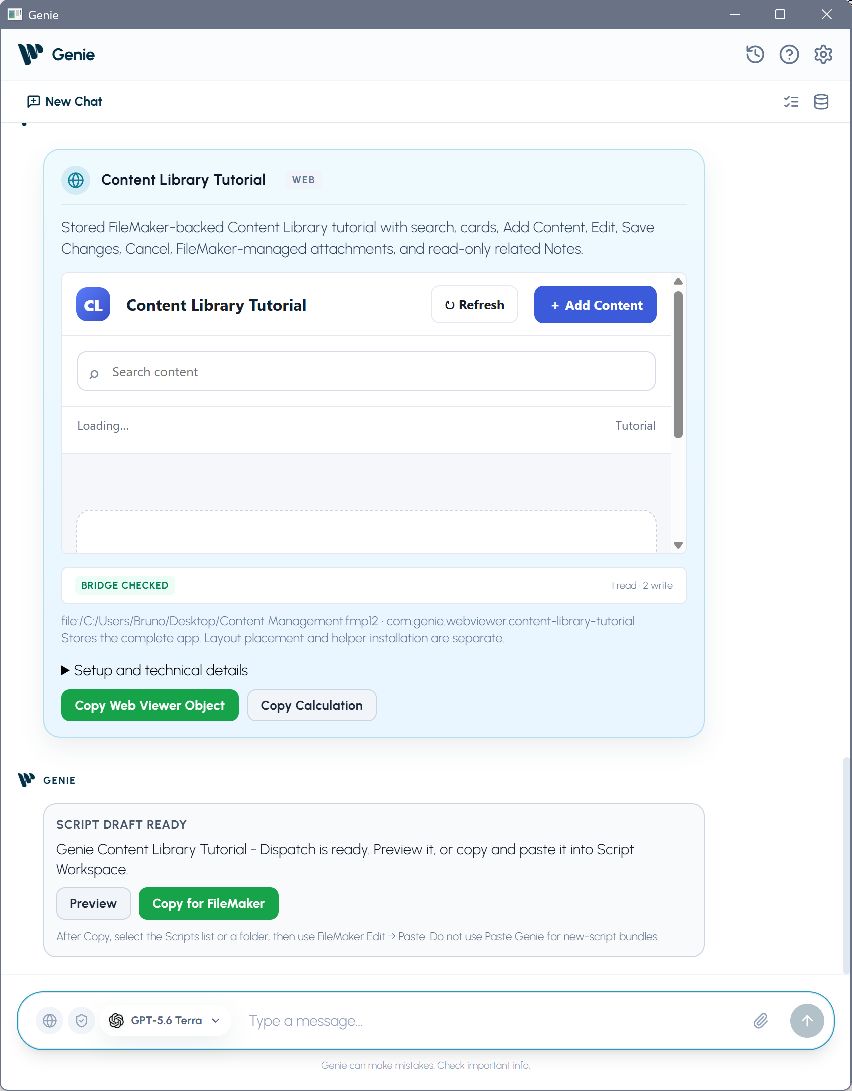
The interface and helper script have separate actions. This example shows the stored interface after Apply, with the helper still available to preview and copy.
Example: inspect the helper script
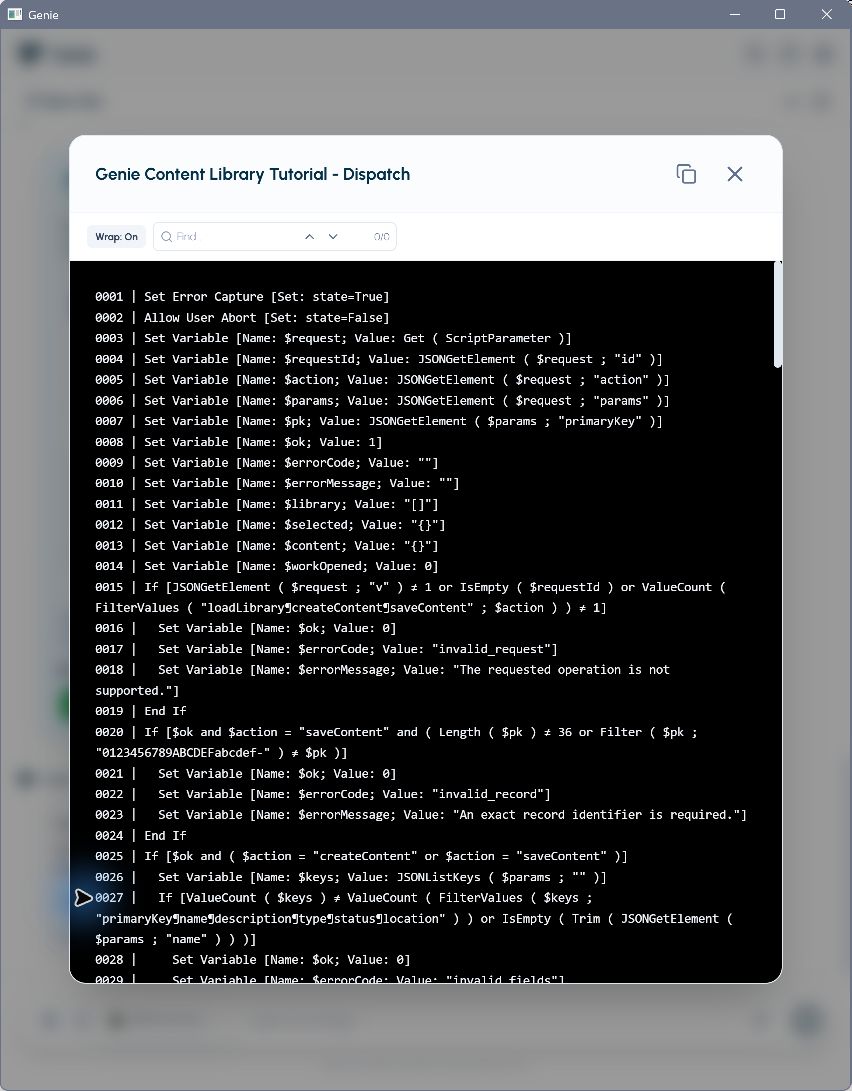
Review the helper before copying it. Its FileMaker script name must match the name used by the interface.
Install with Copy Calculation
Section titled “Install with Copy Calculation”- Choose Copy Calculation on the completed interface card.
- Create or edit a Web Viewer in FileMaker Layout mode and paste the calculation into its web address calculation.
- Enable Automatically encode URL. Use Genie’s calculation as copied; do not add another encoder.
- Give the object the exact name required by its helper scripts.
- For an interactive interface that calls scripts, enable Allow JavaScript to perform FileMaker scripts.
- Return to Browse mode and test the interface.
The calculation contains the interface HTML. Copying it does not install helper scripts.
Experimental: store the interface in the file
Section titled “Experimental: store the interface in the file”Persistent storage keeps the HTML in a named entry inside the FileMaker file. The Web Viewer uses a short calculation to load that entry, so later HTML updates can keep the same loader.
This option requires a supported FileMaker 26.0.2 configuration on Apple silicon, Full Access, and the capability reported by Genie. Privacy Mode blocks this storage workflow. It is not a general Windows or all-FileMaker-version feature.
- Ask Genie to prepare the interface with persistent storage.
- Choose Review stored app, review the stored HTML, then Apply stored app.
- After a successful Apply, use Copy Web Viewer Object or Copy Calculation.
- Paste the object in Layout mode, or paste the calculation into an existing Web Viewer. Match the required object name and confirm the settings above.
- Install any helper scripts separately, then test in Browse mode.
Example: review before applying storage
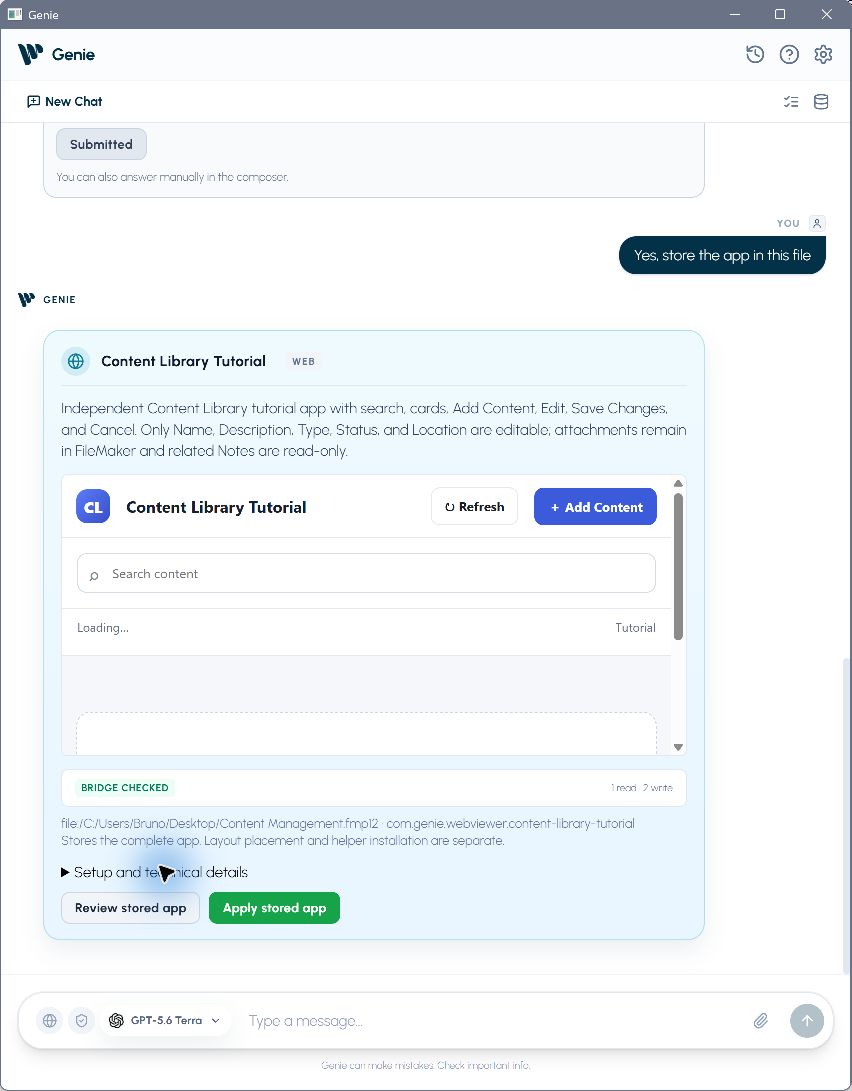
Review stored app opens the prepared content. Apply stored app starts the separate storage installation.
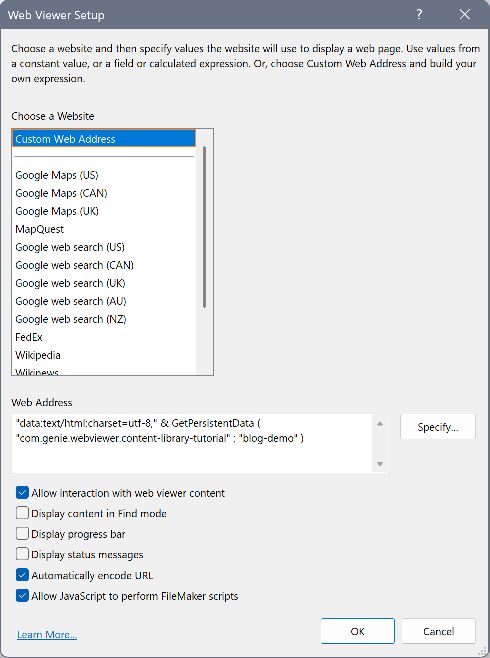
This stored interface uses a short loader. For an inline installation, paste the full Copy Calculation result instead. Keep Automatically encode URL enabled and allow JavaScript to call FileMaker scripts when the interface needs callbacks.
Storage Apply installs the document only. It does not place a layout object or install scripts. Copy checks that the stored document still matches the reviewed result. If it changed, prepare a fresh review.
With Auto apply on, you can undo stored Web Viewer content from Workbench, in the same file. See Review, Auto apply and Undo.
For hosted files, test reopening the file and reading the interface from a second client. A successful save on one client does not establish server durability or visibility to other clients.
Connect live records
Section titled “Connect live records”The generated interface uses FileMaker helper scripts to load records and return results to JavaScript. Keep object names, script names, and callback names consistent. Record-based interfaces need the supplied record-refresh setup, such as an OnRecordLoad trigger.
Test with two different records. Confirm that navigation updates the view. If saving is requested, confirm that an explicit user edit or save action updates the intended record and reports success. Loading the page or changing records should not write data.
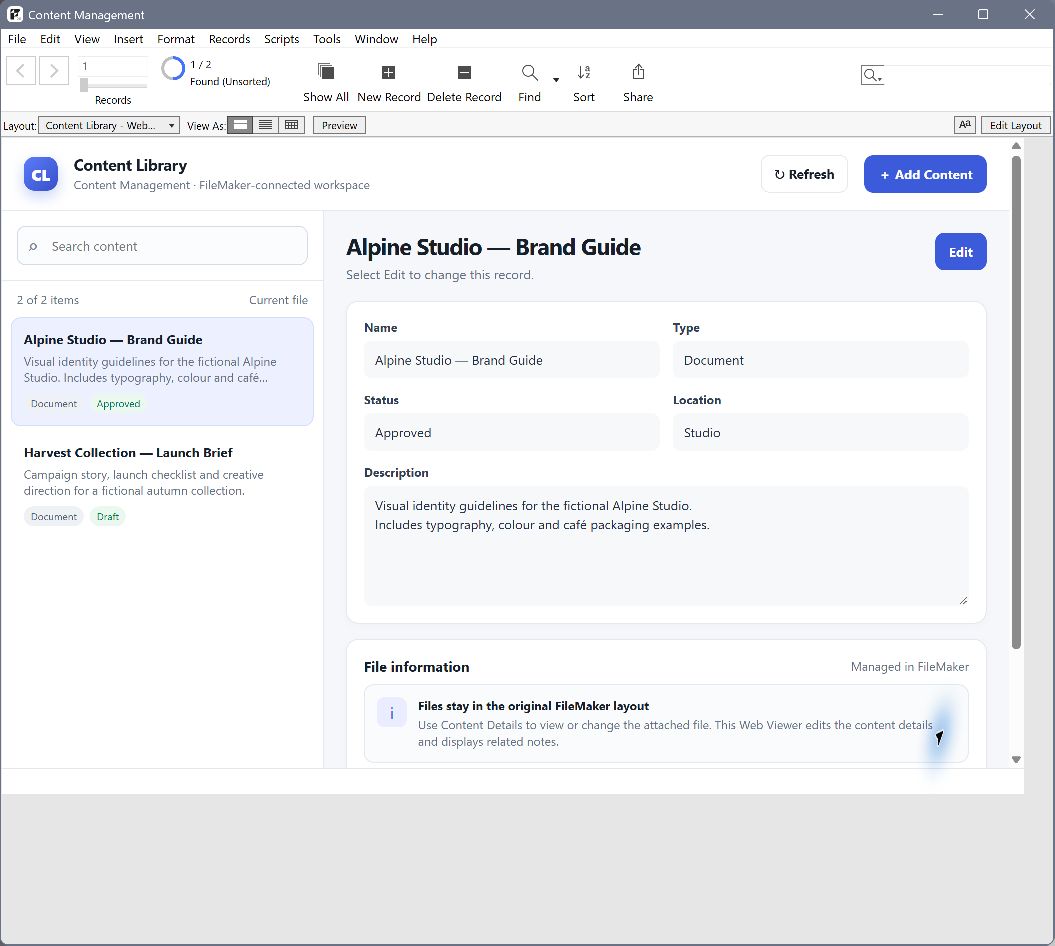
The installed viewer after reopening the file. Check the displayed values against the original FileMaker layout, then test another record.
For photos and PDFs, ask Genie to preserve the media areas and provide the required native helper scripts. Test an image and a PDF in FileMaker; a preview with sample data cannot verify container delivery.
See Claris: JavaScript and FileMaker scripts for the callback mechanism.
Build from an external editor
Section titled “Build from an external editor”Codex, Cursor, or Claude Desktop can use Local MCP Bridge to inspect FileMaker and retrieve the web-rendered-views guide. The external editor owns its source files, build, and browser preview. Deliver a self-contained HTML document with classic inline JavaScript; compile React or TypeScript in the external project first.
MCP does not install a browser-to-FileMaker connection or keep a browser preview synchronized with live records. Test the preview, installation, and live FileMaker callbacks separately.
If something fails
Section titled “If something fails”| Symptom | Check |
|---|---|
| Blank viewer | The copied calculation, URL encoding, and whether a stored HTML entry exists. |
| Buttons do nothing | Installed helper scripts, exact object/script names, and the JavaScript permission. |
| Old record remains visible | The initial load and record-refresh setup. |
| Copy or Apply unavailable | Your paid plan, package validation, and whether the reviewed file or stored content changed. |
| A newer storage card has no helper review | Return to the original interface card. Storage and helpers have separate reviews. |