

Claude Code and Codex
Genie can run its Agent through your own Claude Code or Codex. You use the Claude or ChatGPT plan you already have, and no API key is needed. Genie installs the program for you after you confirm, starts the sign-in in your browser, keeps the program up to date, and locks it to Genie’s FileMaker tools. Its changes follow your Auto apply setting, like any other source: with Auto apply off you confirm each one, and with it on Genie applies them for you.
This is available in Genie for macOS 3.3 and later, in the main Genie window, in the panel docked in Script Workspace, and in the Genie tab in Layout mode. Windows stays on Genie 1.5.11 and has no Claude Code or Codex option.
Genie’s own Agent with your API keys is unchanged. Choose whichever suits the task.
What it is
Section titled “What it is”- Claude Code is Anthropic’s coding agent. It works with a Claude plan (Pro, Max, Team or Enterprise).
- Codex is OpenAI’s coding agent. It works with a ChatGPT plan that includes Codex.
Each one answers in the same panel as Genie’s own Agent. It reads your file through Genie’s local FileMaker tools, the same nine fm_* tools described in MCP tool reference. See what it can and cannot do.
Usage comes out of your own plan’s limits, and the publishers’ terms apply. Genie does not control either, and both may change. If the program is signed in with an API key instead of a plan, the card says API key and that key’s provider bills the usage. With a plan there is no API bill, but a paid Genie plan is still needed for creating and editing.
Requirements
Section titled “Requirements”- Genie 3.3 or later for macOS.
- A Claude plan (Pro, Max, Team or Enterprise) for Claude Code, or a ChatGPT plan with Codex access for Codex.
- Local MCP turned on and running. Genie uses it to give Claude Code and Codex their FileMaker tools. You do not need to connect any other client. If it is off, Genie shows Local connection is off with a Turn on button. Local MCP Bridge.
- Privacy Mode for Local MCP turned off. Privacy Mode.
- An internet connection for the install, the sign-in and every request.
You can install, update and connect Claude Code or Codex first, even while Local MCP is off. You cannot send a message until Local MCP is running.
Set it up
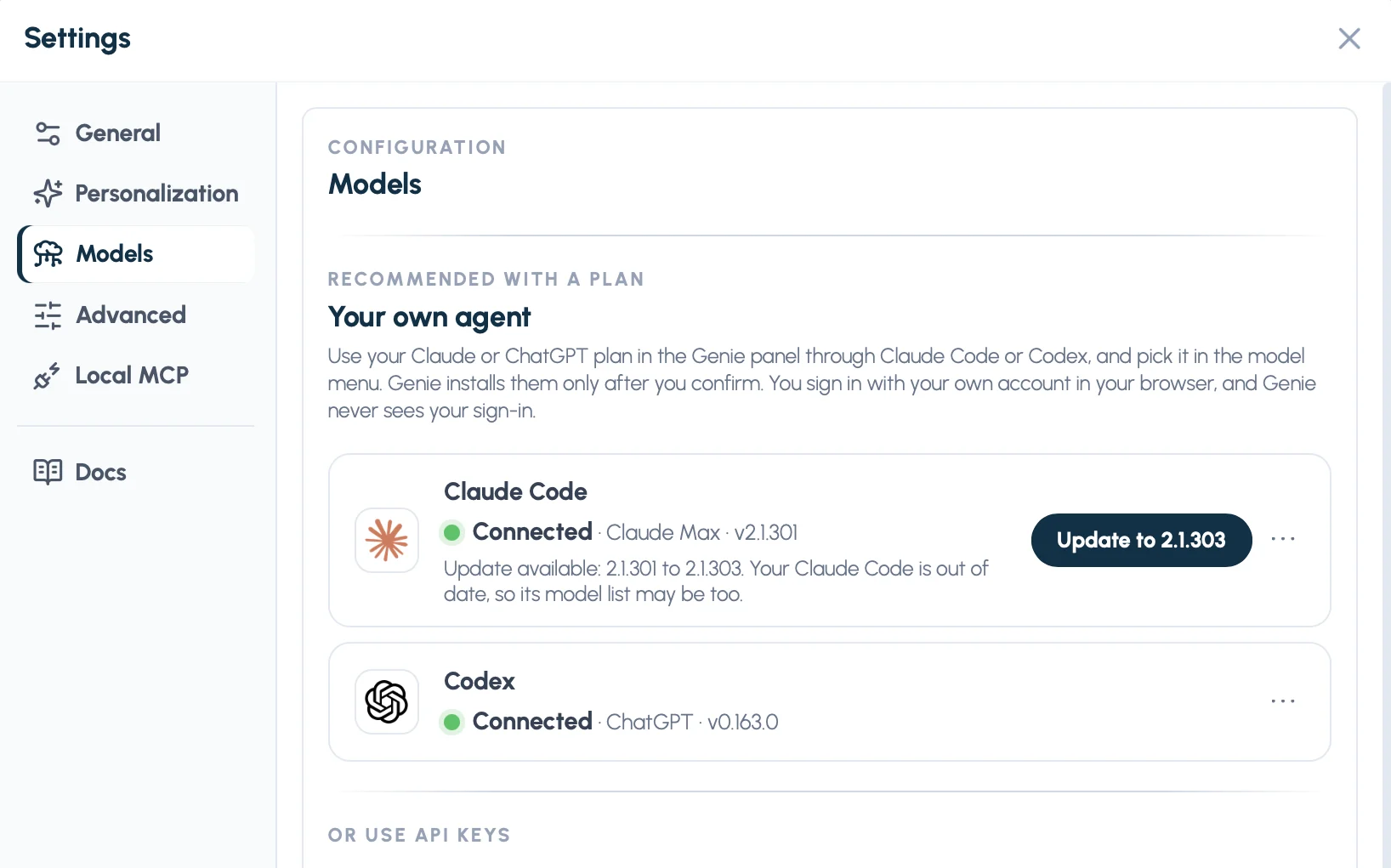
Section titled “Set it up”- Open Settings > Models. At the top, Your own agent has a card for Claude Code and one for Codex, above the API keys.
- If a card says Not installed, click Install, read the confirmation and click Install again.
- If it says Not connected, click Connect and finish the sign-in in your browser.
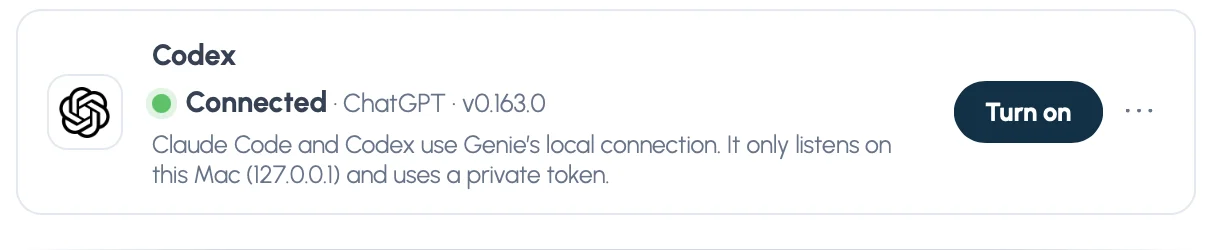
- If it says Local connection is off, click Turn on and confirm.
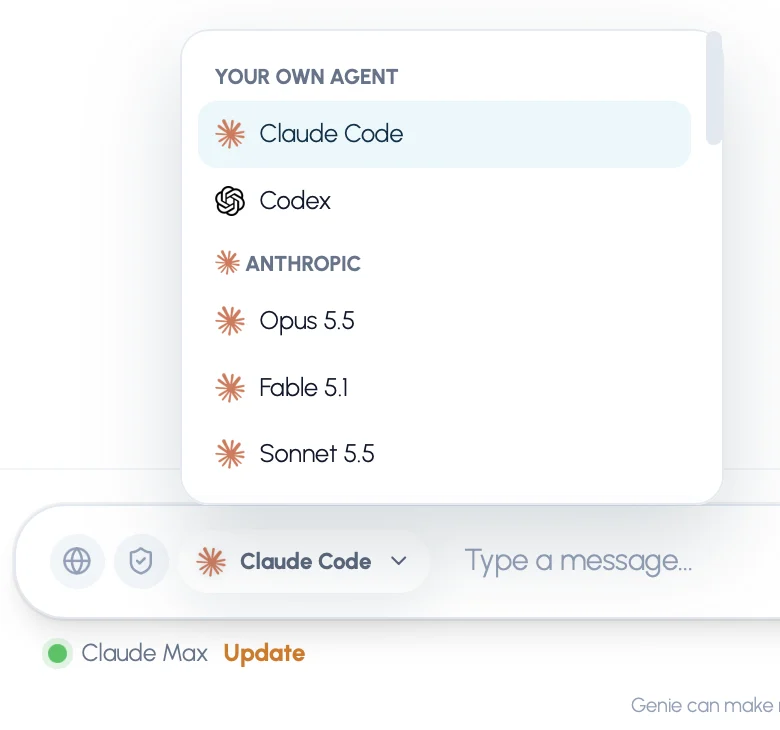
- Open the model menu in the composer and choose Claude Code or Codex under Your own agent.
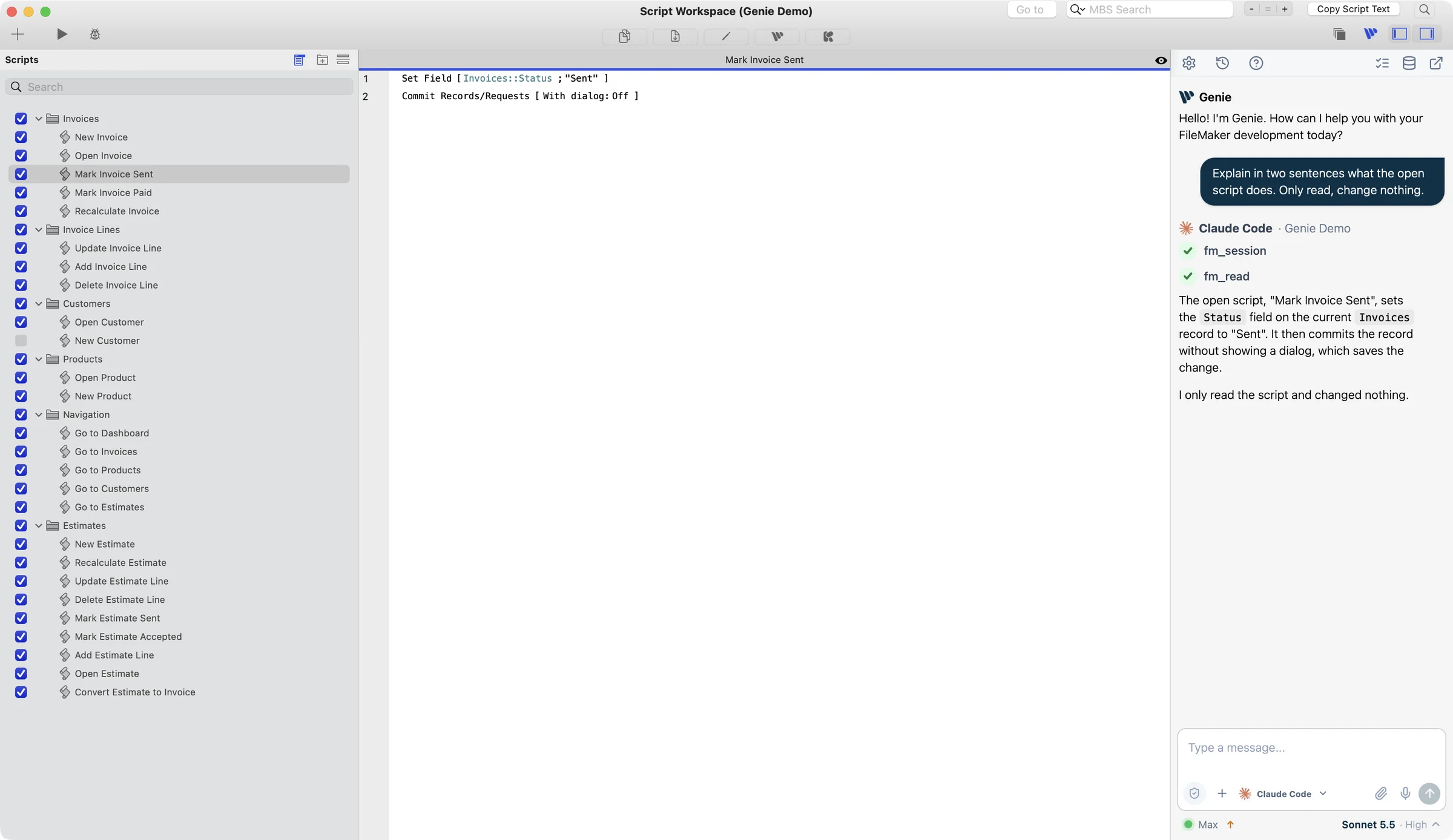
Each step is shown in Every screen, step by step.
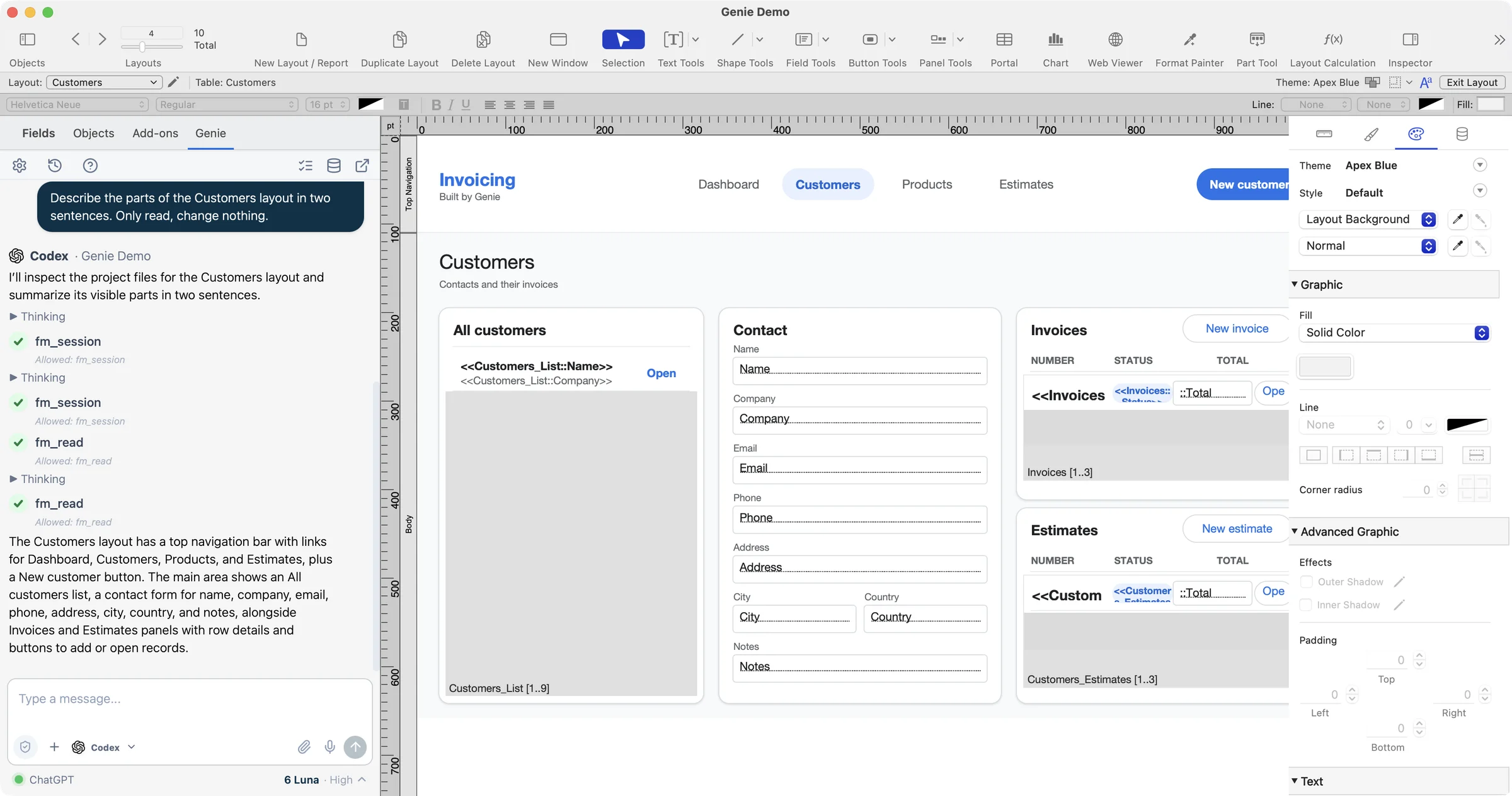
If Claude Code or Codex is already installed on your Mac, Genie finds it and skips the install.
Use it where you work
Section titled “Use it where you work”In the main Genie window
Section titled “In the main Genie window”Choose Claude Code or Codex in the model menu and write your request as usual. The reply carries the program’s logo and name, and the FileMaker file it is working on. Each tool it uses appears as a short step line. Stop ends a reply.
In Script Workspace
Section titled “In Script Workspace”The panel docked in Script Workspace uses the same model menu and the same footer under its composer. The program is told that you are in Script Workspace. It asks Genie for the open script and your selected lines when the task needs them, and reads the exact text through Genie’s tools. Nothing from your script is sent up front. The panel works on the file its Script Workspace belongs to. Context capture.
In Layout mode
Section titled “In Layout mode”The Genie tab in Layout mode works the same way. The program is told you are in Layout mode, and it asks for the layout and the objects you selected when it needs them. The panel works on the file the layout belongs to.
Each panel has its own conversation with the program. Settings opens in the main Genie window, from any panel.
The footer under the composer
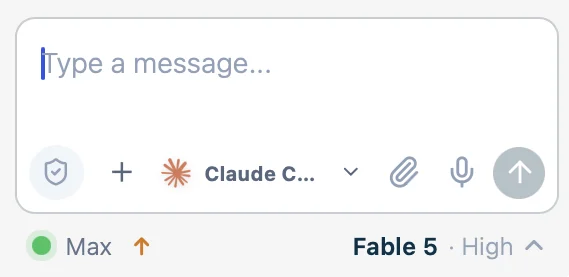
Section titled “The footer under the composer”When Claude Code or Codex is chosen, one quiet line sits under the composer, aligned with it. There are no Model and Effort drop-downs and no ⋯ menu in the composer area.
- On the left, the connection: a status dot and your plan, for example Claude Max (just Max in the narrow docked panels). When something needs doing, the state comes with one quiet link instead: Not connected with Connect, Not installed with Install, Local connection off with Turn on, or an Update link when Claude Code is out of date.
- On the right, one text button with the current model and effort, for example Sonnet 5.5 · High. A small Plan before it means Plan first is on.
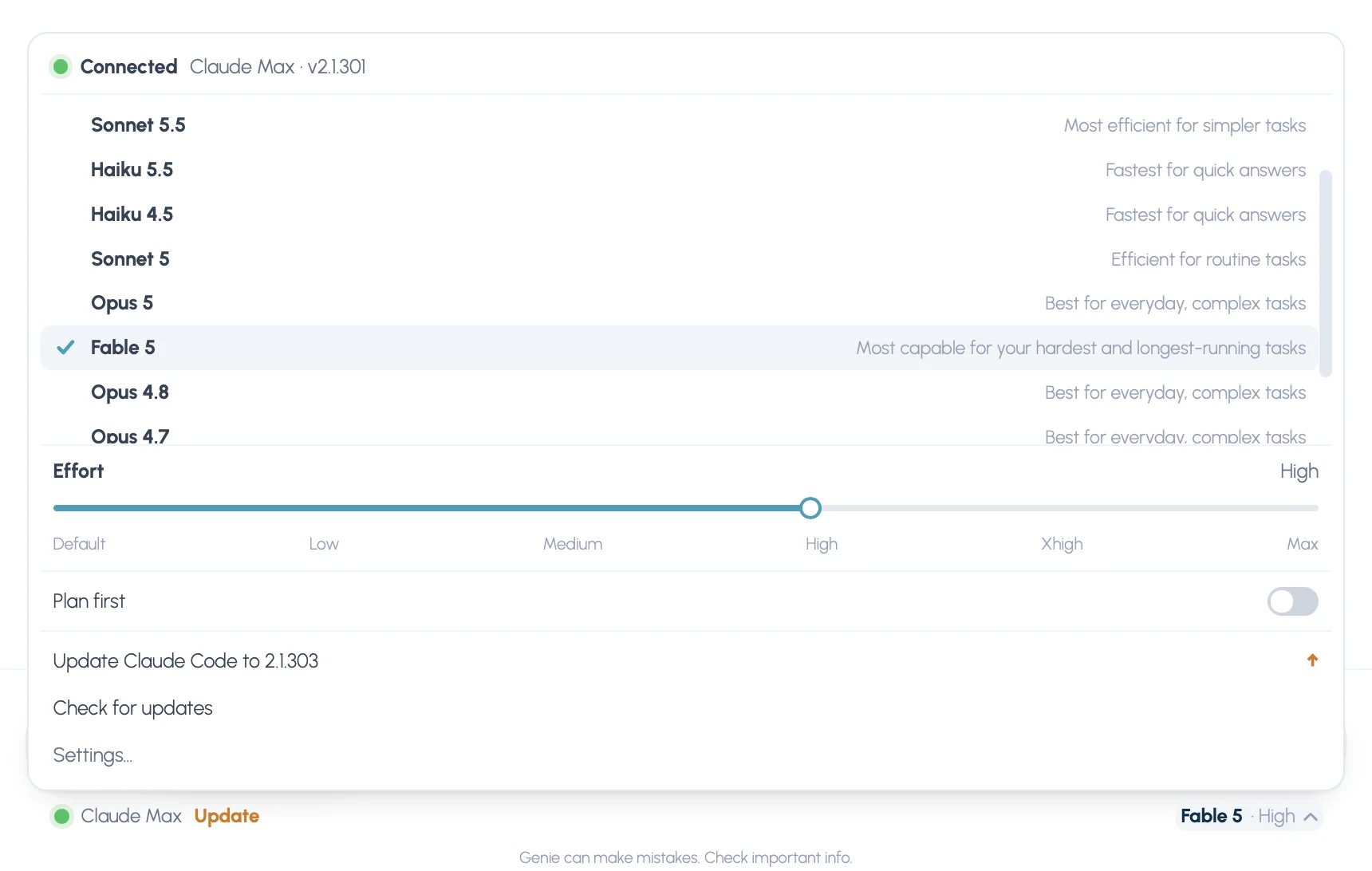
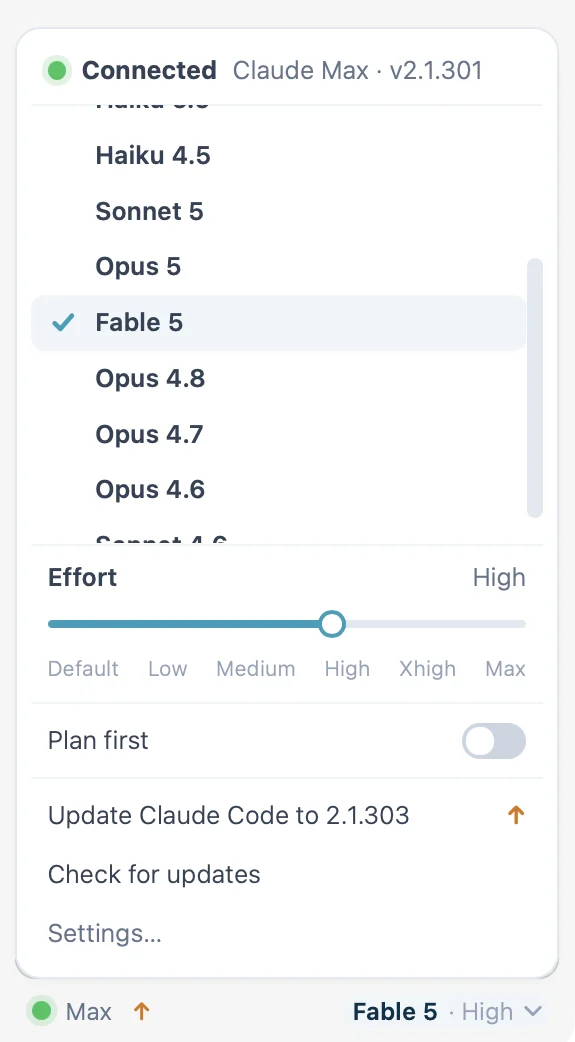
Click the button on the right to open the popover:
| In the popover | What it does |
|---|---|
| Connection line | Connected · Claude Max · v2.x.x: the state, your plan and the installed version. |
| Model list | Exactly the models your Claude Code or Codex advertises. Genie does not add to it. |
| Effort slider | Drag between the levels your program offers, for example Low, Medium, High and Max. |
| Plan first | Asks the program to propose steps before acting. |
| Check for updates and Update Claude Code | Always there. Check for updates reads the state again. When a newer version is published, the update line reads Update Claude Code to the new version. For Codex it reads Update Codex. |
| Settings… | Opens Settings > Models. Sign in again stays there, on the program’s card. |
The model and effort lists lock while a reply is running. Genie remembers your choices for each program and applies them to the next conversation. A choice that the program no longer offers is skipped.
In the docked panels the footer stays on one line, with the plan shortened (Max, Plus), and the popover opens from the same button.
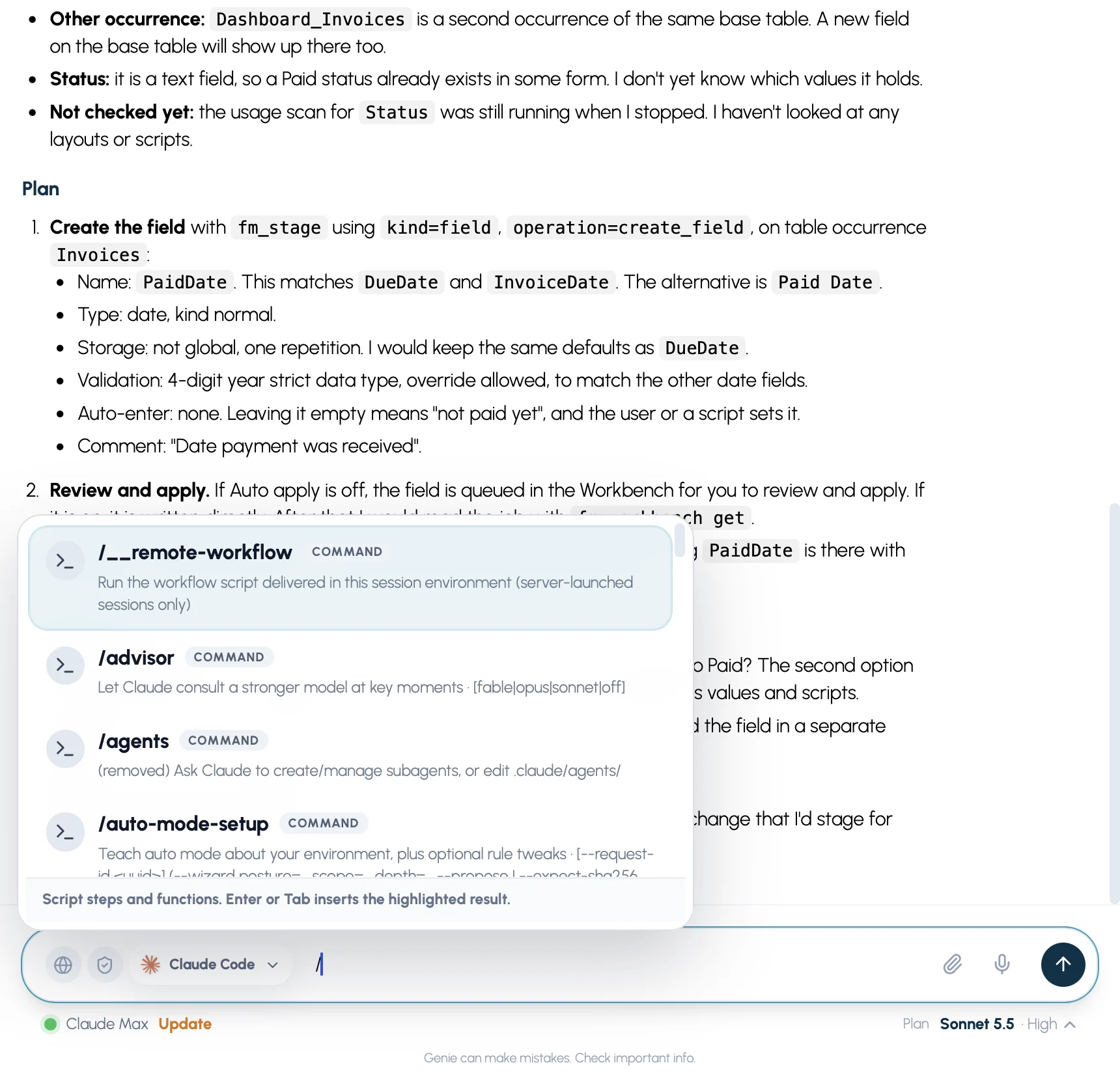
Type / at the start of the message to list the program’s own slash commands. Genie’s step list is replaced while Claude Code or Codex is chosen. Commands that need files or a shell have nothing to work with, because the program is locked down.
What it can and cannot do
Section titled “What it can and cannot do”It can read your file through Genie’s FileMaker tools: scripts, layouts, fields, relationships and read-only queries. It can explain, inspect and debug. That part is available on the Free plan.
It can propose changes, such as new or edited scripts, layouts, schema and data. Making them needs a paid Genie plan, as for any other source. Free and Paid.
What happens to a change depends on Auto apply. Claude Code and Codex follow the same rule as any other Local MCP client.
- Auto apply off (the default). A change they propose is queued, and the conversation shows a card with Apply, Review and Copy where they suit the change. Nothing changes in your file before you confirm.
- Apply asks for the usual confirmation, exactly as for a change from Genie’s own Agent. A data change shows the exact SQL and values first. If a card cannot be delivered, the change waits in Workbench.
- Review opens the proposed change for reading. Copy copies it so you can paste it yourself.
- Auto apply on. Their changes are written directly, with no card and no confirmation. Genie still runs its native checks and reads the result back from FileMaker. This includes script folders, renames and Klai HookSets where your FileMaker build allows them, and layouts where your build allows layout writes. Review, Auto apply and Undo.
- No second check on what you asked. Genie’s own Agent has an extra step with Auto apply on: it checks the change against your message before it writes. Claude Code and Codex do not have it, so Genie does not compare their change with what you asked. If you want to review every change they make, keep Auto apply off.
- Still in force: the paid plan, the file and Privacy checks, and Local MCP Privacy Mode. Running an existing script always asks you to confirm.
It cannot run commands, read or write files on your Mac, browse the web, or use your other plugins and tools. See Privacy and safety.
Engine replies stay with the conversation. When Genie reloads a conversation, for example when you switch files or tabs, they come back where they were.
Keep it up to date
Section titled “Keep it up to date”Claude Code and Codex change often. Genie lists the models your installed program advertises, so an old install shows an old model list.
- If a newer Claude Code is published, an Update link appears in the footer under the composer, and the card in Settings says Update available with both versions and a main button Update to the new version.
- The popover under the composer always has Check for updates and Update Claude Code (or Update Codex), shown as Update Claude Code to the new version when one is published. The ⋯ menu on the card in Settings has them too, signed in or out.
- Genie asks first. The confirmation shows the versions and the command, and nothing runs until you click Update. Return and Escape cancel.
- Updating uses the publisher’s own updater and checks the code signature again. Open conversations with that program restart, and you send your message again. The model and effort lists are read again from the new version.
- An update is refused while a reply is running.
- If an update changes nothing, Genie says Already up to date with the version.
- If Claude Code or Codex fails to start, Genie adds Updating Claude Code may fix this. to the message and shows an Update link in the footer.
Codex does not report whether a newer version exists, so Genie cannot flag it. Use Check for updates from time to time.
Plans and limits
Section titled “Plans and limits”Each request counts against your own plan’s usage limits at Anthropic or OpenAI, not against Genie. When you reach a limit, the program stops until it resets or you change plan. Limits, models and terms are the publishers’; Genie does not control them and they may change. Plan limits.
Your Genie plan is separate. Reading, inspecting, explaining and debugging stay Free. Creating or editing scripts, layouts, schema and data needs a paid Genie plan, with or without an API bill. Licensing and Activation.
Your Claude Code sessions in other apps are separate from the sessions Genie opens.
Privacy and safety
Section titled “Privacy and safety”- Locked down. Genie starts Claude Code and Codex with no shell, no file access and no web access, and without your other plugins, tools or settings. Their only way to FileMaker is Genie’s local tool server.
- You choose how changes are applied. With Auto apply off, each change appears as a card and nothing changes in your file until you confirm. With Auto apply on, Genie writes it for you, with its native checks and read-back, but does not re-check it against your request. See above.
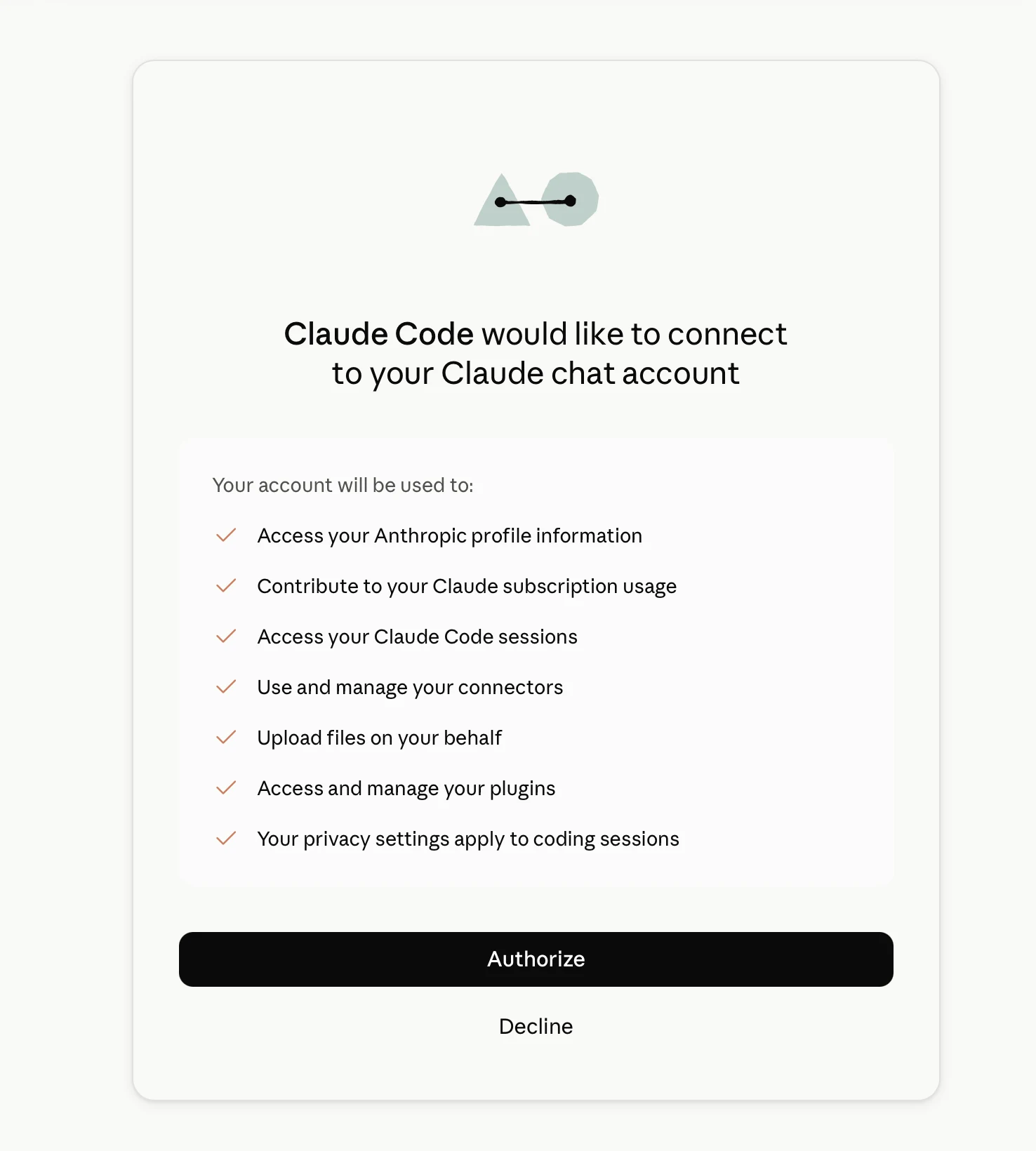
- Your sign-in stays with the publisher. You sign in in your browser, on the publisher’s own page, and Genie starts it without opening Terminal. Genie never sees your password and does not keep your sign-in. If the publisher’s page asks you to paste a code back (Claude Code does this when your browser cannot reach it directly), Genie passes that code straight to Claude Code and does not store it. It only learns whether you are signed in and which plan.
- Install and update are confirmed and checked. Genie installs or updates only after you confirm, with the publisher’s own installer or updater, and checks the Apple code signature of the result.
- The local connection stays on your Mac. It only listens on this Mac (127.0.0.1) and uses a private token. You can turn it off any time in Settings > Local MCP.
- Privacy Mode. When Local MCP Privacy Mode is on, Claude Code and Codex are turned off, with a message.
- Your requests go to the publisher. What you write, and what the program reads from your file to answer, is processed by Anthropic or OpenAI under your plan and their terms, like any request you make to those services. Turn on Privacy Mode for Local MCP when a file must not be shared: Claude Code and Codex are then off. Privacy Mode.
- Codex keeps some of its own habits. Genie locks down Codex’s tools, but Codex still applies your own global Codex instructions and writes its normal session history on your Mac.
Every screen, step by step
Section titled “Every screen, step by step”These are the windows and states you meet, in the order you meet them.
1. Settings > Models, “Your own agent”
Section titled “1. Settings > Models, “Your own agent””Open Settings from the Genie toolbar and choose Models. The page opens with Your own agent, headed “Recommended with a plan”. A short text explains that you can use your Claude or ChatGPT plan through Claude Code or Codex, that Genie installs them only after you confirm, and that you sign in in your browser. Below it, one card each for Claude Code and Codex shows the logo, the state, the main button and a ⋯ menu. Under a divider, Or use API keys leads to the usual provider settings.
2. A card that says Not installed
Section titled “2. A card that says Not installed”When the program is not on your Mac, the card says Not installed and its one button is Install. The ⋯ menu offers Check for updates, which looks again, for example after you installed the program yourself.

3. The install confirmation
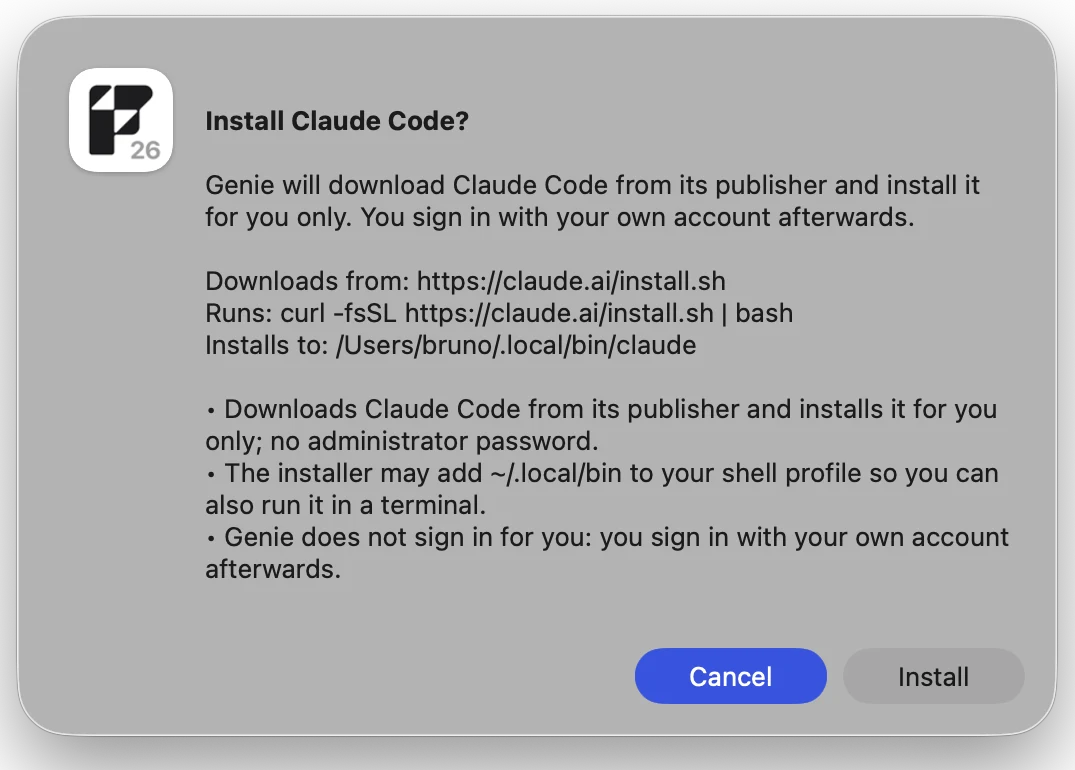
Section titled “3. The install confirmation”Clicking Install opens a confirmation, Install Claude Code? or Install Codex?. It says that Genie will download the program from its publisher and install it for you only, and that you sign in with your own account afterwards. It then lists Downloads from, Runs and Installs to (~/.local/bin), and a few notes, including that the publisher’s installer may add ~/.local/bin to your shell profile. Nothing is downloaded until you click Install. Cancel, Return and Escape all cancel.
4. Installing
Section titled “4. Installing”While the install runs, the card shows a moving dot and, in turn, Waiting for your confirmation…, Downloading from the publisher…, Installing… and Checking the installed program…. When it ends, the card shows a check mark and Installed for a few seconds, then its steady state. If the signature check fails, Genie does not use the program and says so.

5. A card that says Not connected
Section titled “5. A card that says Not connected”Once installed, a card that is not signed in says Not connected, with Connect as the main button. The ⋯ menu has Update Claude Code (or Update Codex) and Check for updates.

6. Waiting for your browser
Section titled “6. Waiting for your browser”Clicking Connect starts the publisher’s own sign-in. Your browser opens the publisher’s page, and no Terminal window opens. The card reads Starting sign-in…, then Waiting for you to finish signing in in your browser…, with Open the page again and Cancel. After you finish, it reads Finishing sign-in…. If you cancel, it says Sign-in cancelled. Genie only opens a sign-in page on the publisher’s own address.



7. Connected
Section titled “7. Connected”When the sign-in is complete, the card shows a check mark and Connected for a few seconds, then a green dot with Connected · Claude Max or Connected · ChatGPT Plus, and the installed version, for example v2.1.301. If the program is signed in with an API key instead of a plan, the card says API key. The main button disappears: nothing is needed. The ⋯ menu has Sign in again, Update, and Check for updates.

8. The “sign in again” warning
Section titled “8. The “sign in again” warning”Sign in again in the ⋯ menu opens a warning first. For Codex: Sign in to Codex again?, with “This signs you out of Codex, including the Codex app, until you finish signing in. If you cancel or close the browser, you stay signed out.” For Claude Code: “This replaces your current Claude Code sign-in once you finish in your browser.” Click Sign in again to continue. Cancel, Return and Escape change nothing. If you then cancel the sign-in, a Codex card says Sign-in cancelled. You are signed out of Codex until you sign in again.
9. Update available
Section titled “9. Update available”When a newer Claude Code is published, the card adds one sentence, Update available: 2.1.183 to 2.1.301. Your Claude Code is out of date, so its model list may be too. The main button becomes Update to 2.1.301, and the other buttons stay available. The footer under the composer shows an Update link too.

10. The update confirmation and its result
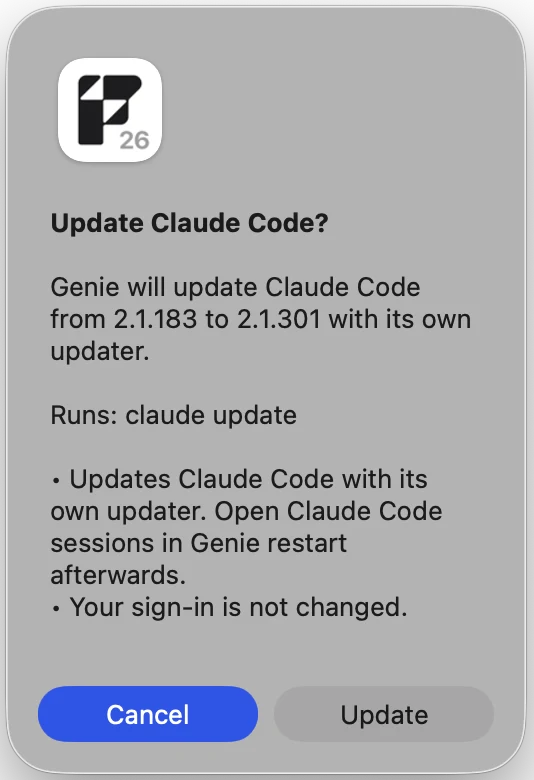
Section titled “10. The update confirmation and its result”Update to… on the card, Update Claude Code to… in the popover under the composer, or Update Claude Code in the ⋯ menu of the card, opens Update Claude Code?. It says that Genie will update the program from one version to another with its own updater, shows the command and a few notes, and asks you to click Update. Open conversations with that program restart. During the update the card reads Updating… and then Checking the update…. A check mark and Updated follow, with a note, Updated to 2.1.301. Open conversations with Claude Code restarted. If nothing changed, the note says Already up to date (v…) and there is no check mark.


11. Local connection is off, in Settings
Section titled “11. Local connection is off, in Settings”Claude Code and Codex reach FileMaker through Genie’s local connection, Local MCP. Where it is off, each card shows this sentence: “Claude Code and Codex use Genie’s local connection. It only listens on this Mac (127.0.0.1) and uses a private token.” A Turn on button is added, as the main button once the program itself is connected. Install, update and connect keep working meanwhile.
12. The Turn on confirmation
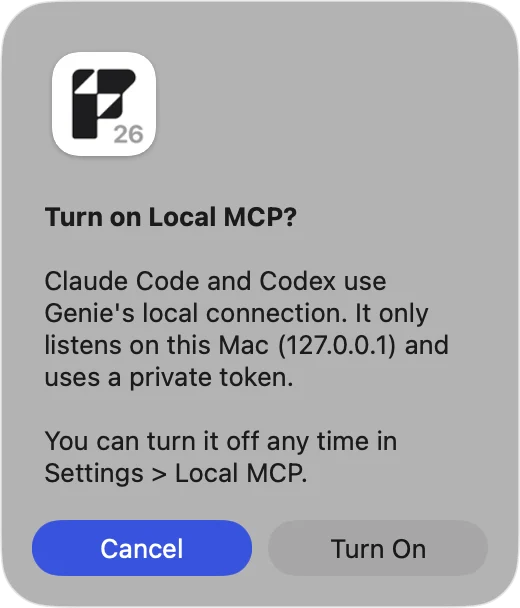
Section titled “12. The Turn on confirmation”Turn on asks Turn on Local MCP? first. It repeats that Claude Code and Codex use Genie’s local connection, that it only listens on this Mac (127.0.0.1) and uses a private token, and that you can turn it off any time in Settings > Local MCP. Click Turn On to confirm. Genie then does what Settings > Local MCP does, the card shows Turning on…, and the program’s session opens by itself. If Privacy Mode is on for Local MCP, Genie says so and changes nothing.
13. The model menu
Section titled “13. The model menu”In the composer, the model button opens a menu. At the top, the group Your own agent lists Claude Code and Codex, each with its logo. The current choice is marked. Below, Genie’s own models are grouped by provider as before. When an engine is chosen, the model button shows its name. If a row is greyed, hover it, or read the note at the top of the group, to see why.
14. The footer under the composer, main window
Section titled “14. The footer under the composer, main window”With an engine chosen, one quiet line sits under the composer. On the left is the status dot with your plan, for example Claude Max. On the right is one text button with the model and effort, for example Sonnet 5.5 · High, with a small Plan before it when Plan first is on. When something needs doing, the left side shows the state with one quiet link: Not installed and Install, Not connected and Connect, Local connection off and Turn on, or an Update link when Claude Code is out of date.


15. The popover, and the footer in a docked panel
Section titled “15. The popover, and the footer in a docked panel”Clicking the text button on the right opens the popover. It holds the connection line (Connected · Claude Max · v2.x.x), the model list your Claude Code or Codex advertises, an Effort slider you drag between the levels the program offers (for example Low, Medium, High, Max), a Plan first toggle, Check for updates or Update Claude Code to the new version, and Settings…. In the panel docked in Script Workspace and in the Genie tab in Layout mode, the footer is the same single line with the plan shortened (Max), and the popover opens from the same button.
16. A reply in progress
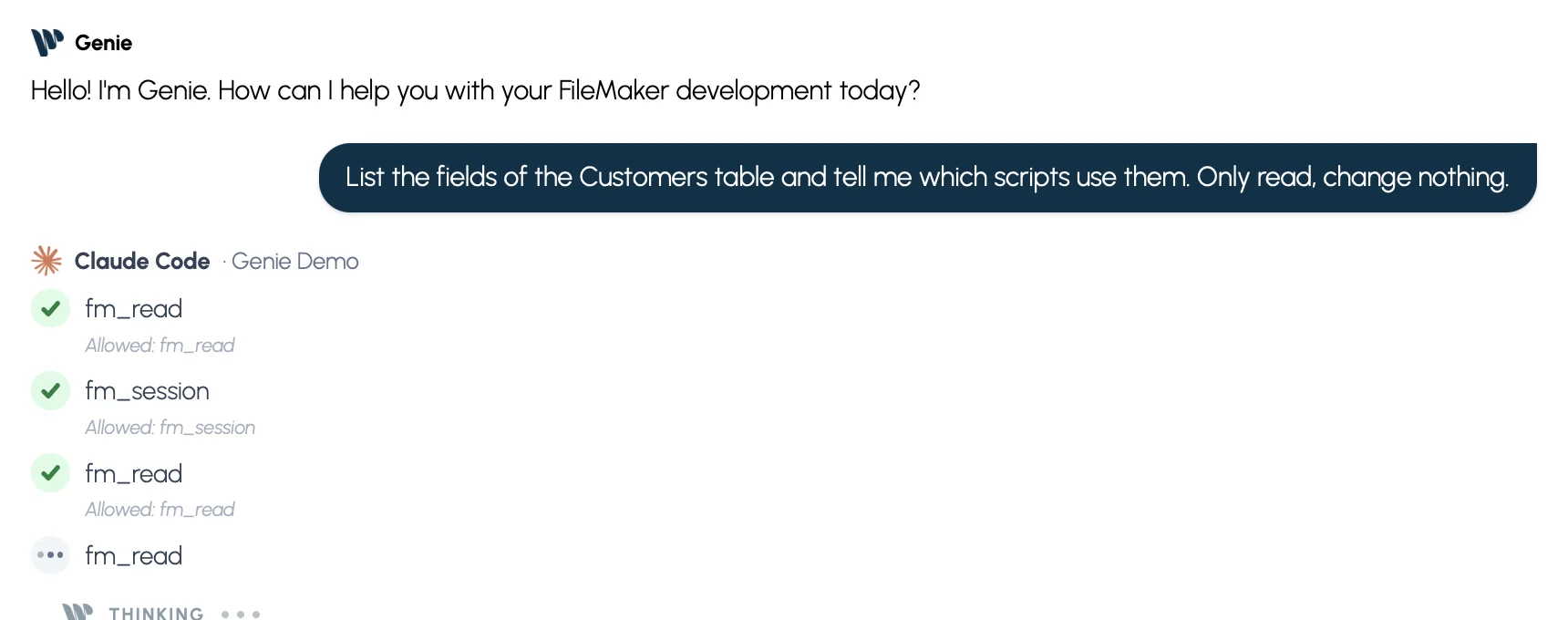
Section titled “16. A reply in progress”Your message appears as usual. The reply starts with the program’s logo, its name and the file name. While it works you see Genie’s loading indicator and Thinking (collapsed). Each Genie tool it uses becomes a step line: bouncing dots while it runs, a green check mark when it is done, a red × and Failed if it failed. Click a step to see what it sent and received. The written answer follows. Stop ends the reply, and the reply ends with Stopped.
17. Plan, thinking and slash commands
Section titled “17. Plan, thinking and slash commands”With Plan on, the program proposes steps first, shown as a Plan list in the reply. The reasoning text is under Thinking, collapsed. Typing / at the start of the message lists the program’s own slash commands, each with its description; the text you send is the command.
18. A permission line
Section titled “18. A permission line”If the program tries something Genie does not allow, such as another tool or a file, Genie refuses it and shows a small grey line, for example Blocked: …. It turns amber when a request was blocked. A line like Allowed: … appears for a permitted tool.
19. A card in the conversation, and what Apply does
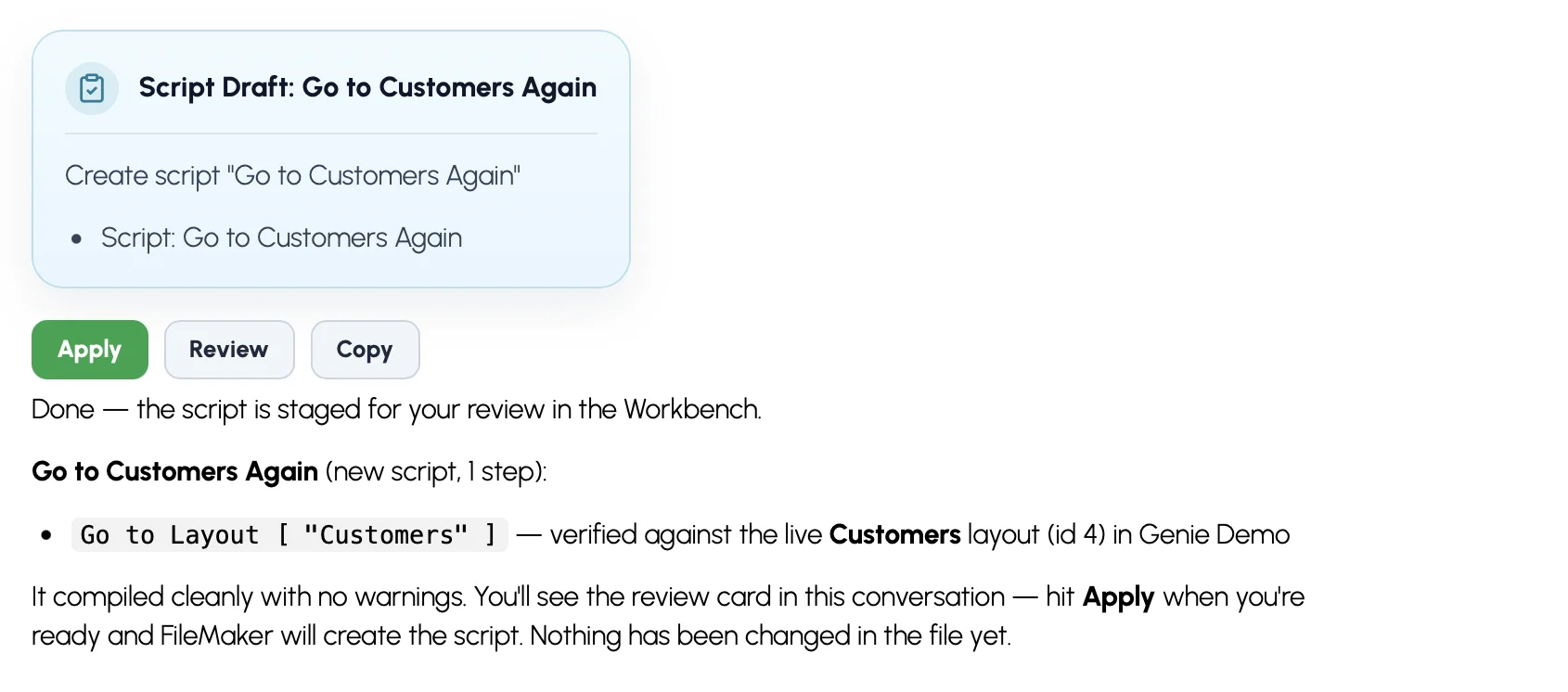
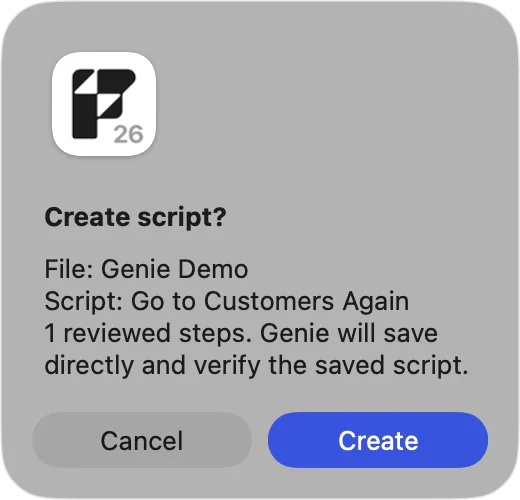
Section titled “19. A card in the conversation, and what Apply does”With Auto apply off, a change the program proposes appears in the reply as a card, titled with the change (or Change ready to review). With Auto apply on there is no card, because the change is written directly. It gives a headline and a short list, and offers Apply, Review and Copy where they suit the change. Apply opens the usual confirmation: a script is written in FileMaker after a confirmation dialog, and a data change shows the exact SQL and values first. Review opens the proposed change for reading. Copy copies it.
20. A layout card
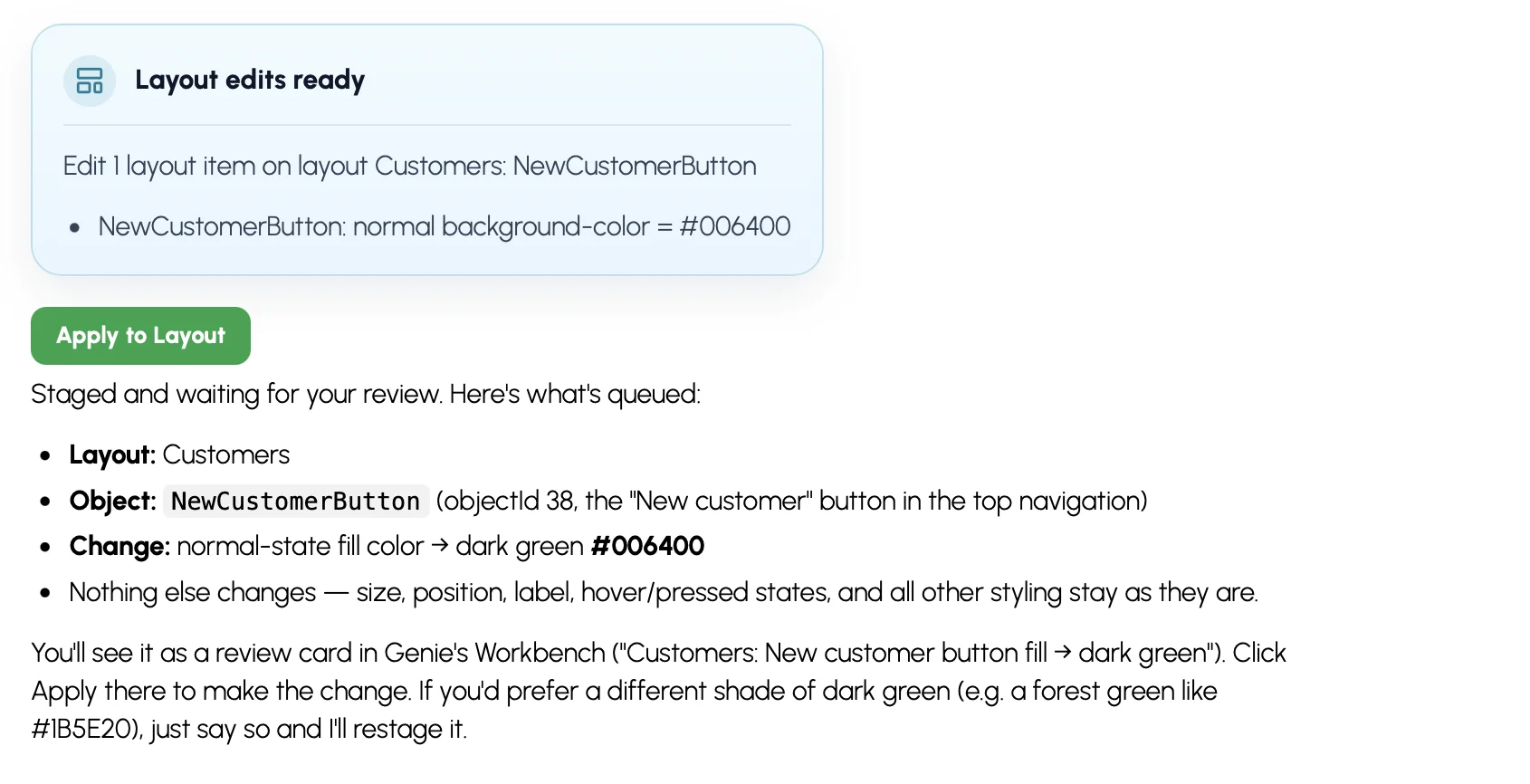
Section titled “20. A layout card”With Auto apply off, a layout change proposed by the program shows a card titled Layout edits ready, with a headline, one line per change and an Apply to Layout button. Clicking it asks for the usual confirmation before FileMaker is changed.
21. Workbench
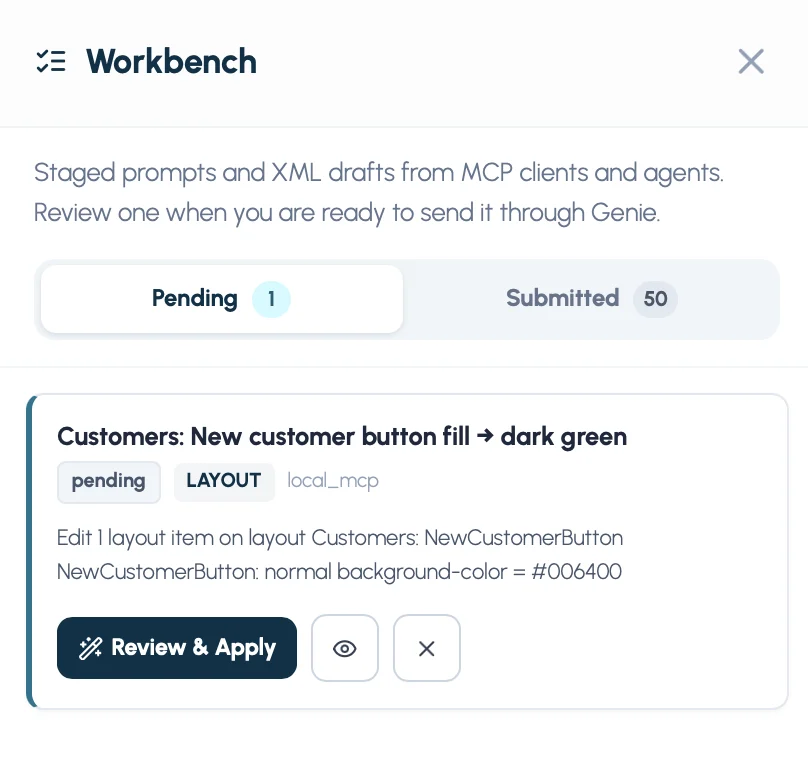
Section titled “21. Workbench”Workbench is the fallback when Auto apply is off. If a card cannot be delivered to the conversation, the change waits under Pending, where you can apply, review, copy or remove it.
22. The Script Workspace panel
Section titled “22. The Script Workspace panel”Script Workspace has the docked Genie panel on the right. With Claude Code or Codex chosen, the model button shows its name, the footer is under the composer, and replies and steps fit the narrow column. Ask about the open script or your selected lines, and the program pulls the text through Genie’s tools.
23. The Layout mode panel
Section titled “23. The Layout mode panel”In Layout mode, the Genie tab in the left panel works the same way. Ask about the layout or the objects you selected, and the program reads them through Genie’s tools.
24. When something is unavailable
Section titled “24. When something is unavailable”When the engine cannot be used, the footer or the model menu says why in plain words, for example Local MCP Privacy Mode is on, so Claude Code and Codex are off. Turn Privacy Mode off for Local MCP in Settings to use them. A failed reply ends with an error line in red. After an engine failure it adds Updating Claude Code may fix this. and shows an Update link in the footer. See Troubleshooting.
Troubleshooting
Section titled “Troubleshooting”| What you see | What it means and what to do |
|---|---|
| Local connection off (footer) or Local connection is off (Settings) | Click Turn on and confirm. Or turn on Local MCP in Settings > Local MCP. |
| The Claude Code and Codex rows are greyed out and the menu says Turn on Local MCP in Genie Settings to use Claude Code or Codex with FileMaker. | Local MCP is off. Turn it on in Settings > Local MCP, or use Turn on in the footer. |
| Genie’s FileMaker connection is not running yet. Check Local MCP in Settings, then try again. | Local MCP is on but not running. Click Turn on to start it again, or check Settings > Local MCP. |
| Genie’s FileMaker connection could not start. Check Settings > Local MCP. (or the status shown there) | The local connection could not start, for example because its port is busy. Check Settings > Local MCP. |
| Genie could not turn on Local MCP. | Try again from Settings > Local MCP. |
| Local MCP Privacy Mode is on, so Claude Code and Codex are off. Turn Privacy Mode off for Local MCP in Settings to use them. | Turn Privacy Mode off for Local MCP in Settings, or use Genie’s own Agent. |
| Local MCP access is unavailable, so Claude Code and Codex cannot reach FileMaker. | Local MCP is not available in this installation. Check Licensing and Activation and Local MCP Bridge. |
| Genie’s FileMaker connection is not running. Open a FileMaker file with Genie and try again. | Genie could not reach its tool server when the session opened. Open a file, check Local MCP, and send the message again. |
| Genie’s FileMaker connection did not accept this session. Try again. or did not answer correctly. Try again. | Send the message again. If it repeats, turn Local MCP off and on in Settings. |
| Open a FileMaker file first, then try again. | Genie needs an open FileMaker file to work on. |
| This engine is not installed yet. | Click Install on the card in Settings > Models. |
| Sign in to this engine first. or The agent is not signed in. | Click Connect. |
| Install cancelled. Nothing was installed. | You closed the confirmation. Click Install again when ready. |
| Genie could not download the installer. Check your internet connection. | Check your connection, proxy or firewall and try again. |
| The installed program is not correctly signed, so Genie will not use it. (or a similar message about the signature) | Genie refuses a program whose signature does not check out. Do not use it. Try the install again, or contact Support. |
| The installer did not finish successfully. or The installation took too long and was stopped. | Try again. If it repeats, send a Support Ticket. |
| Sign-in cancelled. | You cancelled or closed the browser page. Click Connect to start again. |
| Sign-in cancelled. You are signed out of Codex until you sign in again. | Codex removes the stored login when its sign-in starts. Click Connect to sign in again. |
| Sign-in took too long and was stopped. or Sign-in did not finish. Try again. | Click Connect and finish in the browser. If the page did not open, use Open the page again. |
| Sign-in is already in progress. | Another panel is signing in. Finish it, or click Cancel there. |
| Can’t confirm the connection | Genie found the program but could not confirm its sign-in. Click Connect, or Check for updates in the popover under the composer to read the state again. |
| The agent could not be started., The agent stopped before it was ready., The agent stopped unexpectedly. or The agent could not complete the request., followed by Updating Claude Code may fix this. | The program is probably out of date or broken. Click the Update link in the footer, then send the message again. |
| The engine is still working on the previous message. | Wait for the current reply, or click Stop. |
| Stop or wait for the current reply before updating. | Updates cannot run during a reply. |
| The engine was updated, so this conversation restarted. Send your message again. or Genie’s engine helper stopped. Send your message again. | The session was closed. Send the message again. |
| The updater could not be started. or The update did not finish. Try again. | Try again from the popover under the composer, or from the card in Settings > Models. If it repeats, contact Support. |
| The engine finished without a written answer. | The program ended without text, often after staging a change. Look for the review card, or ask again. |
| The model list is old or missing a model you expect. | The list is your installed program’s. Update it. |
| It proposes a change, but nothing changed in your file. | With Auto apply off that is expected: the change waits for you. Click Apply on the card (or apply it from Workbench if there is no card). With Auto apply on, a change is written directly and no card appears. Check the file and Submitted history, or turn Auto apply off to review changes first. |
| It changed my file and I did not click Apply. | Auto apply is on. Claude Code and Codex then write directly, with Genie’s native checks and read-back, and Genie does not compare the change with what you asked. Turn Auto apply off in Settings to review every change first. Review, Auto apply and Undo. |
| It cannot create or edit anything, but reads fine. | Creating and editing need a paid Genie plan. Licensing and Activation. |
| You hit a usage limit at Anthropic or OpenAI. | Wait for the limit to reset, change plan with the publisher, or switch to Genie’s own Agent with an API key. Plan limits. |
| There is no Your own agent section in Settings. | You are using Genie for Windows, or an older Genie. Check Requirements. |
Does it cost anything? There is no API bill, because the usage comes from your Claude or ChatGPT plan. That plan has its own cost and limits. You still need a paid Genie plan to create or edit things.
Do I need an API key? Not for Claude Code or Codex. Genie’s own Agent still uses your keys. AI providers.
Which plans work? A Claude plan (Pro, Max, Team or Enterprise) for Claude Code, and a ChatGPT plan with Codex access for Codex. Plans, limits and what they include are set by the publishers and may change.
Do I need Node, npm, Homebrew or Terminal? No. Genie uses the publisher’s own installer, with no administrator password, and starts the sign-in from the app.
Can it change my file without asking? Only if Auto apply is on. With Auto apply off (the default), every change appears as a card, nothing is written until you click Apply and confirm, and you can review or copy it instead. With Auto apply on, Claude Code and Codex write directly, with Genie’s native checks and read-back, but Genie does not re-check the change against what you asked. If you want to review every change, keep Auto apply off.
Can it see my other files, my Mac or the web? No. It has only Genie’s FileMaker tools.
Does Genie see my Claude or ChatGPT login? No. You sign in in your browser, with the publisher. Genie only learns whether you are signed in and which plan.
Why does Genie ask me to turn on Local MCP? Claude Code and Codex reach FileMaker through Genie’s local connection, which is Local MCP. It is off until you turn it on, only listens on your Mac, and you can turn it off in Settings > Local MCP.
Will it use my Claude Code sessions from other apps? No. Those are separate from the sessions Genie opens.
Can I use both? Yes. Switch in the model menu at any time, except while a reply is running.
Does it work on Windows? No. It is available in Genie for macOS 3.3 and later.
Is there any partnership with Anthropic or OpenAI? No. Genie uses the programs you install, under your own account and the publishers’ terms.
AI providers · Settings guide · Local MCP Bridge · Review, Auto apply and Undo.