

App connections
A connection lets the agent use an app you already work in, such as Asana, GitLab or Klai, from inside FileMaker. The agent can read the task, the issue or the page behind a change, next to the script or layout it is about, without you copying anything between apps.
Connections work with Genie Agent, Claude Code, Codex and Cursor, in the main window, the Script Workspace panel and the Layout panel. Connections work on every Genie plan, Free included. They are separate from Local MCP, which lets outside agents reach FileMaker.
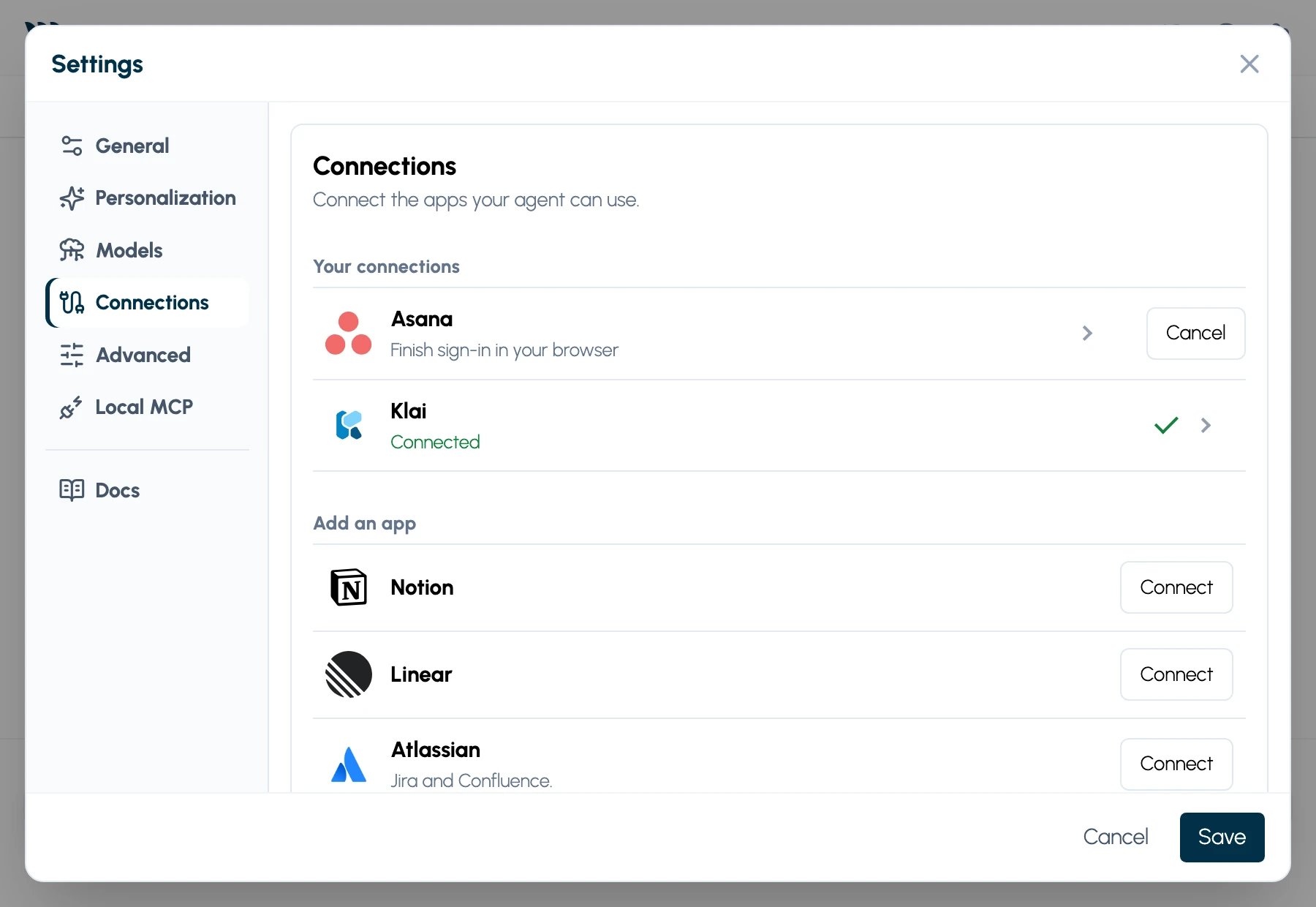
Connect an app
Section titled “Connect an app”- Open Settings → Connections.
- Under Add an app, click Connect next to the app.
- Finish the sign-in Genie asks for: your browser for most apps, an access token in Genie’s own secure window, or a pasted configuration.
- Wait for Connected. Genie checks that it can find the app’s tools before it says so.
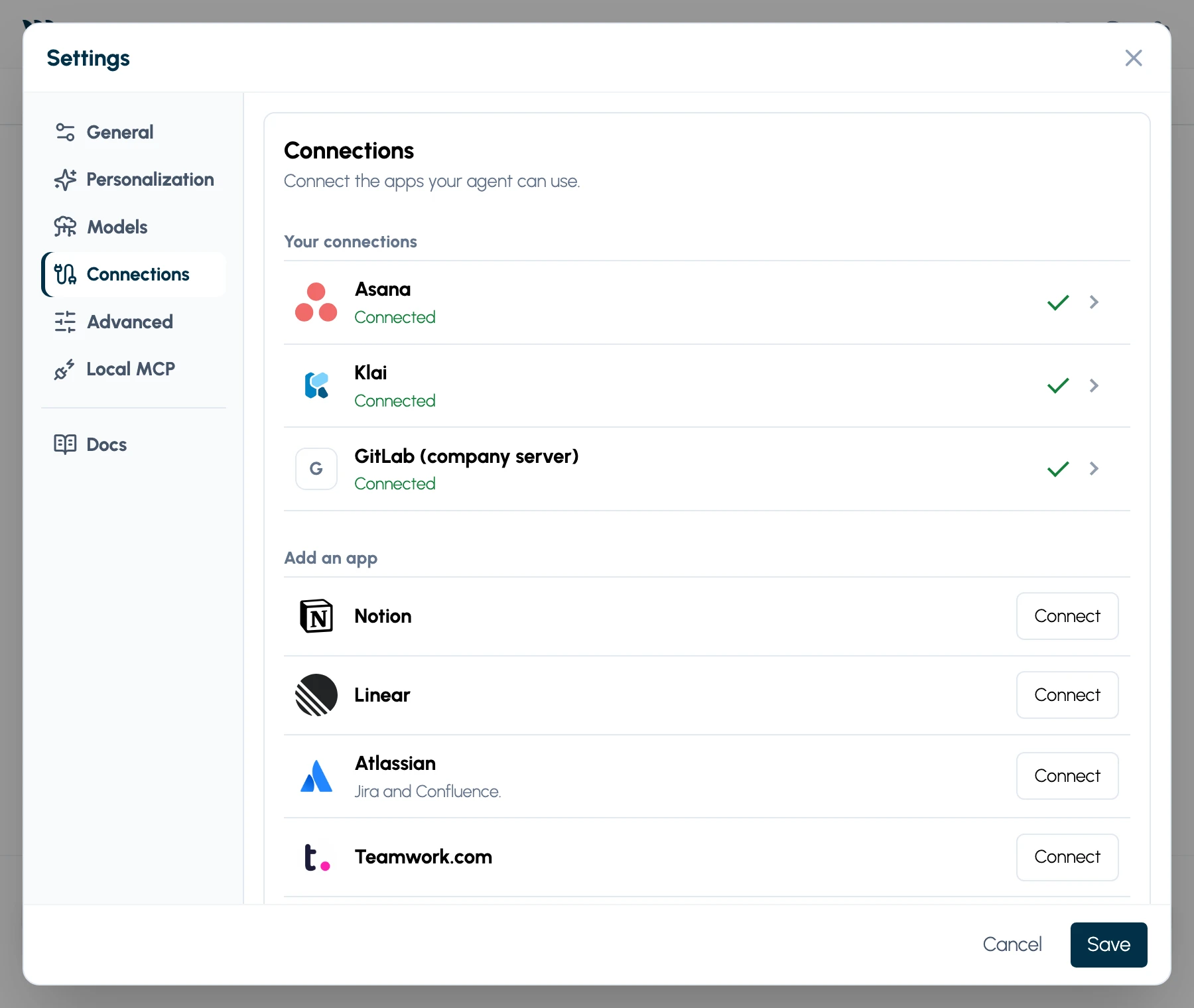
While you sign in, the app shows Finish sign-in in your browser with a Cancel button. Connections take effect immediately; you don’t need to click Save.
Choose which conversation may use it
Section titled “Choose which conversation may use it”Connecting an account doesn’t let any conversation use it. Under the message box, click the Connections button and tick the apps this conversation may use. The number on the button is how many are ticked.
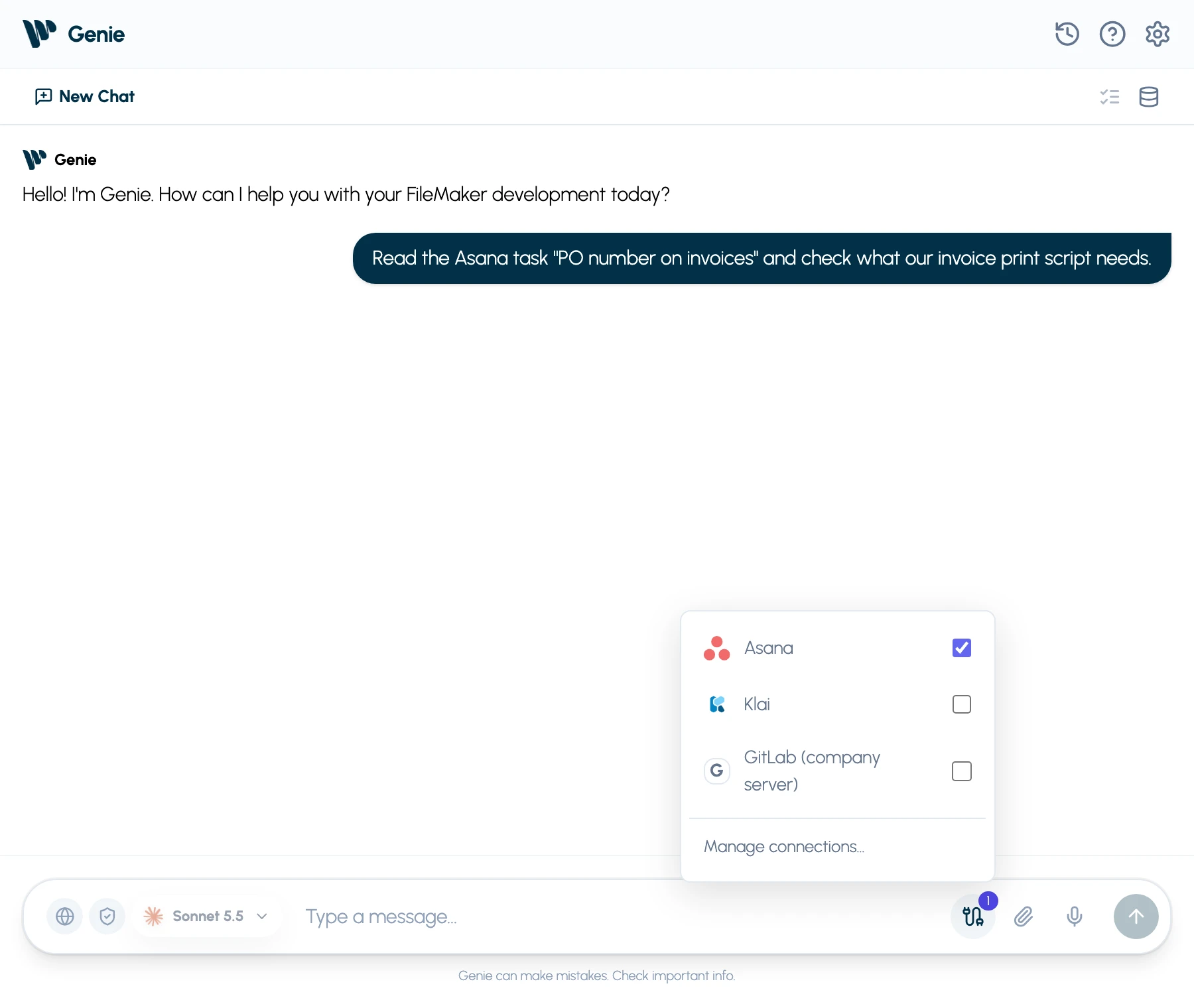
New conversations start with no apps ticked. Your choice follows the conversation between the main window, Script Workspace and the Layout panel, and when you switch assistants. Calculation conversations stay on the expression and have no app tools.
Claude Code, Codex and Cursor see each ticked app as its own set of tools, under the app’s name (for example asana), and pick the tool they need. If you tick or untick an app partway through a conversation, the assistant starts a fresh session with your next message.
Decide when Genie asks
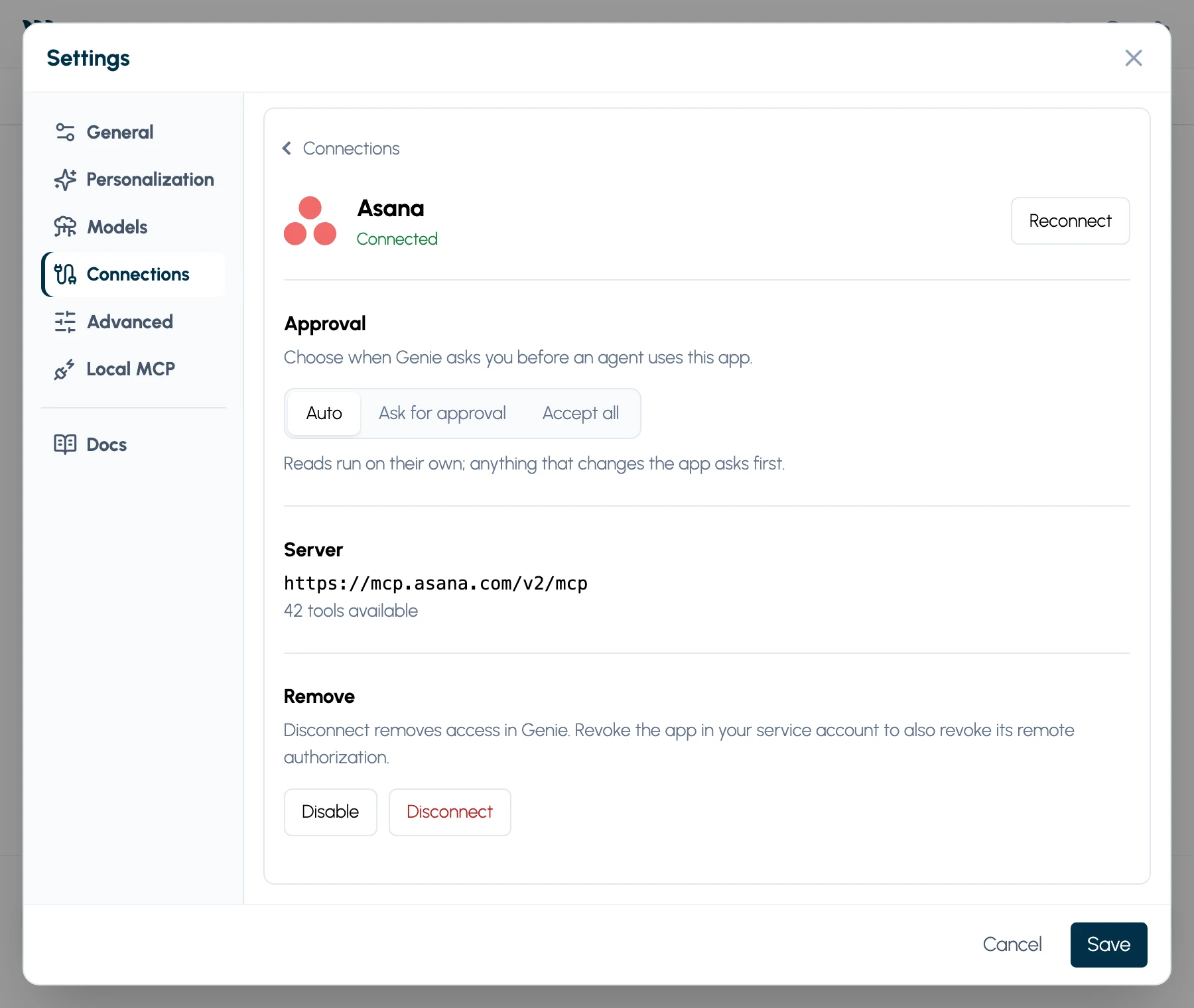
Section titled “Decide when Genie asks”Each connected app has its own Approval setting. Open Settings → Connections and click the app. You can let two apps run on their own and keep a third asking every time.
| Approval | What happens |
|---|---|
| Auto (default) | Tools the app marks as read-only run without asking, for example reading a task or an issue. Anything that creates, changes or deletes, and any tool the app doesn’t mark, asks first. Klai doesn’t mark its tools yet, so Genie treats Klai’s reads as read-only itself: guides, lists of apps, templates, records and versions, page and component reads, job status, diagnostics, and reading an environment or testing a server. |
| Ask for approval | Every call, reads included, asks first. |
| Accept all | Nothing asks. Genie confirms this choice first, because it can’t undo a change made in another app. |
When Genie asks, a card appears above the message box with the app, the tool and the exact arguments it will send. Choose Allow once or Deny. Change when Genie asks opens that app’s setting. A request left unanswered for ten minutes is denied.
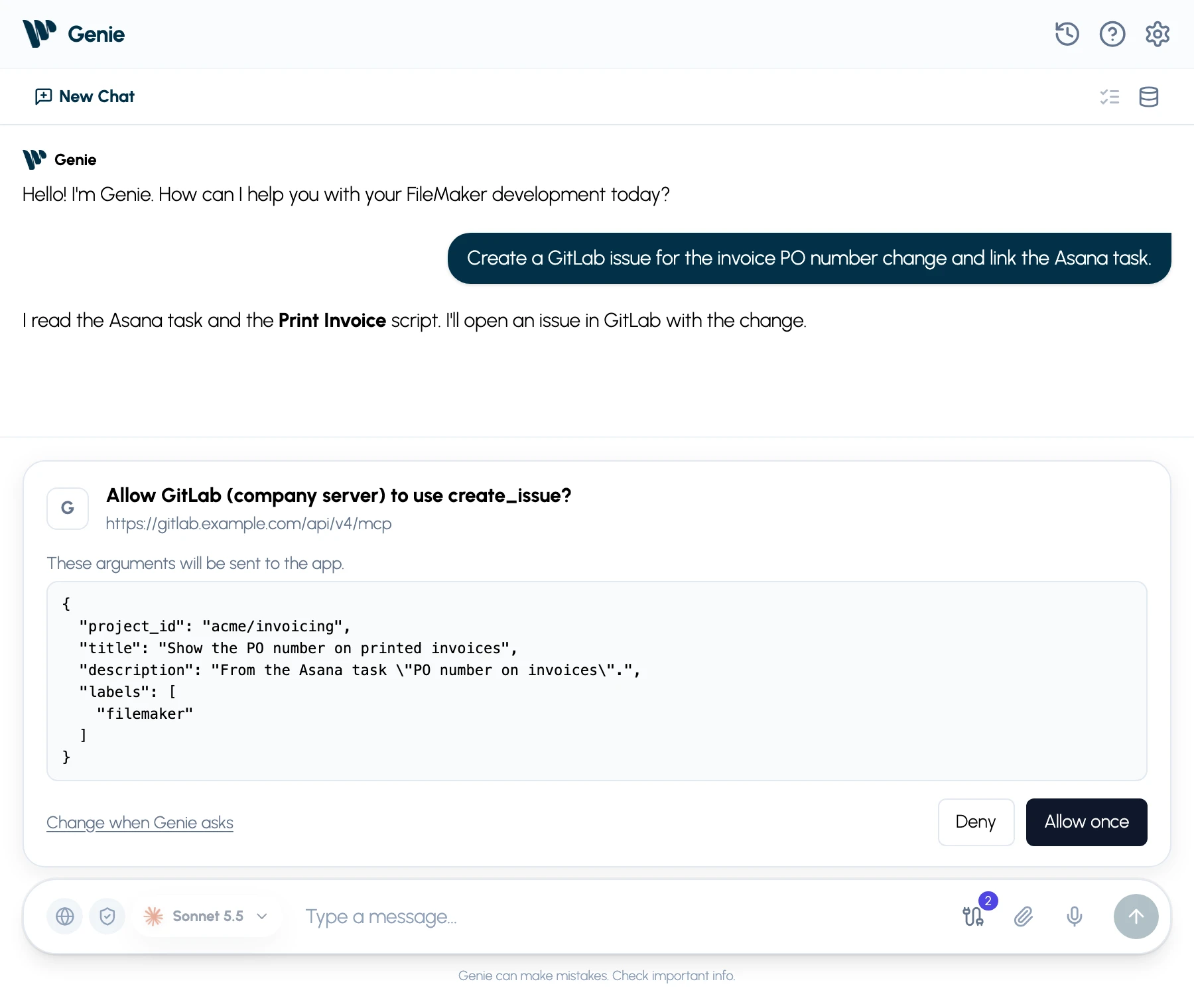
FileMaker’s Auto apply doesn’t change this. Auto apply decides how changes reach your FileMaker file; each app’s Approval setting decides how the agent works in that app. Arguments can send data to an app, even a read such as a search, so choose Ask for approval for an app where that matters. Each call still shows as a step in the conversation.
Available apps
Section titled “Available apps”| App | How you connect |
|---|---|
| Notion, Linear, Atlassian (Jira, Confluence), Teamwork.com, monday.com, ClickUp, Basecamp, GitLab.com | Browser sign-in through the app’s official MCP server |
| Asana | Browser sign-in through Genie’s registered Asana app |
| GitHub | Access token |
| Klai | Browser sign-in with your Klai Studio account |
| OttoFMS | Paste the Admin MCP configuration from OttoFMS (your FileMaker Server’s /otto/admin-mcp address and Admin API key) |
| Any other app with an MCP server | Its address, then browser sign-in, an access token or no sign-in |
What the agent can do in each app depends on the tools the app offers and the access your account has. Genie never gives it more than your account can do.
Atlassian lets organization admins choose which tools may connect. If Atlassian refuses the sign-in, ask your admin to allow Genie in Atlassian Administration. On GitLab.com, a group owner may need to allow MCP access.
Your own GitLab and other servers
Section titled “Your own GitLab and other servers”Click Custom MCP server…, give the connection a name and enter the server’s HTTPS address. For a GitLab server your company runs, the address ends in /api/v4/mcp.
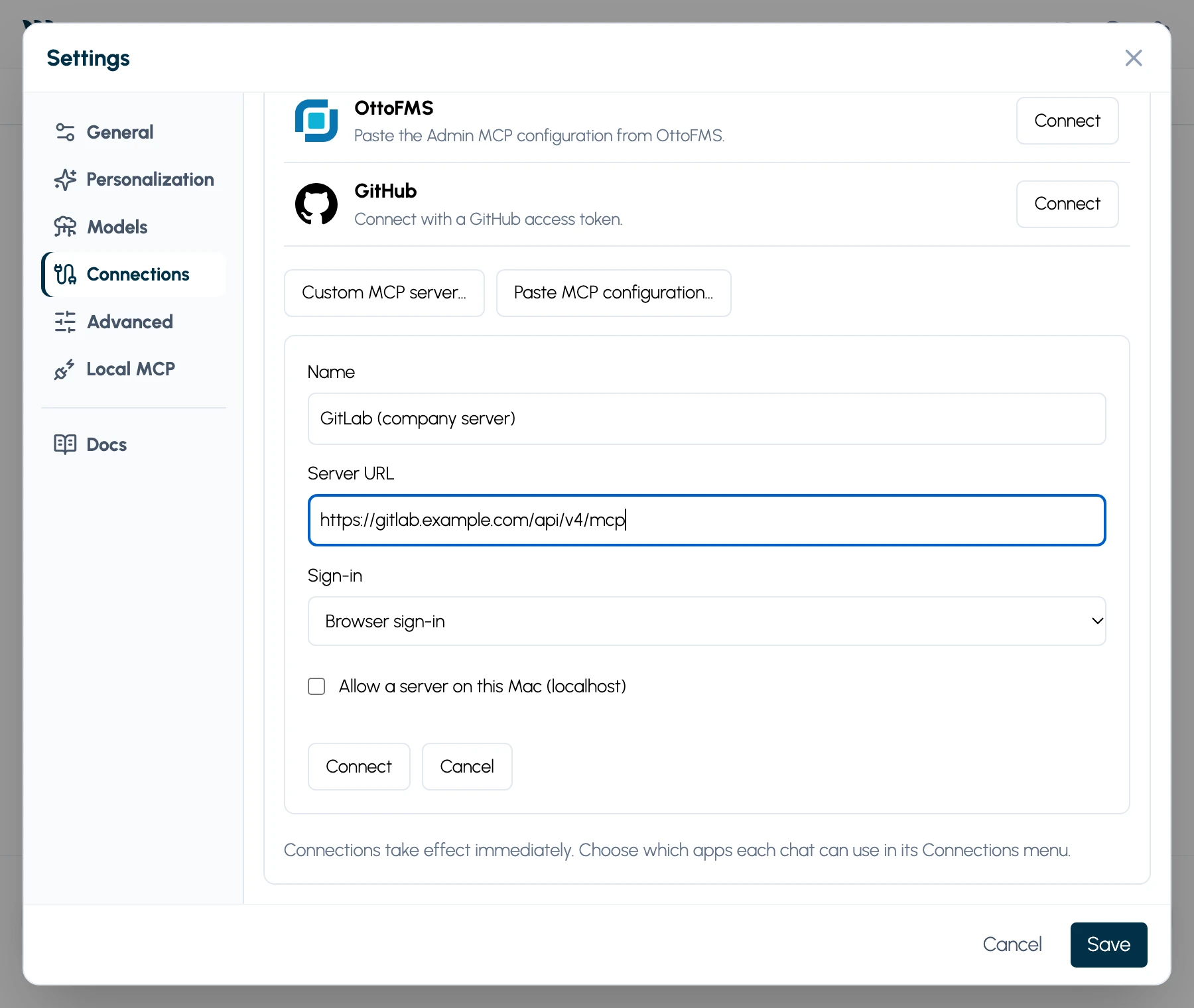
- Browser sign-in needs a server that lets apps register themselves (OAuth dynamic client registration).
- Access token: Genie asks for the token in its own secure window and keeps it in macOS Keychain.
- A server on this Mac: tick Allow a server on this Mac (localhost) to use an HTTP address on this computer.
Stdio commands and the older SSE transport aren’t supported.
Paste a configuration
Section titled “Paste a configuration”Click Paste MCP configuration… for an app that gives you a JSON configuration, such as OttoFMS. Genie accepts a single URL and headers, or the npx mcp-remote format, including ${NAME} placeholders defined in the same pasted env block. Genie shows where it will connect before you confirm, keeps the header values in Keychain and never runs a command from the configuration. Use Update configuration on the app to replace it. Paste the JSON from the service; Codex TOML files aren’t accepted. A configuration with a URL and no headers signs in in your browser.
Klai connects with Connect and your Klai Studio account; you no longer paste an API key. A Klai connection you set up earlier with a pasted API key keeps working. To switch it to sign-in, Disconnect it, then Connect Klai again. For another Klai Studio server, paste its configuration ({"mcpServers":{"klai-studio":{"url":"https://…klai.studio/mcp"}}}): it shows as Klai with its server’s name.
For a FileMaker Server on your own network, tick This server is on my local network when Genie asks you to confirm the server. Genie otherwise refuses private network addresses, and the choice applies to that server only. The server needs a valid HTTPS certificate.
Reconnect, disable or disconnect
Section titled “Reconnect, disable or disconnect”Click the app in Settings → Connections to see its status, server and number of tools.
- Reconnect signs in again.
- Disable turns the app off without removing it.
- Disconnect turns it off and removes its credentials from your Mac.
Reconnect, Disable and Disconnect untick the app in every conversation; tick it again where you need it. To revoke Genie completely, also remove it in the app’s own account settings. A call already sent to the app may still finish. If Genie reports an unknown outcome, check the app before trying again.
Privacy and credentials
Section titled “Privacy and credentials”- Sign-ins, tokens and pasted headers stay in your Mac’s Keychain. They never appear in the chat and are never given to the agent, including Claude Code, Codex and Cursor.
- Calls go straight from your Mac to the app.
- Privacy Mode blocks every app call.
- Genie can’t give the agent more access than your account has in the app, and each app’s own terms, policies and limits still apply.
Asana sign-in goes through a Geniewave-hosted service, because Asana requires a shared client secret. The service completes the sign-in and token refreshes and passes your tokens back to your Mac, where they’re stored in Keychain; they pass through it only briefly. Tool calls and the FileMaker data in them go straight from your Mac to Asana. Each Asana user authorizes their own account, and a connection never grants more than that user’s Asana permissions.