

Develop in Layout mode
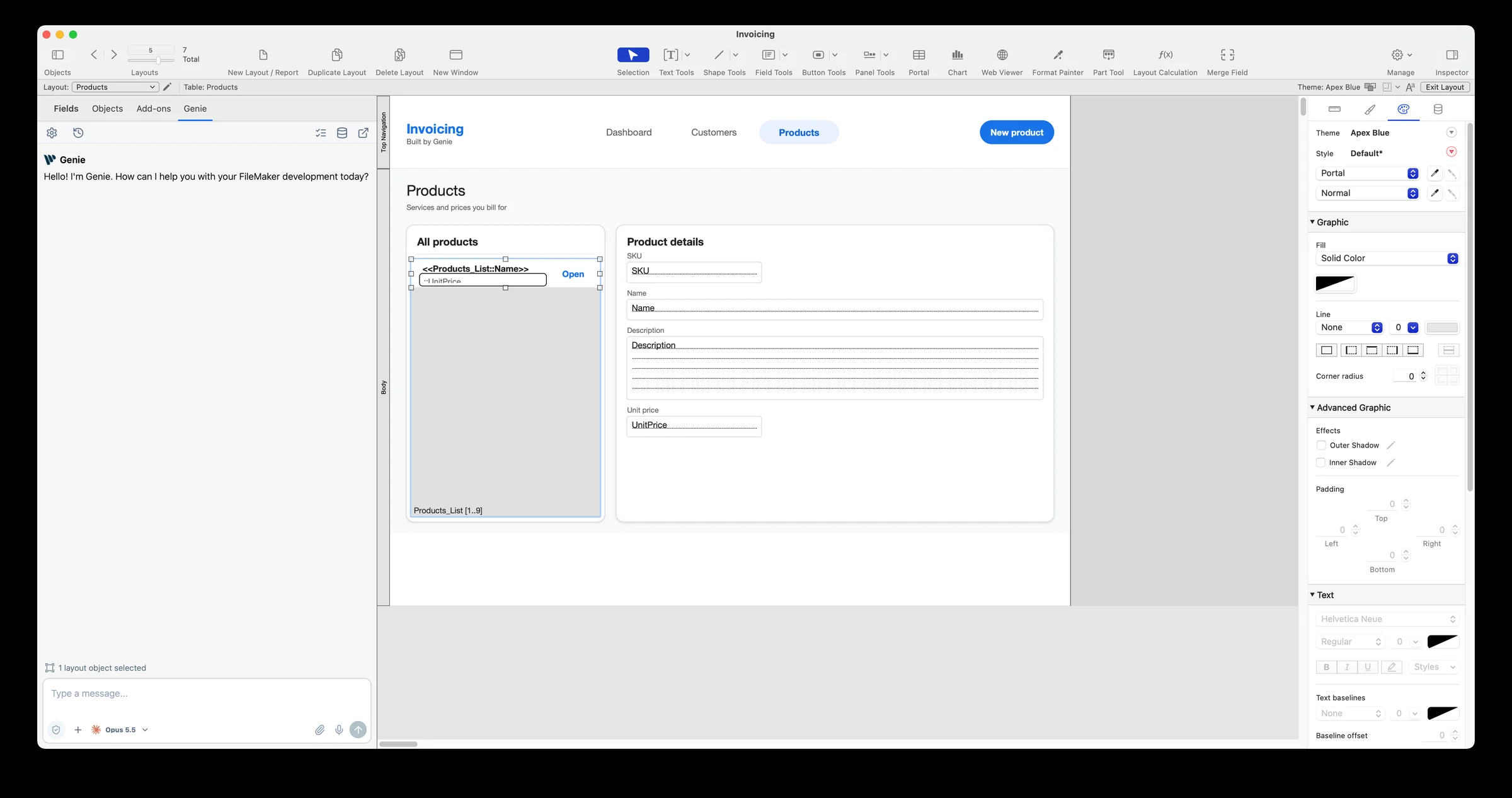
In Layout mode, Genie has its own tab in the left panel, beside Fields, Objects and Add-ons. The Inspector stays where it is and works as usual.
Open the Genie tab
Section titled “Open the Genie tab”- Open your file and switch to Layout mode.
- Click the Genie tab in the left panel.
- Select one or more objects on the layout. The tab shows how many objects are selected. Genie uses up to 100 of them as context.
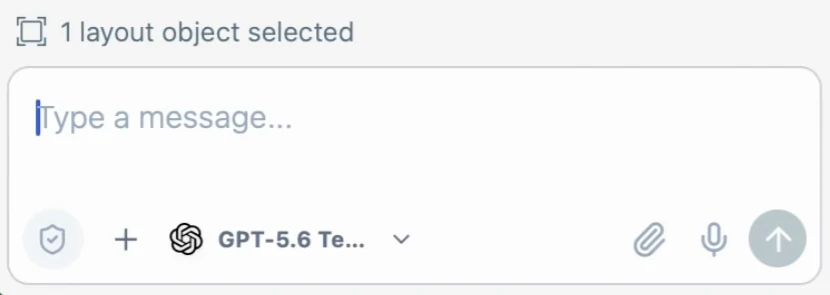
The tab has the same toolbar as the Script Workspace panel: Settings, History, Support, Workbench, Metadata Explorer and pop-out. Privacy Mode is the shield at the left of the composer. Pop-out opens the full Genie window with the same conversation and your unsent draft.
Ask about an object
Section titled “Ask about an object”Select an object and ask about it, for example: “What does this button do?” or “Which field is this, and what format does it use?”
Genie reads the selected objects when you ask. Selecting a portal does not select the objects inside it. Select those too if you want Genie to see them. Privacy Mode can limit what Genie reads.
Make a focused edit
Section titled “Make a focused edit”Select the object and ask for one change, for example: “Make this button 20 points wider and align it with the field above.”
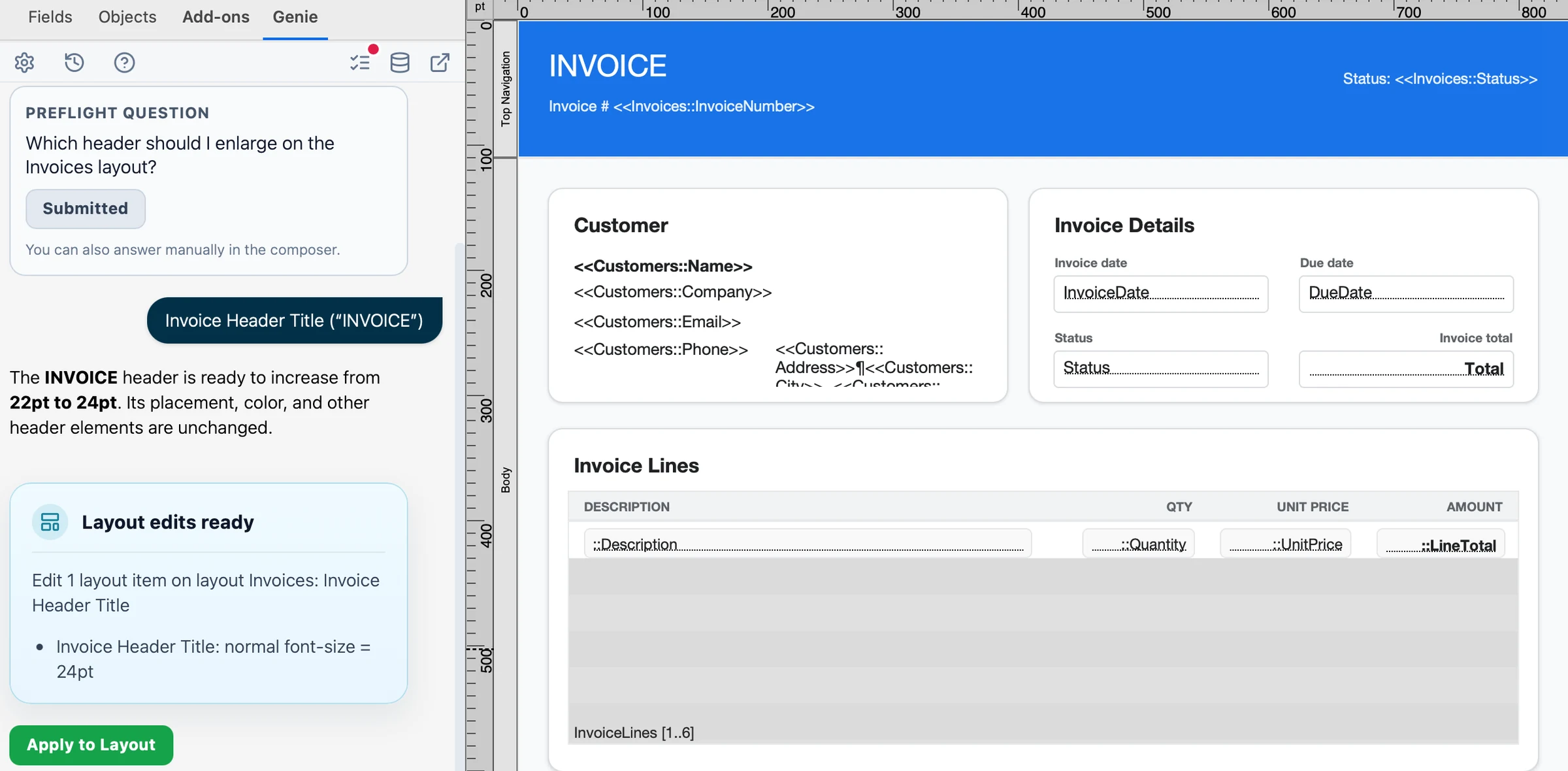
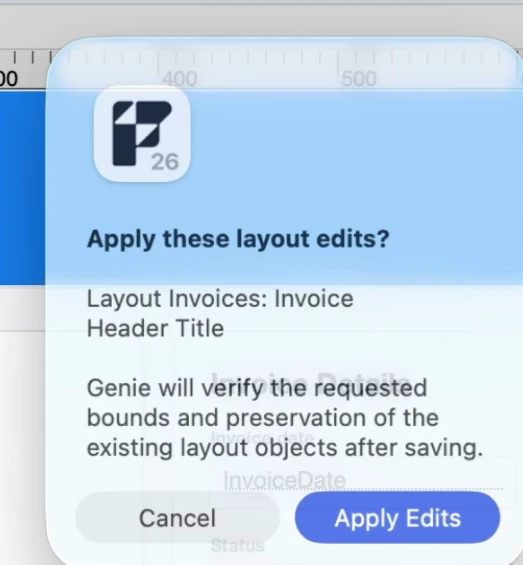
Genie shows the change and waits for your confirmation. After it applies, check the object in FileMaker: position, appearance, and anything you did not ask to change.
Genie changes the object itself, not a copy, and can also change formats, hide conditions, triggers, portal settings and more. See Change existing layout objects.
Create a layout or add a section
Section titled “Create a layout or add a section”- Say what the layout is for. Name the table, fields, scripts and value lists it should use.
- Ask for one section at a time, such as a header with a title and three buttons.
- Review what Genie proposes, then confirm.
- Check field bindings, button actions, object names and appearance in FileMaker.
- Ask for a refinement and check again.
This works in local and hosted files. Creating and editing layouts requires a paid plan. On the Free plan, Genie can still inspect and explain your layouts.
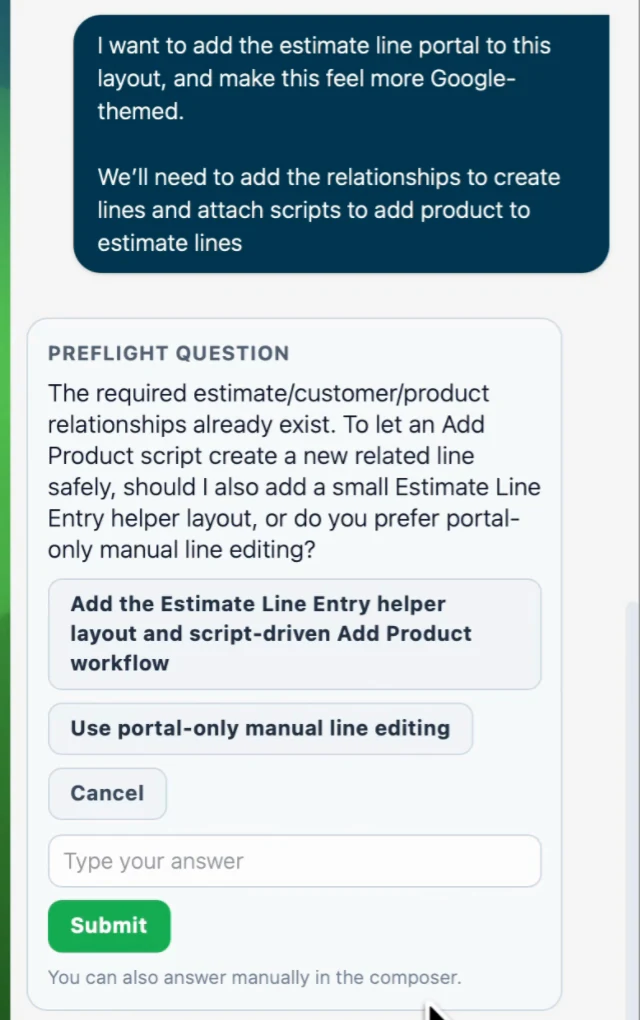
If a detail is missing, Genie asks before it builds. Pick an answer, type your own, or answer in the composer.
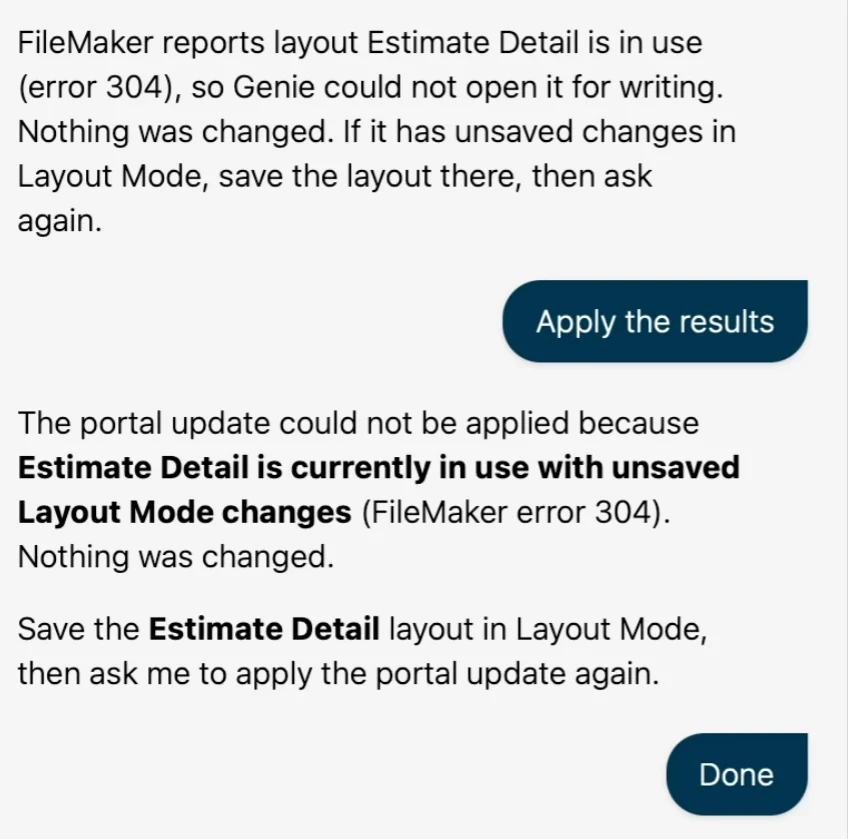
If the layout has unsaved changes in Layout mode, FileMaker reports it in use (error 304). Genie changes nothing. Save the layout, then ask again.
Watch a full build
Section titled “Watch a full build”Two new tables, their relationships, a layout and a script, in one conversation. Auto apply (labeled Pilot in this recording) was on, so Genie wrote each change directly.
Copy for manual paste
Section titled “Copy for manual paste”Copy is still available. Copy the layout objects Genie prepared, paste them in Layout mode in FileMaker, then check field bindings and button actions. Pasted objects do not create the fields, scripts or relationships they depend on.
Review or Auto apply
Section titled “Review or Auto apply”By default, Genie shows each layout change and waits for your confirmation. If you turn on Auto apply in Settings, Genie applies layout changes without asking each time. Auto apply is off by default. Each change is listed in Workbench › Submitted. See Review, Auto apply and Undo for what you can undo.