

Local MCP Bridge
Connect Codex, Cursor, Claude Desktop, or another local MCP client to FileMaker through Genie.
Reads are free. Staging, Workbench actions, and script execution require a paid plan.
For each tool, the resources and what can be staged, see MCP tool reference.
Watch it work
Section titled “Watch it work”Claude, connected through the Local MCP Bridge, finishes an estimates feature in an invoicing file. It reads the file, finds what is broken, then writes scripts, builds layouts and adds a relationship. Auto apply was on.
Connect your client
Section titled “Connect your client”- Open Settings > Local MCP in Genie and enable the bridge.
- Open Setup guide and choose your client: Codex (Streamable HTTP), Claude Desktop (stdio bridge), or Cursor / generic JSON.
- Copy the generated configuration to the client. Keep the bearer token private.
- Reconnect the client and ask it to inspect the current FileMaker file.
Use the configuration generated by your installed Genie version. The token and port must match Settings. After changing your plan, reconnect so the client refreshes its available tools.
Claude Code and Codex inside Genie
Section titled “Claude Code and Codex inside Genie”Genie 3.3 can run its Agent through your own Claude Code or Codex. They use this same local bridge, with the same nine tools, so you do not connect them like an external client. If Local MCP is off, Genie shows Local connection is off with a Turn on link in the footer under the composer (Local connection off) and a button in Settings > Models. Turn on asks Turn on Local MCP? first, then does what the switch in Settings > Local MCP does. The bridge only listens on this Mac (127.0.0.1) and uses a private token. Their changes follow the same Auto apply rules as any MCP client: you review each one unless Auto apply is on. Claude Code and Codex.
Local MCP Privacy Mode
Section titled “Local MCP Privacy Mode”Use Settings > Local MCP > Privacy mode when connected MCP clients should see only the parts of the file you choose.
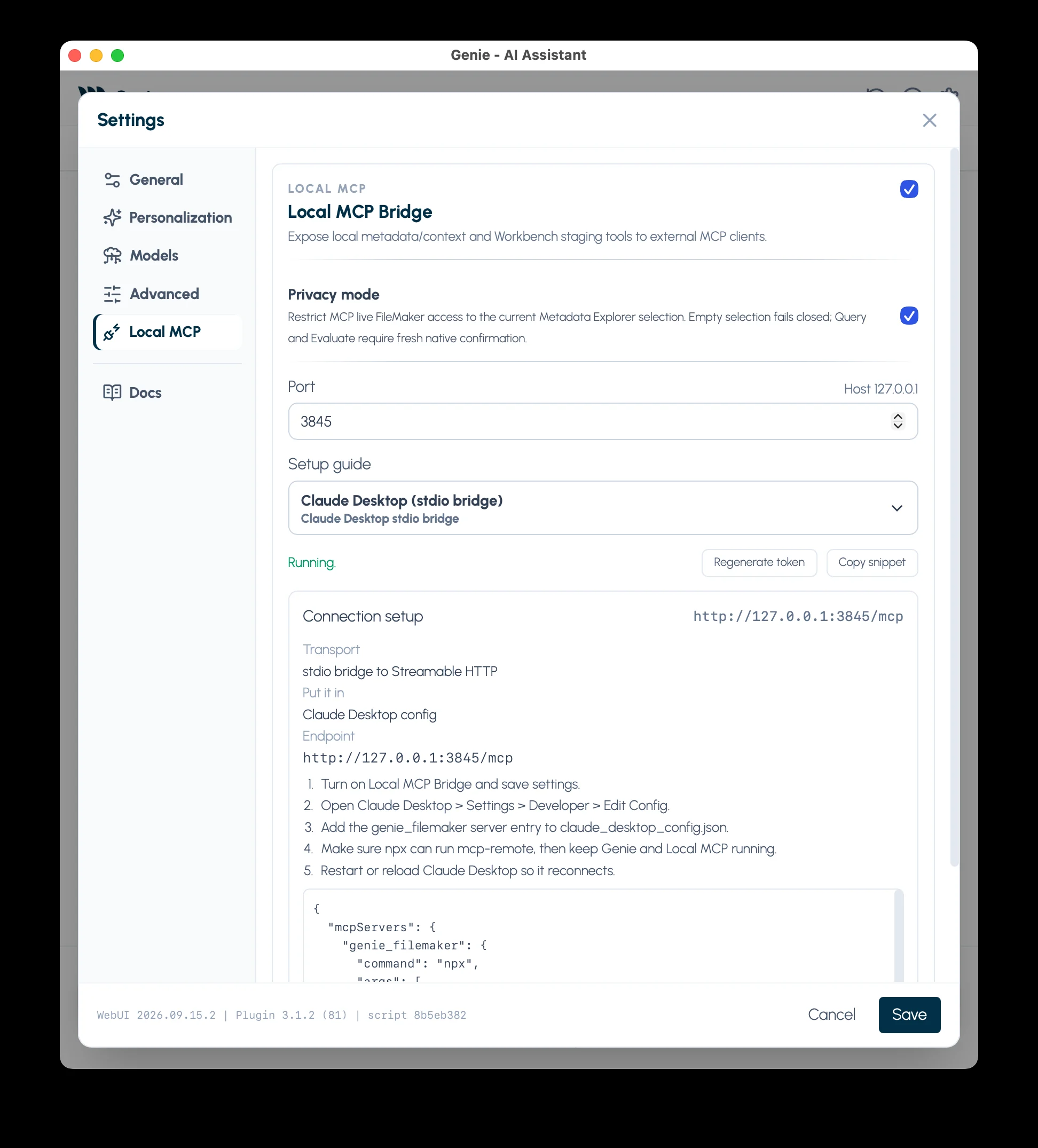
When enabled:
- only what you select in Metadata Explorer is shared
- if nothing is selected, no live FileMaker data is shared
- selecting a table does not automatically share all its fields
- every query and evaluation asks for your confirmation first
- broad live resources, Web access, and
report_issueare unavailable
Local MCP Privacy Mode is separate from chat Privacy. Each one controls its own channel.
Klai / BetterForms integration
Section titled “Klai / BetterForms integration”Turn on Settings > Advanced > Enable Klai Integration (paid) to give Genie and connected MCP clients the Klai / BetterForms guides and tools. See Klai and BetterForms.
Prepare a change
Section titled “Prepare a change”- Confirm the FileMaker file with
fm_session. - Find the relevant guides with
fm_search; read exact scripts and metadata withfm_read. - Use
fm_queryfor record data andfm_evaluatefor calculation checks when needed. - Prepare one item with
fm_stage.
Without Auto apply, staged items go to Genie’s Workbench, where you review them. With Auto apply on, an explicit execute request runs directly. A named script can be read without opening it in Script Workspace. fm_run can request one existing script run, and Genie asks you to confirm every run.
IDE configuration
Section titled “IDE configuration”Use the setup guide in Settings to copy the current snippet for your client. Current snippets name the server genie_filemaker.
For Codex, use Streamable HTTP in ~/.codex/config.toml:
[mcp_servers.genie_filemaker]enabled = trueurl = "http://127.0.0.1:3845/mcp"
[mcp_servers.genie_filemaker.http_headers]Authorization = "Bearer <generated-token>"
For Cursor or generic MCP JSON clients, use:
{ "mcpServers": { "genie_filemaker": { "url": "http://127.0.0.1:3845/mcp", "headers": { "Authorization": "Bearer <generated-token>" } } }}For Claude Desktop, use the Claude Desktop (stdio bridge) setup guide. Genie uses mcp-remote@latest as the local stdio bridge to the Streamable HTTP server:
{ "mcpServers": { "genie_filemaker": { "command": "npx", "args": [ "-y", "mcp-remote@latest", "http://127.0.0.1:3845/mcp", "--header", "Authorization:Bearer <generated-token>" ] } }}When a request fails
Section titled “When a request fails”When Genie cannot answer or stage a request, it usually returns an ok:false result with a reason instead of dropping the connection.
The fix is usually to:
- open or activate the correct FileMaker file
- refresh the Script Workspace selection
- inspect metadata with
fm_read - split bundled work into one item at a time
Good uses
Section titled “Good uses”- keeping an IDE-side agent aligned with FileMaker metadata
- reading script context without pasting large XML into chat
- checking FileMaker calculations before staging
- checking relationships and field lists before data or script work
- staging one script, data change, or layout item for review
Example
Section titled “Example”Enable Local MCP Bridge, connect the IDE, inspect metadata, and stage one script or data change for review in Workbench.
Connect your client as described above. Then:
- Ask the IDE agent to call
fm_session action:statuswhen it needs session identity. - For script work, have the agent discover Script Schema and targeted step/function records with
fm_search, then read the exact script withfm_read target:script(orgenie://context/scripts) before edits. - Have the agent inspect one exact metadata target with
fm_read. - If the prompt names several metadata objects for staging, call
fm_read target:selectionwith their exact identities. - Stage exactly one item with
fm_stage kind:script,kind:data, orkind:layout. - Open Workbench in Genie and run, copy, or remove the staged item.
With Auto apply on, an explicit execute request from the agent runs directly instead of waiting in Workbench.
Example staging request
Section titled “Example staging request”For one new script, submit a Script Schema document to fm_stage kind:script. The steps array should use step ids/names and argument shapes discovered with targeted fm_search queries.
{ "kind": "script", "title": "Export Customers JSON", "source": "Codex", "script": { "result_type": "new_script", "script": { "name": "Export Customers JSON", "steps": [ { "name": "Set Variable", "args": { "name": "$json", "value": "\"[]\"" } } ] } }, "metadata_selection": { "tables": [], "fields": [], "layouts": [], "scripts": [], "customFunctions": [] }}For an edit, read genie://context/scripts or fm_read target:script first and submit fm_stage kind:script with result_type: "delta_edit". For one SQL data or schema request, use fm_stage kind:data.
If the agent receives ok: false, it should follow the returned guidance. For example, a bundled two-script request should be split into two fm_stage kind:script calls, one per script.