

Modals and Alerts
Genie uses confirmation dialogs, settings panels, and toast alerts for confirmations, previews, support, and recovery.
Confirmation dialogs
Section titled “Confirmation dialogs”Genie asks for confirmation before destructive or high-impact actions:
- clearing conversation history or deleting a conversation
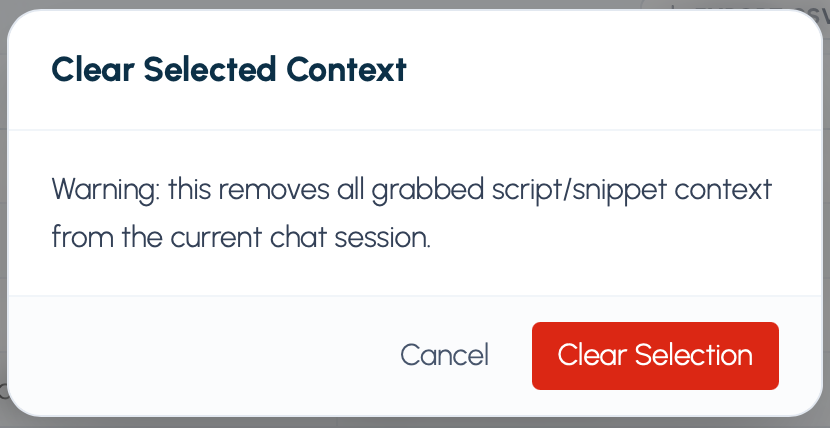
- removing attached context
- creating or applying a script in FileMaker
- running an existing script
- running a data change, with the exact SQL and values shown in a FileMaker dialog
With Auto apply on, supported changes run without a confirmation for each one. Running an existing script always asks.
Activation panel
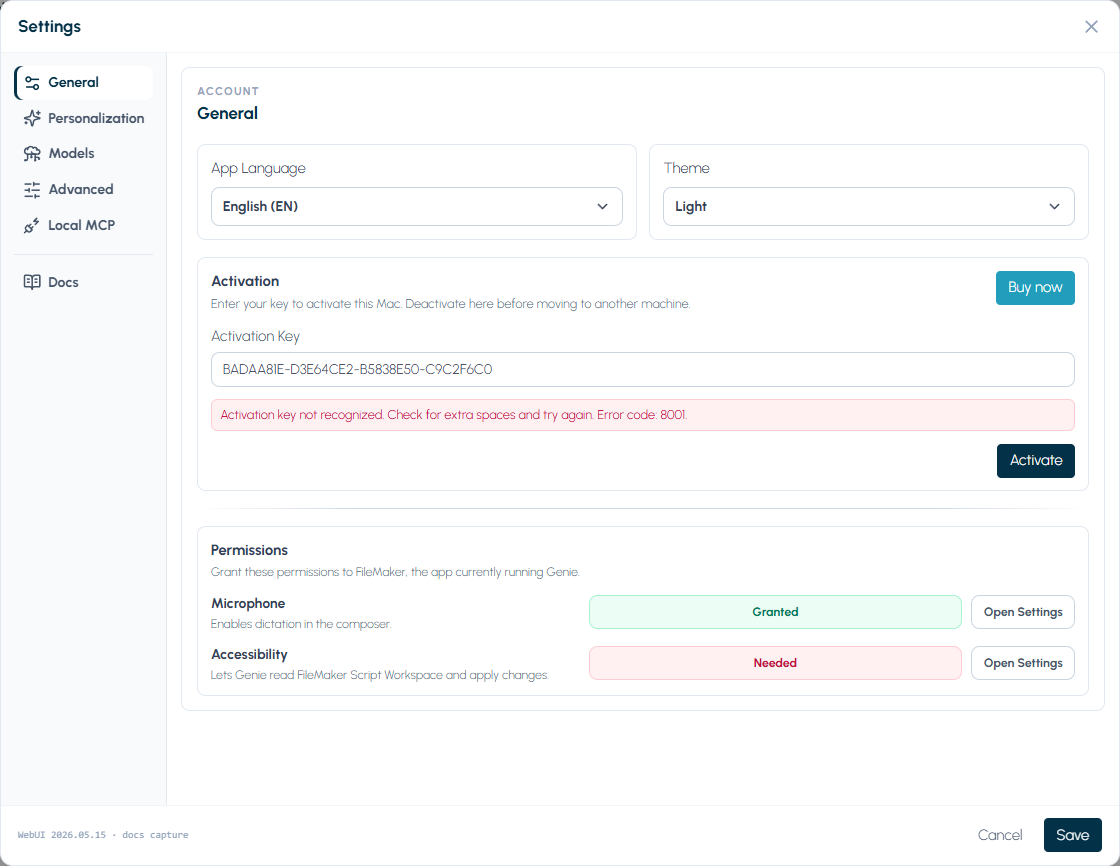
Section titled “Activation panel”Use Settings > General to activate or deactivate a paid plan on this computer. Genie stays usable on the Free plan without a key.
| Control | Function |
|---|---|
| Activation Key | Paste the Genie activation key for this computer. |
| Activate | Activates this computer for the pasted key. |
| Deactivate Device | Releases this computer from the current activation. |
| Buy now | Opens the Genie purchase page in the browser. |
| Status text | Shows your plan status and any activation error. |
Support form
Section titled “Support form”Use Support in the panel toolbar, next to History, or in the full Genie window to open the built-in support ticket form.
| Control | Function |
|---|---|
| Category | Classifies the request as an issue, activation problem, feature request, improvement, suggestion, or other request. |
| Title | Short summary of the problem or request. |
| Description | What happened, what you expected, and how to reproduce it. |
| Contact (optional) | Your preferred contact method. |
| Attach diagnostics | Adds technical diagnostics only; prompts, scripts, and metadata content are excluded. |
| Submit Ticket | Sends the request to Genie support. |
| Status message | Shows validation, progress, and error feedback inline. |
After a successful submission, Genie shows a confirmation and may display a ticket reference.
Viewer
Section titled “Viewer”Used to read scripts, results, and metadata.
- Readable preview tabs that fit the content.
- Search with next/previous navigation.
- Wrap and copy controls.
Viewer shortcuts
Section titled “Viewer shortcuts”Cmd/Ctrl + F: focus the find field.Enter: next match.Shift + Enter: previous match.
Project guidance in Settings
Section titled “Project guidance in Settings”Project guidance lives in Settings > Personalization > Project, where you can:
- review the file and project status
- save a display name
- edit the project description
- add, toggle, or remove project rules
- override the Generic naming conventions, reusable patterns, or script template when this file needs different guidance
See Project Guidance.
Toast alerts
Section titled “Toast alerts”Toasts appear for success, warning, and error outcomes.

Blocking errors and warnings worth reporting also stay visible in the chat or in the related panel. If a message includes a numeric code, use Error Codes and Recovery.