

Genie product tour
On macOS, Genie sits next to your work in two docked panels: one in Script Workspace and one in Layout mode. Windows has its own interface; see requirements.
Script Workspace panel
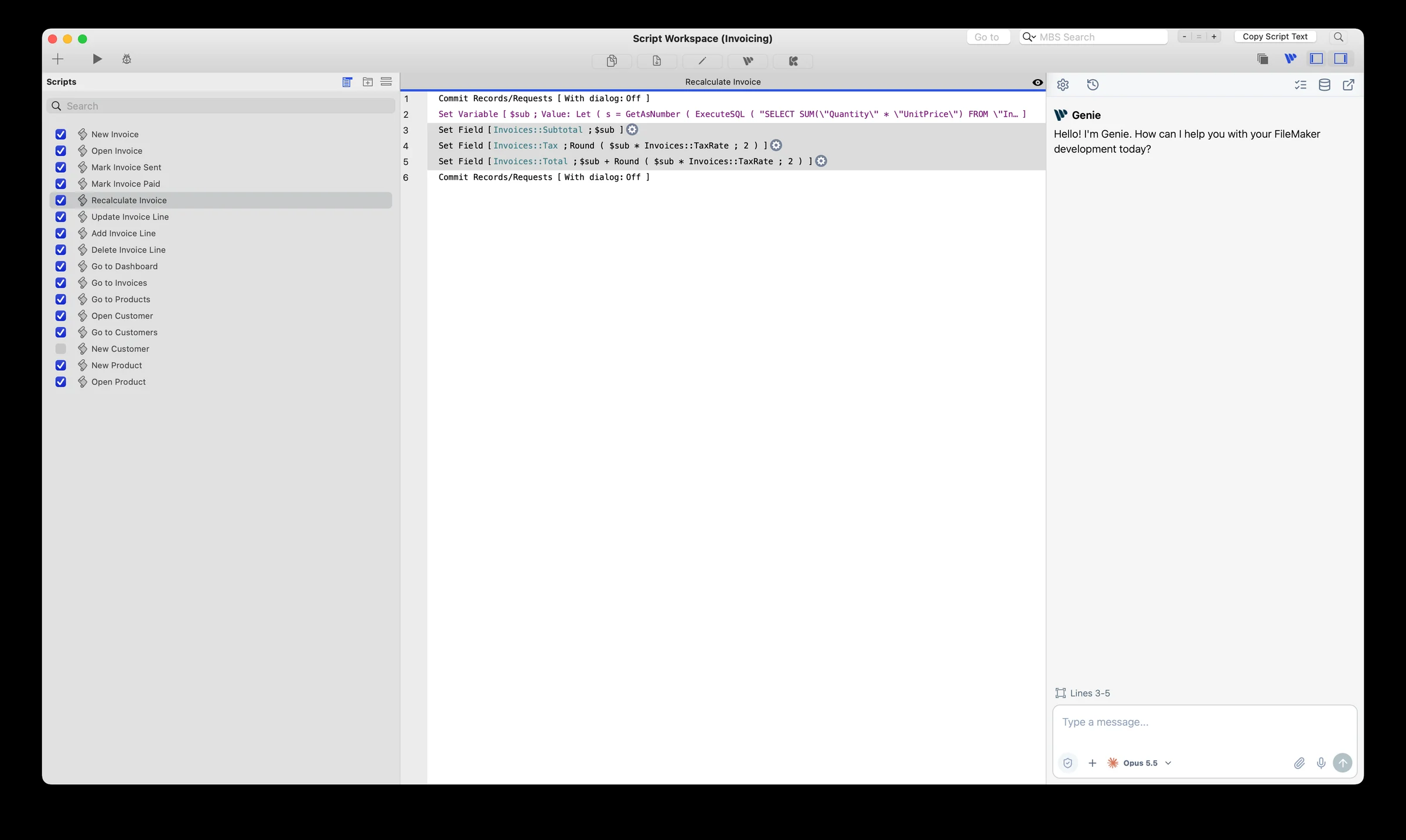
Section titled “Script Workspace panel”Genie docks on the right side of Script Workspace. The Genie button in the Script Workspace toolbar, next to FileMaker’s own pane controls, shows or hides it. Drag its left edge to resize it.
The panel shows which script lines are selected. Click Refresh Selection after you change the selection. Ask about those lines, create or edit scripts, or have Genie create folders and move scripts into them. Script Workspace.
Layout mode tab
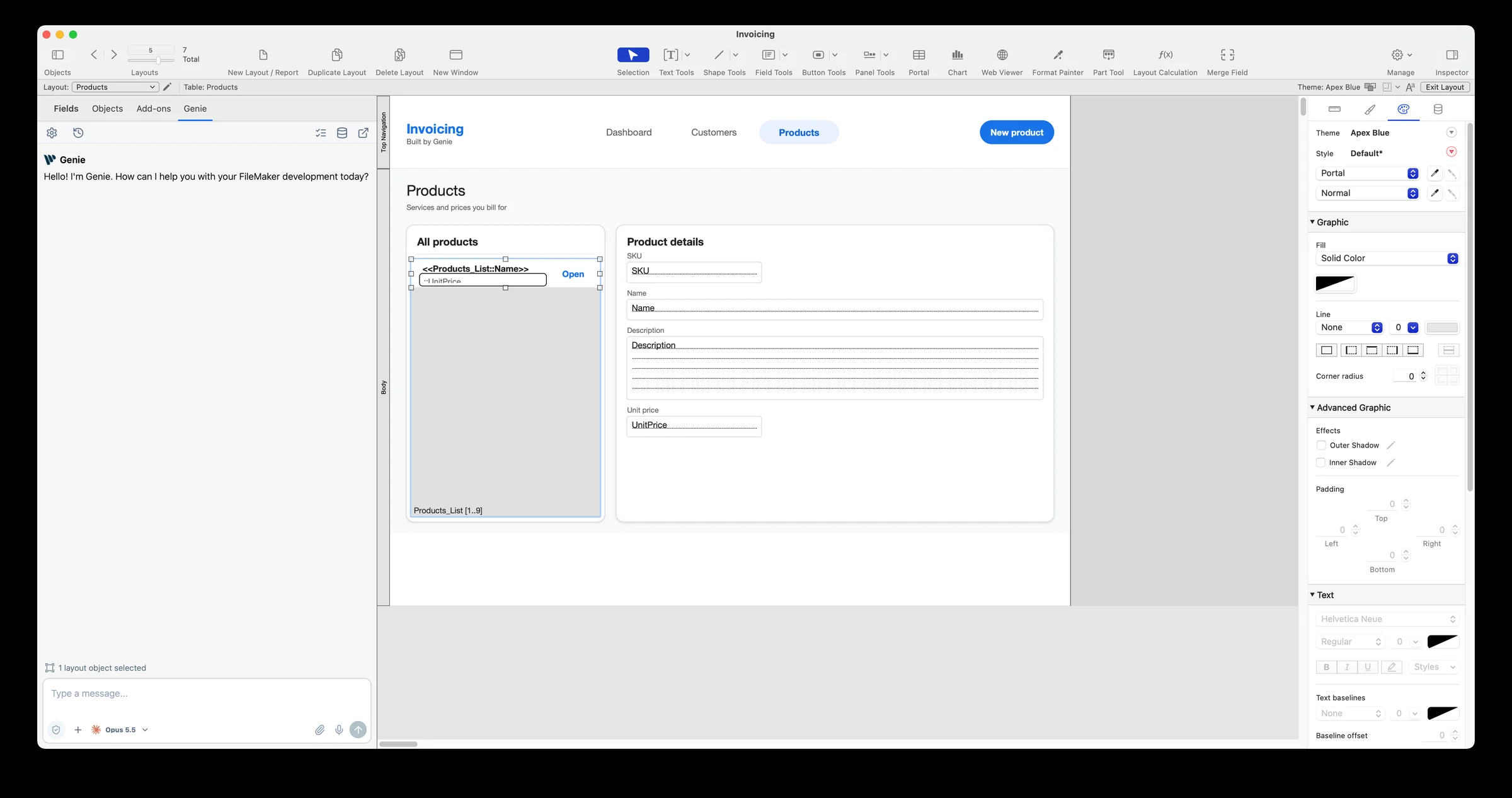
Section titled “Layout mode tab”In Layout mode, a Genie tab sits in the left panel beside Fields, Objects, and Add-ons. It shows how many objects are selected. Up to 100 of them are used as context. The Inspector stays where it is.
Ask Genie to create a layout, add content to one, or edit the selected objects, in local and hosted files. Layout mode.
Shared toolbar and full window
Section titled “Shared toolbar and full window”Both panels share one toolbar: Settings, History, Workbench, Metadata Explorer, Privacy, and pop-out. Pop-out opens the full Genie window with the same conversation and your unsent draft. New Chat, attachments, and dictation are in the composer.
Each FileMaker launch starts a fresh conversation. Earlier ones are in History.
Data and schema
Section titled “Data and schema”Genie can add table occurrences, create and edit relationships, arrange the relationship graph, and change data. Before a data change runs, a FileMaker confirmation shows the exact SQL and values. Data and schema.
Your own Claude Code or Codex
Section titled “Your own Claude Code or Codex”On macOS, you can run Genie’s Agent through your own Claude Code or Codex, on your Claude or ChatGPT plan, with no API key. Choose it in the composer’s model menu. It works in the main window and in both docked panels, and by default you review every change it proposes on a card. Claude Code and Codex.
Review or Auto apply
Section titled “Review or Auto apply”By default, Genie shows the change and waits for your confirmation. Turn on Auto apply in Settings to apply changes without confirming each one. Running an existing script always keeps its own confirmation. Review and Auto apply.
Free and Paid
Section titled “Free and Paid”Free covers chat, inspecting and explaining your file, read-only queries and charts, Calculation Quick AI, and Local MCP reads. A paid plan unlocks writing scripts and layouts, executable data changes, QuickCode, Auto apply, and Workbench actions. Your AI provider bills usage separately. Licensing and activation.
Use an external agent
Section titled “Use an external agent”Local MCP connects external clients on the same Mac to the same FileMaker context. Reads are free. Start with a read-only request.
Next: your first useful task.