

Develop in Script Workspace
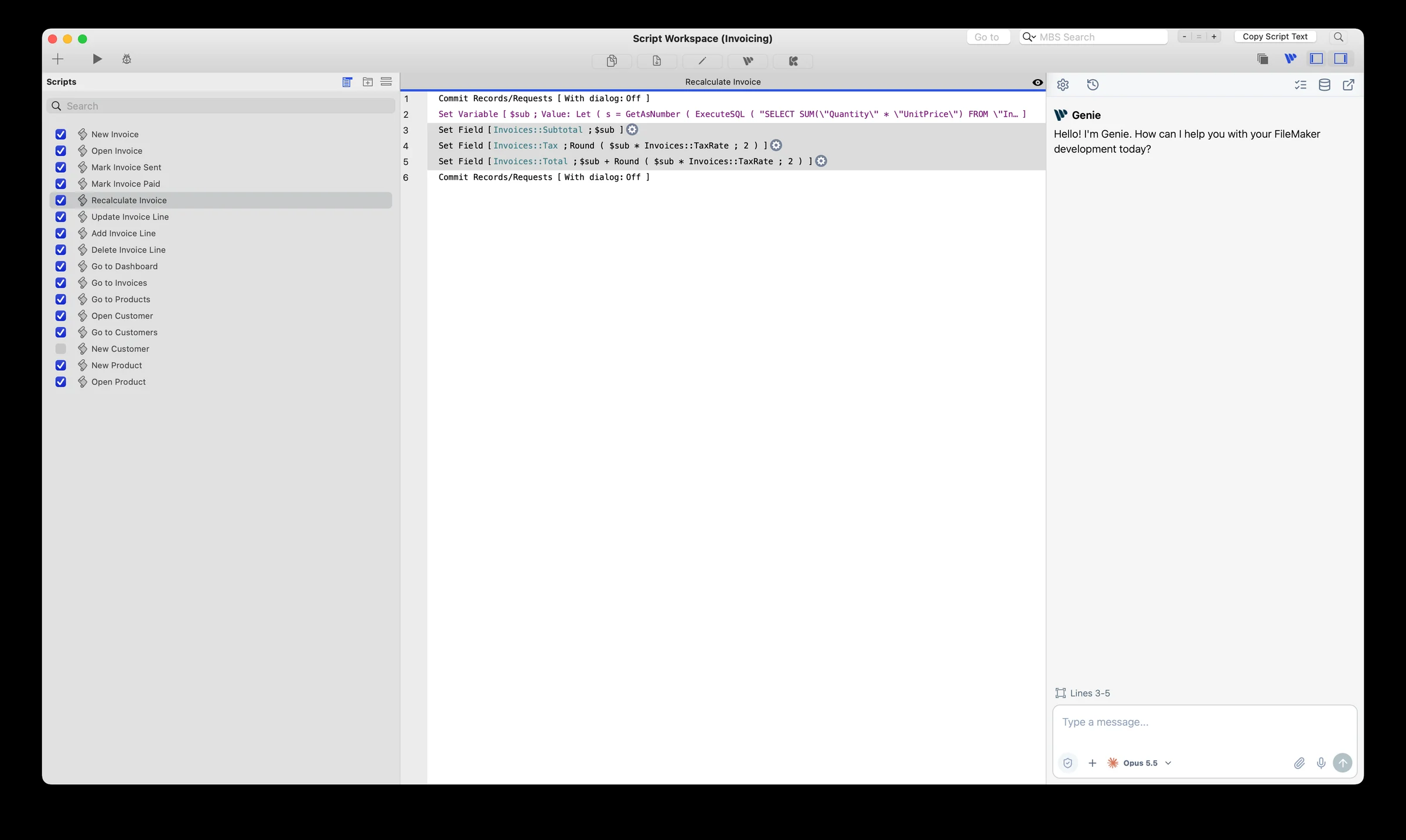
On macOS, Genie docks as a panel on the right side of Script Workspace. Windows uses a separate interface. Check requirements and release notes for your installed build.
Show, hide and resize the panel
Section titled “Show, hide and resize the panel”- Click the Genie button in the Script Workspace toolbar, next to FileMaker’s own pane controls, to show or hide the panel.
- Drag the left edge of the panel to resize it.
- Click the pop-out button to continue in the full Genie window. The conversation and any unsent draft come with you.
Each FileMaker launch starts a fresh conversation. Earlier conversations are in History.
Panel toolbar
Section titled “Panel toolbar”The panel has the same toolbar as the Genie tab in Layout mode:
- Settings
- History
- Workbench
- Metadata Explorer
- Privacy
- Pop-out, to open the full Genie window
New Chat, attachments and dictation are in the composer.
Start with a question
Section titled “Start with a question”- Open the FileMaker file and the script you want to discuss.
- Select the lines you want to discuss, or name the script.
- Ask: “Explain these lines and identify error paths. Do not change anything.”
- Check the script and lines named in the answer.
The panel shows which script lines are selected. That is context, not permission to edit. Refresh Selection is a manual action: after you change the selection in Script Workspace, click it to update what Genie sees. Use Metadata Explorer to add other scripts as references.
Create or edit a script
Section titled “Create or edit a script”Creating and editing scripts in FileMaker requires a paid plan. On Free, Genie gives you complete, human-readable script steps to build by hand.
- Describe a new script and its name, or a specific change to an existing script.
- Review the proposed script and its target in the chat.
- Choose Create or Apply.
- Confirm the FileMaker dialog. Genie writes the script directly in FileMaker.
The script does not need to be open or selected. If it has unsaved edits open in Script Workspace, Genie stops and asks you to save first. If the script changed after Genie prepared the review, ask Genie to prepare it again. Check the result in FileMaker before you continue.
Copy is still available if you prefer to paste the script yourself.
Organize scripts in folders
Section titled “Organize scripts in folders”Genie can create script folders and move scripts into them. This runs with Auto apply on. Name the folder and the scripts to move, then check the result in Script Workspace.
Review or Auto apply
Section titled “Review or Auto apply”By default, Genie shows the change and waits for your confirmation. Auto apply is an opt-in setting in Settings, off by default. With Auto apply on, Genie applies supported changes without asking each time. Access, file and Privacy checks still apply. Running an existing script always keeps its own confirmation. Auto apply changes are listed in Workbench > Submitted.
Continue learning
Section titled “Continue learning”Script Workspace toolbar buttons
Section titled “Script Workspace toolbar buttons”Genie adds these buttons to the Script Workspace toolbar.
Copy XML
Section titled “Copy XML”Copies the current selection as a native FileMaker object that you can paste elsewhere.
Paste XML
Section titled “Paste XML”Pastes a compatible native FileMaker object into Script Workspace.
Edit XML
Section titled “Edit XML”Opens an expert editor for the XML of a compatible FileMaker object.
Genie button
Section titled “Genie button”Shows or hides the docked Genie panel.
Klai button
Section titled “Klai button”When Settings > Advanced > Enable Klai Integration is on (paid), a Klai action appears here to set up Klai apps and add HookSets. See Klai and BetterForms.