

Welcome to Genie
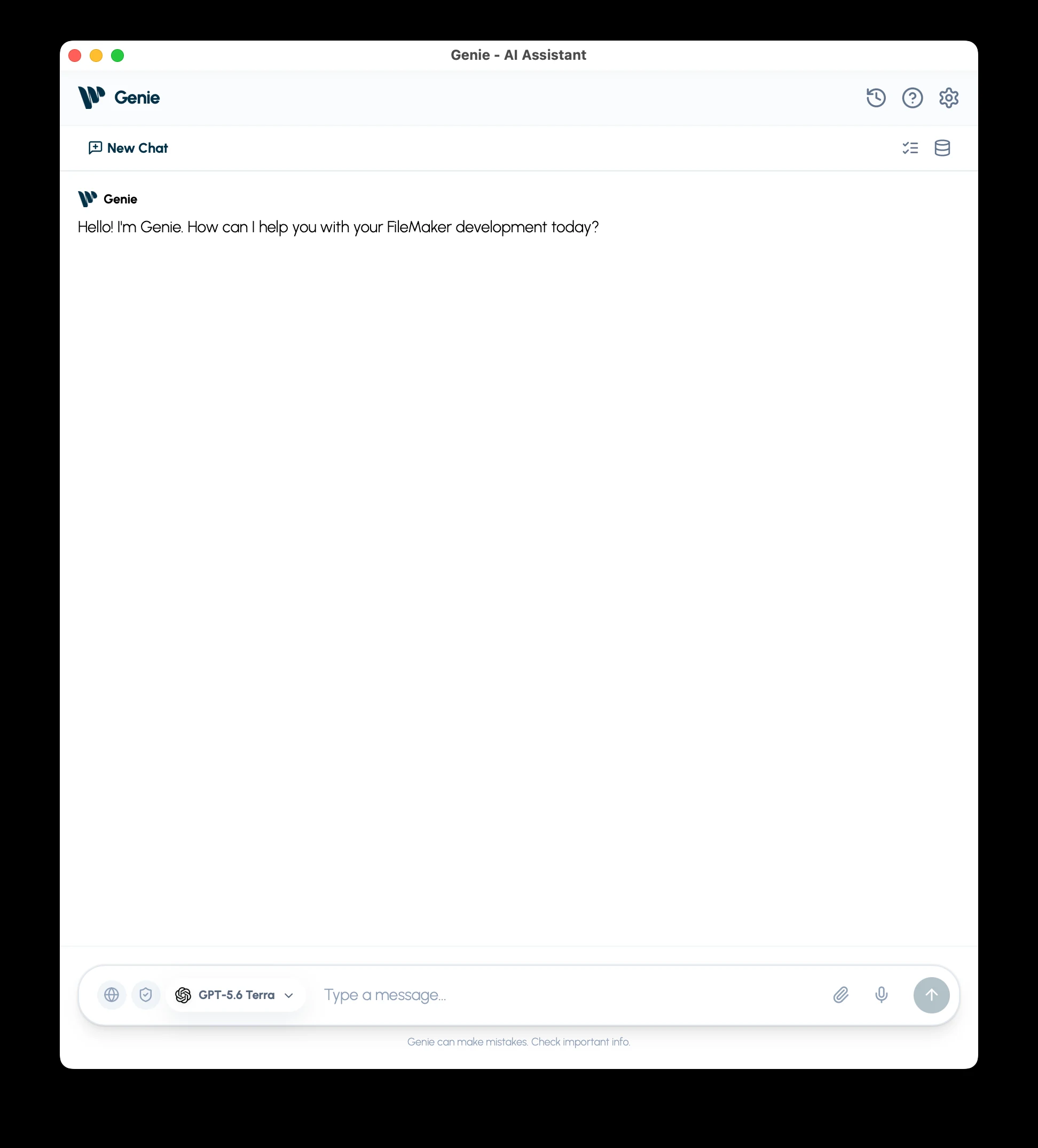
Genie works right next to your FileMaker work. On macOS it docks as a panel on the right side of Script Workspace, and as a Genie tab in the left panel in Layout mode. Use the pop-out button to continue the same conversation in the full Genie window.
There is one chat for questions, scripts, calculations, data, layouts, and Web Viewers. Describe the result you want. Genie reads the relevant FileMaker context, then answers or prepares a change for you to confirm.
Start here
Section titled “Start here”- Install Genie and open your FileMaker file.
- In Settings > Models, choose your provider, model, and Agent reasoning. Choose a reasoning level.
- Open Script Workspace and click the Genie button in its toolbar to show the panel. Ask a specific question, such as “Explain the Export Orders script.”
Follow the first-run guide or take the product tour.
Watch a full build
Section titled “Watch a full build”A complete session in an invoicing file: new tables, relationships, a layout and a script, all from the docked Genie panel.
Working from Claude, Cursor or Codex? Watch Claude build the same feature through the Local MCP Bridge.
Find your task
Section titled “Find your task”| I want to… | Guide |
|---|---|
| Understand or debug a script | Chat with Genie |
| Create or change a script | Create and edit scripts |
| Summarize records or create a chart | Read data and create charts |
| Prepare a data or schema change | Change data and schema |
| Build an interface for a FileMaker Web Viewer | Web Viewers |
| Connect Codex, Cursor, or Claude Desktop | Local MCP Bridge |
| Control what Genie reads | FileMaker context |
| Fix a problem | Troubleshooting |
Free and Paid
Section titled “Free and Paid”Genie is free, with no expiration. The paid plan starts with 21 days free. You can ask questions, inspect your file, run read-only queries and charts, and get complete script steps and calculations to build by hand. Running an existing script always asks for confirmation first.
A paid plan unlocks creating and applying scripts, executable data changes, layout creation and editing, QuickCode, Auto apply, external MCP coding and execution, and Workbench actions. Local MCP reads are free. Your AI provider bills model usage separately. Free and Paid.
Review changes and control context
Section titled “Review changes and control context”By default, Genie shows the change and waits for your confirmation. Use Preview, Copy, Create Script, Apply, or Execute when you are ready. Auto apply is an opt-in in Settings that applies changes without asking for each one. Review and Auto apply.
Privacy Mode limits live reads to your Metadata Explorer selection. An empty selection shares no live FileMaker data. Your new prompts and allowed context still go to your configured provider. External clients have a separate Local MCP Privacy Mode setting. Privacy settings.
Versions
Section titled “Versions”These guides cover the current Genie release for macOS. Genie for Windows has its own feature set, and the docked panels are macOS only. Release notes · System requirements.