CODE Mode
CODE mode is the UI workflow for generating and refactoring FileMaker script output with review and apply controls built into chat.
What CODE is for
Section titled “What CODE is for”- Create scripts from natural language.
- Refactor existing logic from attached script context.
- Review generated output before applying it to Script Workspace.
Before you send a CODE request
Section titled “Before you send a CODE request”- In Script Workspace, ensure the target script is visible.
- If you want a focused edit, select the specific lines in the script.
- Click Add Selection for the current script or selection, or Add Scripts if the task depends on multiple open Script Workspace tabs.
- Verify the live context badge or attached script badges match the intended scope.
- Provide a clear prompt for the generation or refactor.
End-to-end CODE workflow
Section titled “End-to-end CODE workflow”- Send a request in CODE mode.
- Wait for the three generation phases to complete.
- Use in-message Preview Code, Copy, and Apply Code links when they are available.
- Watch for the Applying… progress indicator.
- Validate the generated changes in Preview before applying.
- Validate the result in Script Workspace.
1) Structuring intent
Section titled “1) Structuring intent”CODE starts by structuring your request before generation.
- If details are unclear, Genie can ask short clarification questions.
- Clarification limits are controlled in Settings > Clarification Budget > Preflight Questions.
2) Planning capabilities
Section titled “2) Planning capabilities”After intent is structured, Genie plans what capabilities are required for your request.
3) Generating the draft
Section titled “3) Generating the draft”Genie then generates the requested script work. During this phase, chat shows generation in progress.

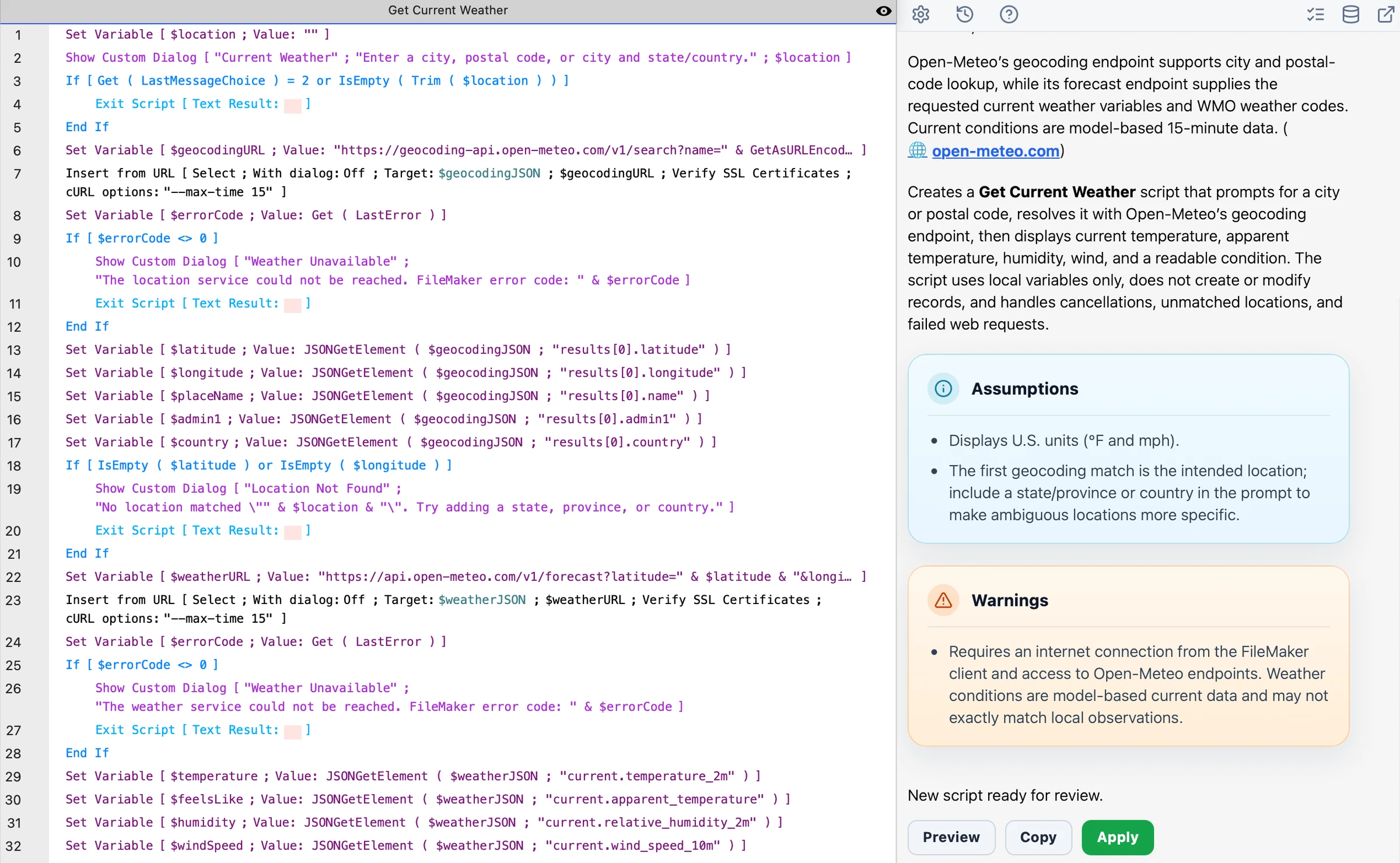
4) Response with Preview, Copy, and Apply links
Section titled “4) Response with Preview, Copy, and Apply links”When Genie accepts a safe CODE draft, it shows action links directly in the assistant message.

5) Preview Code behavior
Section titled “5) Preview Code behavior”Preview Code opens Viewer so you can inspect output before applying.
- Script output review in Viewer with search and highlighting.
- Text view for compact readability.
- Copy support for manual fallback workflows.

6) Apply Code behavior
Section titled “6) Apply Code behavior”Apply Code uses a native operation to safely write changes back to FileMaker. Genie automatically determines the best apply method based on the generated output:
- Active Selection Edit: Applies the change at the correct location in your current script selection when possible.
- Full Script Apply: Writes an entire script body when you request full-script output.
- Selection Fallback: If precise selection placement fails, Genie pastes the full generated block with comments at the active line location.
- Progress Indicator: Shows an
Applying...state in chat while the operation runs. - Safety: Stops if Script Workspace state changes, such as switching scripts or editing a line before apply completes.
- Confirmation: Shows a success message once the script has been updated.
Copy and recovery behavior
Section titled “Copy and recovery behavior”Use Copy when Genie produced recoverable code but you want to inspect or move it manually.
- Preview Code shows the generated script output or apply plan in Viewer.
- Copy copies the generated output for manual recovery.
- Apply Code appears only when Genie has an apply-safe result.
Sometimes Genie can render a draft but cannot safely apply it. In that case, Apply Code stays unavailable, while Preview Code and Copy may still be available. Treat that state as a review signal: inspect the draft, copy it if useful, then refine the prompt, capture the right context again with Add Selection or Add Scripts, or retry after fixing the underlying issue.
The Copy button is especially useful when the output is reviewable but you want to recover it manually instead of applying through Genie.
Missing metadata
Section titled “Missing metadata”If Genie cannot resolve a required table, field, layout, script, custom function, MBS function, or BaseElements function, it can pause before generation and ask for the missing detail.
- Refresh or select the relevant items in Metadata Explorer.
- Import custom functions when the request depends on your own functions.
- Enable MBS or BaseElements dictionaries in Settings when your solution uses those plugin functions.
- Reply with the exact name if Genie asks a clarification question.
Advisory gaps may still produce a reviewable draft, but Genie should not invent missing schema. Review warnings before applying or copying code into FileMaker.
Error codes and warnings
Section titled “Error codes and warnings”CODE warnings are shown in chat before you apply. Some include a numeric error code.

- If Apply Code is missing, use Preview Code or Copy only for manual review.
- If the warning says the selected script changed, refresh selection before retrying.
- If the warning says verification timed out, check Script Workspace before retrying.
- Use Error Codes and Recovery for the full public code list.
Project Rules in CODE mode
Section titled “Project Rules in CODE mode”Project Rules can shape CODE behavior for the active database.
- Rules can influence the same generated result, including delta edits, when the requested work stays inside the allowed scope.
- Rules do not create a guaranteed second pass.
- Rules do not widen CODE authority, selection boundaries, or apply permissions.
For example, a rule such as When editing an existing script, update the top-of-script change log if one already exists. can influence the generated edit when that header is already inside the task Genie is allowed to change.
Safety and constraints
Section titled “Safety and constraints”- If a prompt is question-only, Genie may suggest routing to ASK mode.
Recovery and fallback
Section titled “Recovery and fallback”- If apply fails, focus Script Workspace and retry.
- If needed, use Preview Code or Copy to recover the generated output and paste manually.
- If the task spans multiple related scripts, use Add Scripts instead of trying to force one live selection to carry all context.
Best practices
Section titled “Best practices”- Keep captured context aligned with the exact task by using Add Selection for live edits and Add Scripts for multi-script work.
- Monitor the
Applying...state to ensure the operation completes successfully.