

Metadata Explorer
Metadata Explorer defines the schema context Genie uses for generation and analysis. It can also be used to manually select or enhance the context available to AI.
Open it with the Metadata Explorer button in the Genie panel toolbar, in Script Workspace or Layout mode, or from the full Genie window.
Manual selection can speed up discovery and make Genie’s work more precise. It is optional for Genie: Genie should normally navigate available metadata and MCP resources automatically before asking you to select context.
Global actions
Section titled “Global actions”| Label | Description |
|---|---|
| Expand | Toggle normal/expanded panel width. |
| Refresh | Pull latest schema from FileMaker. |
| Clear | Remove all selections. |
| Preview | Open selected metadata JSON in Viewer. |
| Close | Close the Metadata Explorer panel. |
Panel resizing and active table
Section titled “Panel resizing and active table”- You can drag the explorer edge to resize the panel.
- In Tables, one table can be marked as the active focus.
- When a table is active, the Fields section emphasizes fields from that table.
- This helps narrow prompts and reduce field ambiguity.
Schema sections
Section titled “Schema sections”- Tables
- Fields
- Relationships
- Layouts
- Scripts
- Value Lists
- Custom Functions
Each section supports:
- Search
All/Nonebulk actions- Per-item checkbox selection
Select fields on a layout
Section titled “Select fields on a layout”In the Layouts section, each layout row includes a small Select fields on this layout button. Use it when a prompt depends on the fields that are actually available on a specific FileMaker layout.
When you click the button, Genie:
- selects the layout
- reads the fields available on that layout
- selects the matching fields in Fields
- keeps the selected table, layout, and field context together for prompts and
#autocomplete
This helps with scripts, queries and data changes tied to a layout, when a table has many fields but only some are on the target layout.
Relationships
Section titled “Relationships”The Relationships section shows read-only relationship metadata for the current FileMaker file. Use it when a prompt depends on how table occurrences connect, which fields are used for joins, or whether related-record options are enabled.
Each relationship row shows the relationship name and a compact join summary. Click the info button to open the relationship details view.
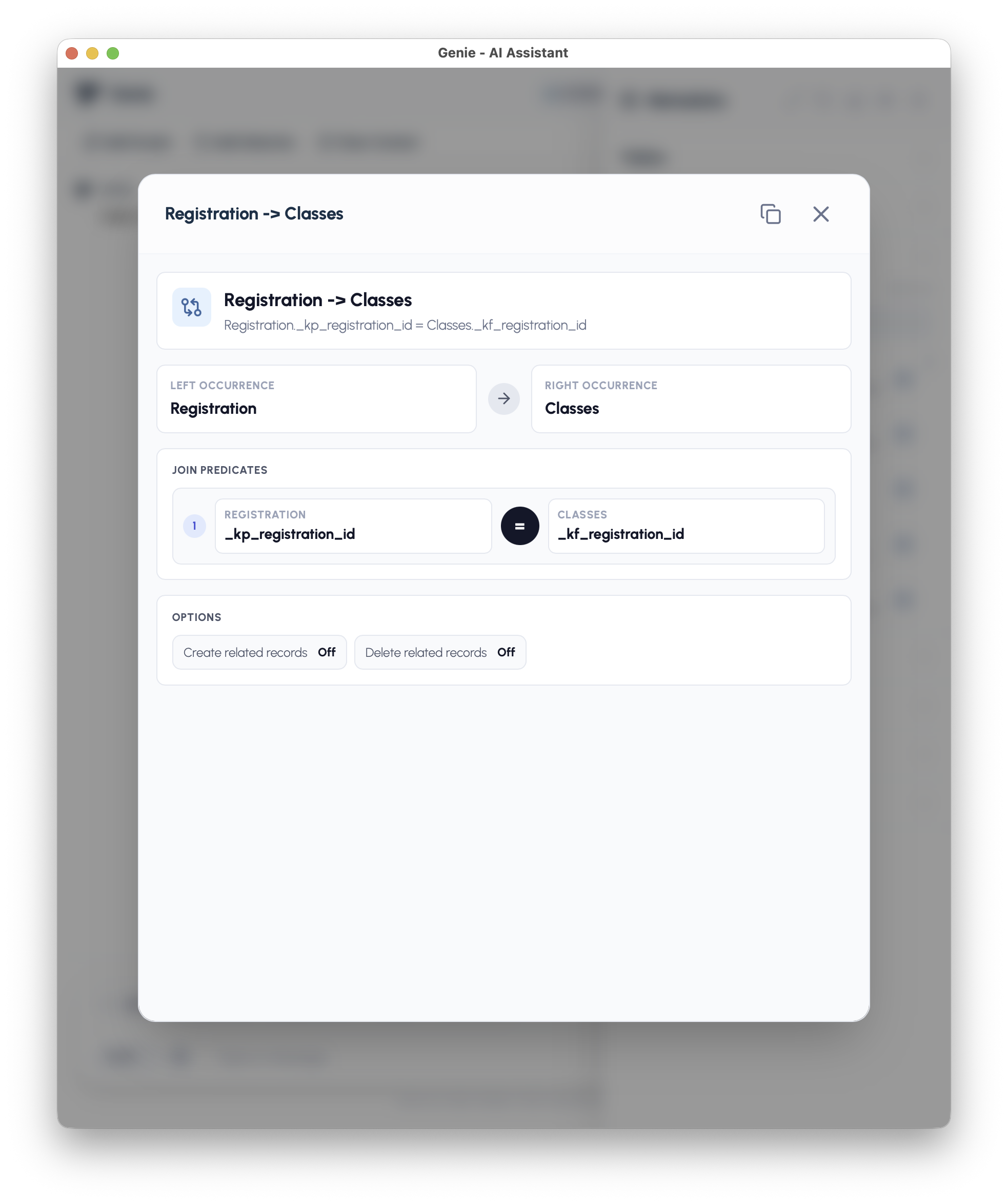
The details view shows:
- left and right table occurrences
- join predicates
- relationship options such as create related records and delete related records
- a copy action for sharing the relationship summary
Selecting relationships helps Genie and Local MCP agents understand the existing graph. Selecting a relationship does not change it. To add or edit relationships, ask Genie in the chat. See Change data and schema.
Add scripts directly to context
Section titled “Add scripts directly to context”In Scripts, use the Add script to edit context button to attach a known script directly from Metadata Explorer.
Name the target script in your request, or select relevant references in Metadata Explorer. Genie reads exact script content when needed.
Metadata scope and autocomplete
Section titled “Metadata scope and autocomplete”The Metadata Explorer selection drives # autocomplete in the composer. If you type # and do not see the table, field, layout, script, or custom function you expected, check the current explorer selection first.
- Use Refresh after schema changes in FileMaker.
- Select the relevant metadata before sending prompts that depend on exact names.
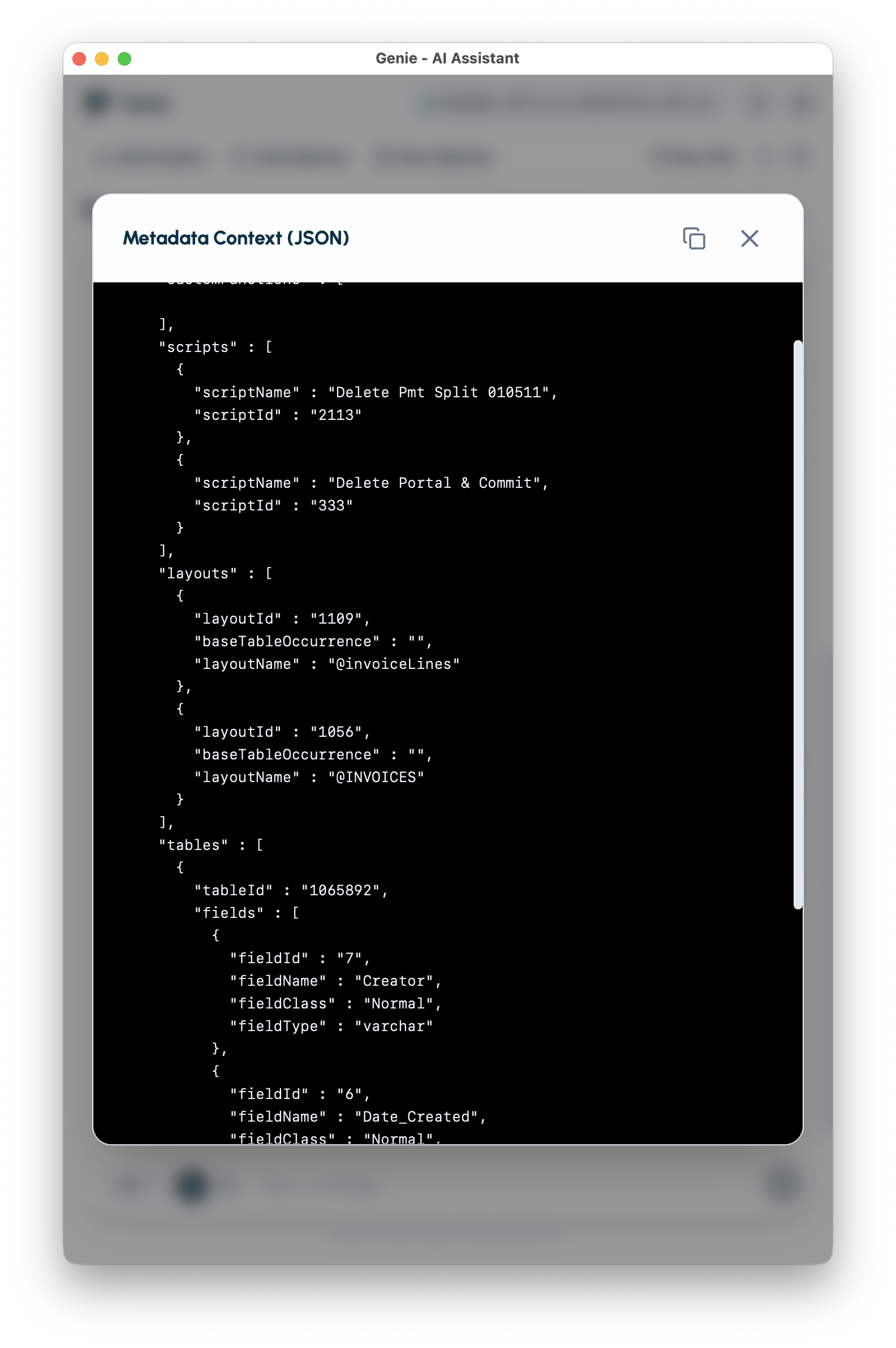
- Use Preview to confirm what Genie will receive as schema context.
- Import custom functions when your prompt depends on project-specific calculation helpers.
If required metadata is missing, Genie may ask before writing a script, a query or a data change. Advisory gaps can still produce a draft, but Genie should not silently invent unknown fields or functions.
Metadata preview
Section titled “Metadata preview”Use Preview to verify exactly what will be sent as schema context.
Custom Function import
Section titled “Custom Function import”Import custom functions so Genie can reason with your real function definitions.
Why import helps
Section titled “Why import helps”- Better parameter and return-value usage.
- Fewer placeholder calculations.
- Better reuse of existing logic.
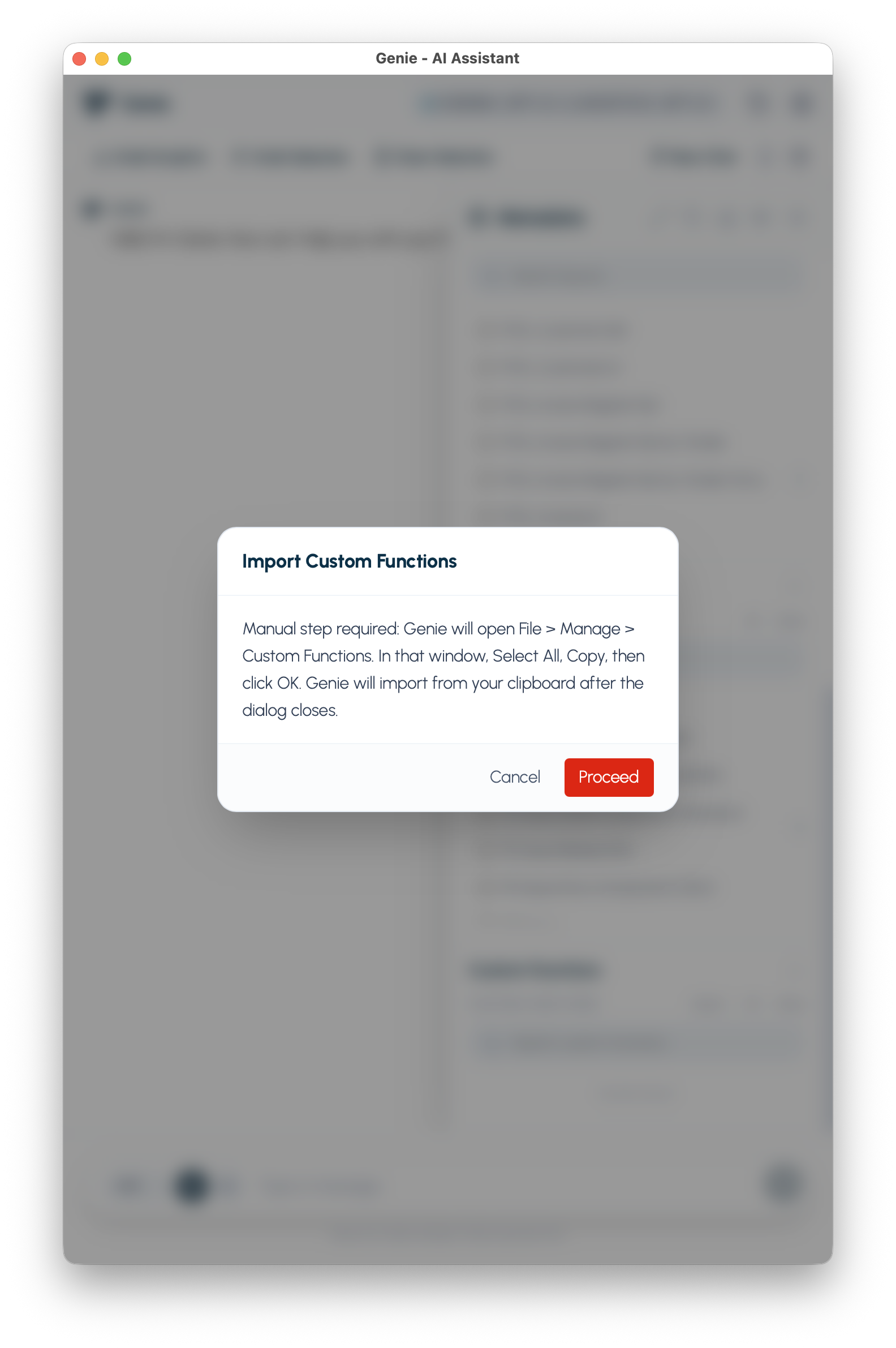
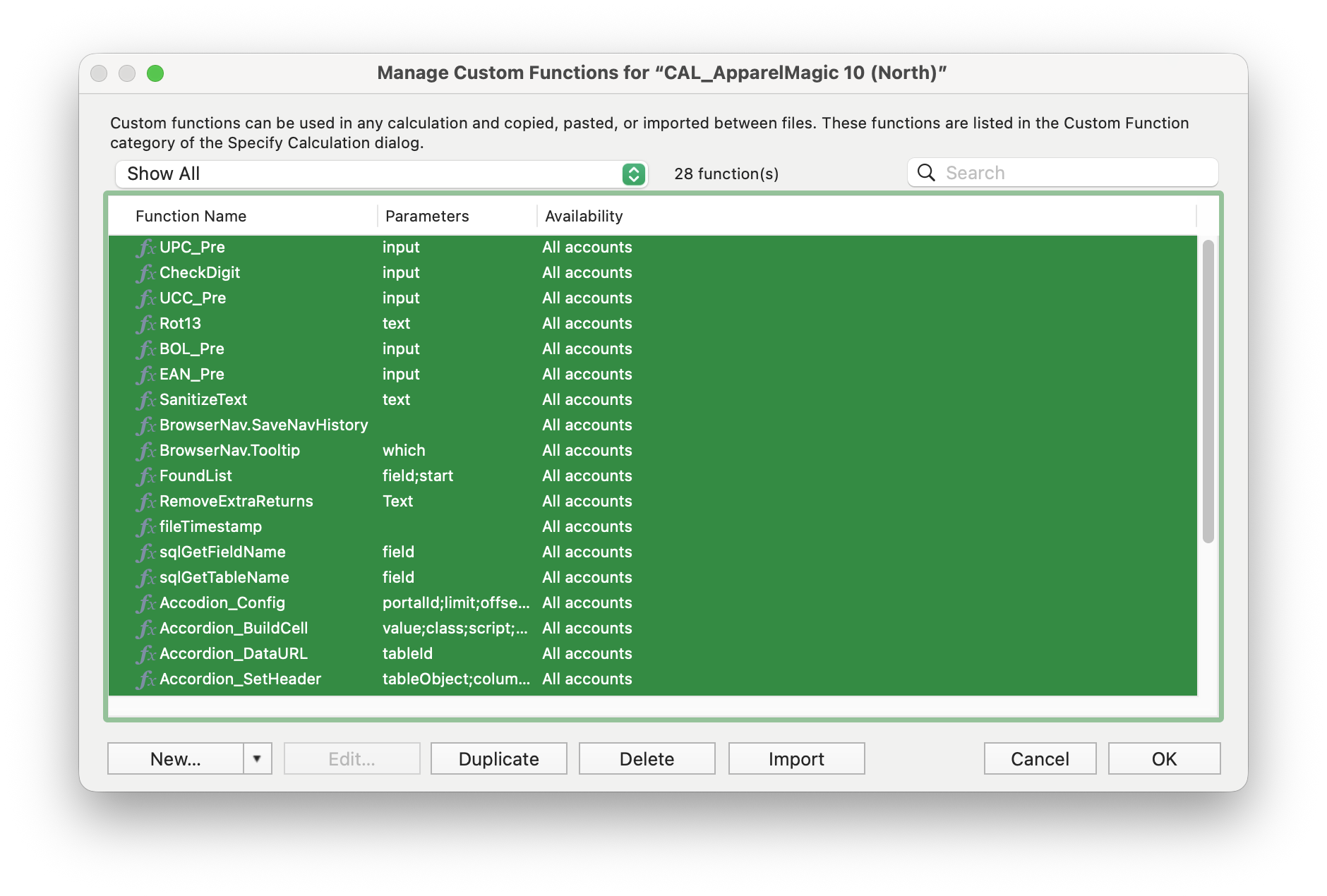
Import workflow
Section titled “Import workflow”- Click Import in Custom Functions.
- Follow the dialog instructions in FileMaker.
- Select functions (
Cmd+Aor manual selection). - Return to Genie and confirm import.
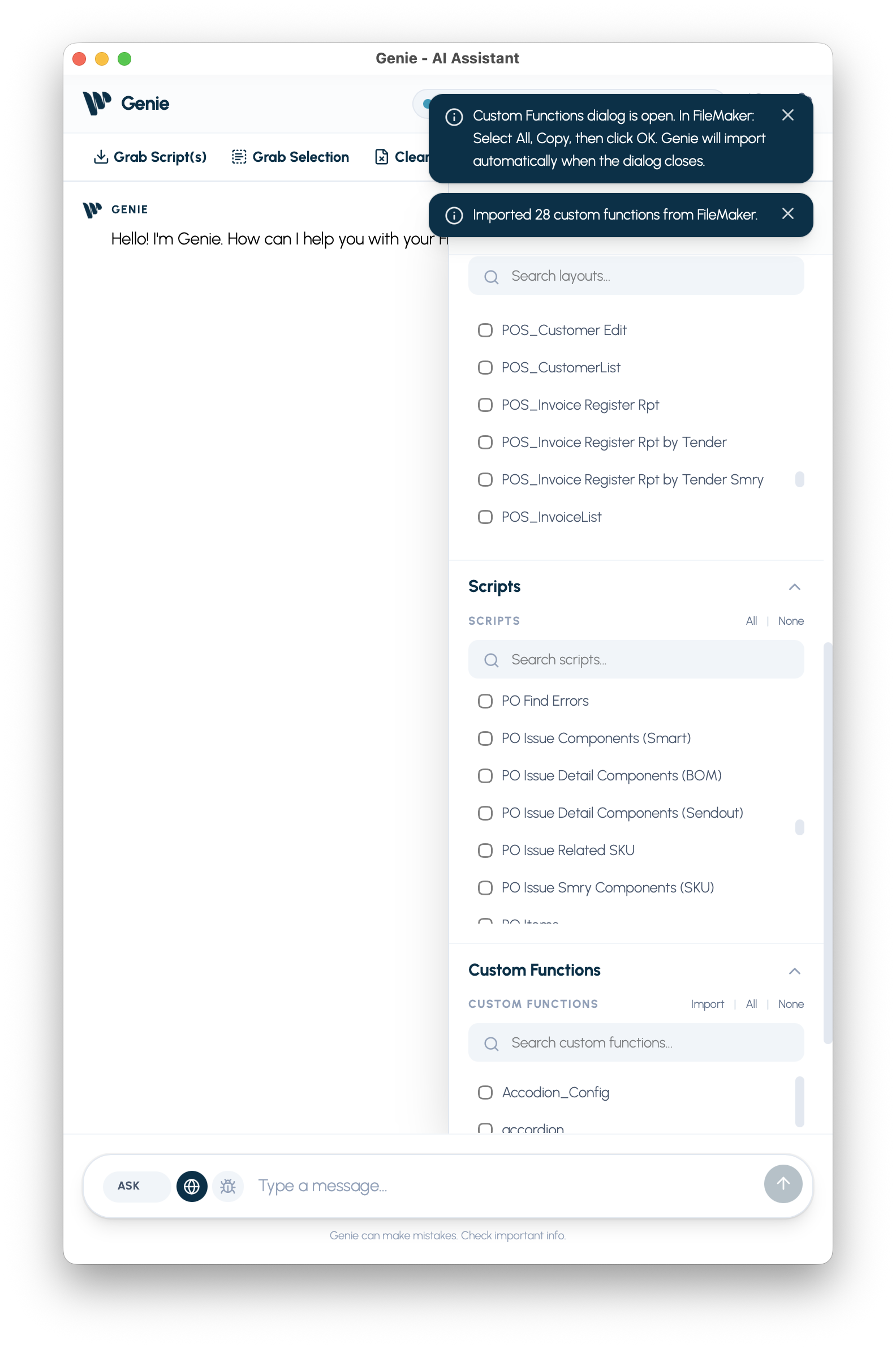
Custom Functions are saved per project. Re-importing updates existing imported functions and keeps the project copy in sync.
See: Project Guidance