

Change data and schema
Ask Genie in the chat to change your file’s structure or its records. Genie shows the change and waits for your confirmation.
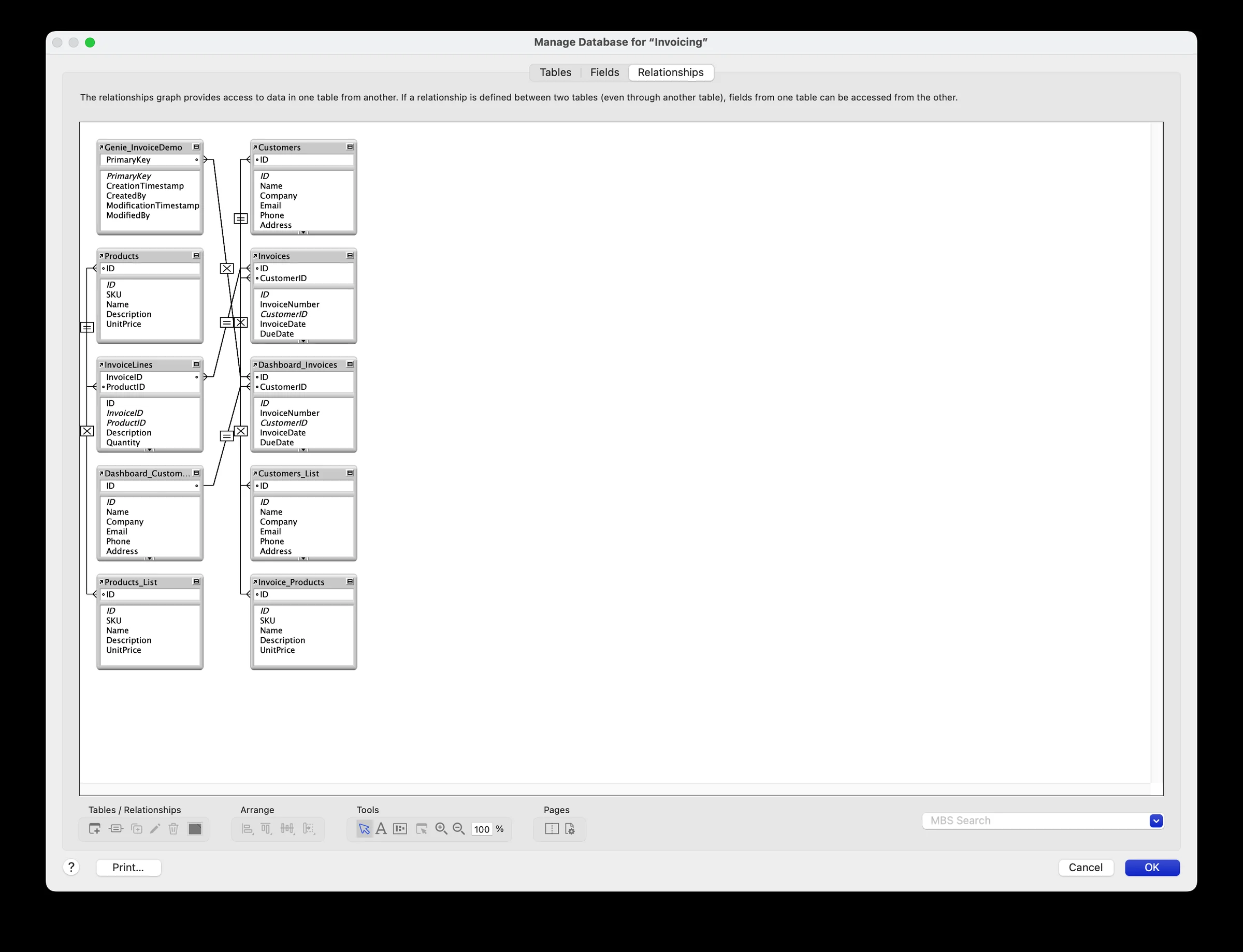
Table occurrences and relationships
Section titled “Table occurrences and relationships”Genie can add table occurrences, create and edit relationships, and arrange the relationship graph. This works on any file.
For example: “Add a table occurrence for Invoices and relate it to Customers by CustomerID. Then tidy the graph.”
Review what Genie proposes, confirm, then check the graph in FileMaker.
Genie builds the graph the anchor-buoy way. A new table is linked through a new occurrence of the other table, named like Estimates_Customers or EstimateLines_Products, instead of attaching to an occurrence that already sits in the middle of your graph. That keeps new tables from joining everything else as the file grows, and avoids the loop that FileMaker refuses with error 8201. If a request would link into an already connected table with a foreign key, Genie stops before running it and builds the buoy instead.
Change records
Section titled “Change records”Ask for the change in precise terms: the table, the fields, which records, and the new values.
- Describe the change, for example: “Set Status to Archived on every invoice paid before 2024.”
- Review what Genie proposes in the chat.
- Confirm in the native FileMaker dialog. It shows the exact SQL and values that will run.
- Check the result in FileMaker.
Typing “yes” in the chat does not replace that confirmation. Changes that affect a whole table or delete records get stronger warnings.
Data changes cannot be undone. Test on a copy of your file first, or make sure you have a backup.
Free and Paid
Section titled “Free and Paid”On the Free plan, Genie can read your data with read-only queries, tables and charts. It can also explain the change and give you the steps to make it by hand. Executable data changes require a paid plan. See Free and Paid.
Auto apply
Section titled “Auto apply”With Auto apply on, Genie applies schema, data, table occurrence and relationship changes without asking for each one. Auto apply is off by default and is turned on in Settings. Each change is listed in Workbench › Submitted.
Relationship edits and graph arrangement can be undone from Workbench. New table occurrences and new relationships cannot. See Review, Auto apply and Undo.
External agents
Section titled “External agents”An external agent connected through Local MCP can prepare these changes too. Without Auto apply, they go to Workbench for your review.
Example: create a few tables
Section titled “Example: create a few tables”Try this example in a development copy of your file, not in production. Create a few related tables with Genie, and see where it asks for your confirmation.
Steps
- In Chat with Genie, ask Genie to design the structure first. Do not ask for changes yet.
- When the plan looks right, ask Genie to create the tables.
- Review the change Genie shows, then confirm.
- Ask Genie to add the table occurrences and relationships, and to arrange the graph.
- Review and confirm again, then check the new structure in FileMaker.
Example prompt
Create tables for Projects, Milestones, and Tasks, with basic fields and links that support one project to many milestones and one milestone to many tasks.What to check
- Genie shows each schema change and waits for your confirmation, unless Auto apply is on.
- Table names, field names and field types match what you asked for.
- Each relationship joins the right fields.
- New tables, table occurrences and relationships cannot be undone from Workbench. That is why this belongs in a development copy first.
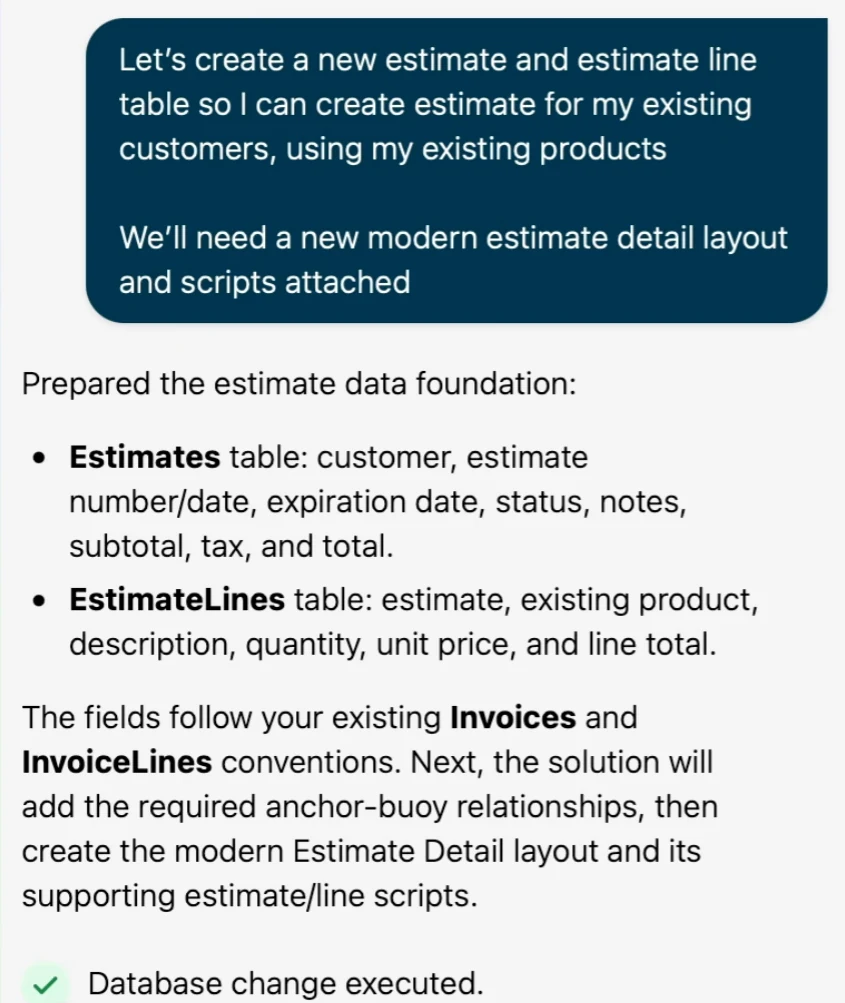
Watch this example in a full build, from the new tables to the layout and script: full walkthrough on YouTube.