

Settings Guide
Use Settings to control app language, theme, activation, permissions, personalization, the model, Auto apply, advanced options, and Local MCP Bridge. Open Settings from the Genie toolbar.
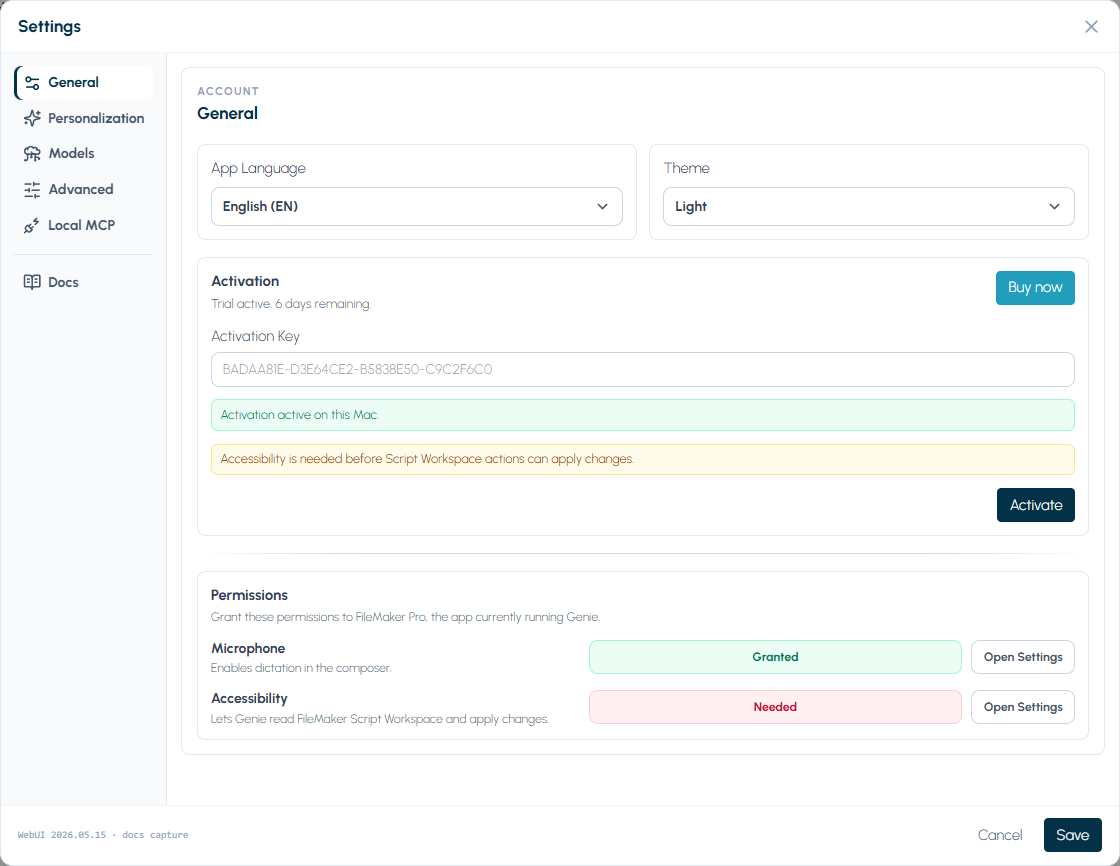
Layout
Section titled “Layout”Settings uses a left navigation rail with focused pages:
- General: language, theme, Free or Paid status, activation, permissions, product issue reports, and Auto apply
- Personalization: assistant tone and custom instructions
- Models: your own Claude Code and Codex, provider keys, the provider and model, reasoning effort, and one custom endpoint
- Advanced: plugin function dictionaries and Agent / MCP guidance packs
- Local MCP: local bridge setup snippets and connection status
The Docs entry in the rail opens this documentation.
General
Section titled “General”General includes product access and local system permissions.
| Setting | Description |
|---|---|
| App Language | Chooses the Settings and UI language when a manual override is needed. |
| Theme | Chooses light or dark UI. |
| Activation | Enter an activation key, buy, activate, deactivate, and read activation status inline. |
| Permissions | Shows Microphone and Accessibility status for the app currently running Genie. |
| Auto apply | Lets Genie apply supported changes without a confirmation for each one. Paid plan only. See Auto apply. |
| Product issue reports | Allows or blocks optional structured report_issue feedback from Genie and Local MCP. |
Permissions
Section titled “Permissions”Permissions are shown next to activation, so a missing permission is easy to spot.
- On macOS, Microphone enables dictation in the composer.
- Accessibility lets Genie read FileMaker Script Workspace and apply changes.
- Open Settings takes the user to macOS settings when a permission is missing.
Product issue reports
Section titled “Product issue reports”Use Send product issue reports to enable or disable the shared report_issue tool for embedded Genie and Local MCP.
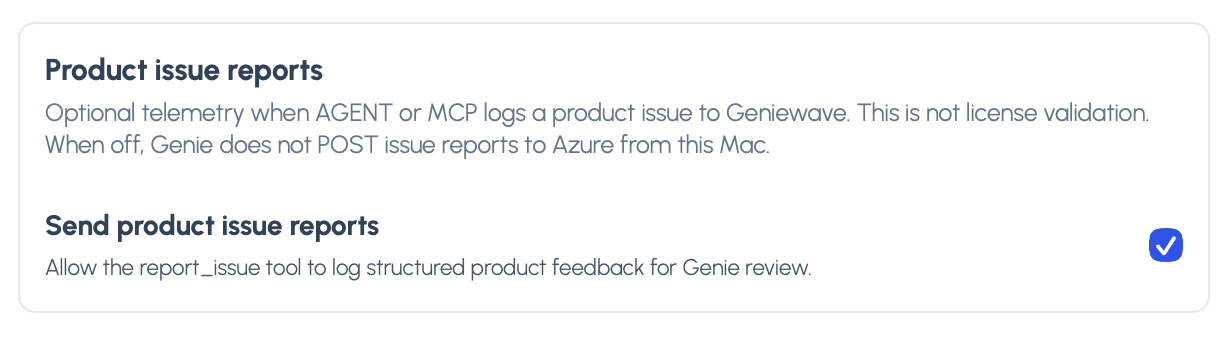
When enabled, Genie or an MCP client may log bounded, sanitized, structured feedback after a product tool, guide, or contract failure. Geniewave uses this optional telemetry to diagnose problems and improve Genie. It is not licence validation, never mutates FileMaker, and does not replace Support Ticket.
Turning the setting off removes report_issue from both tool surfaces and blocks reports from this computer. Chat Privacy Mode and Local MCP Privacy Mode also block it for their respective channels without changing the saved setting.
Auto apply
Section titled “Auto apply”Auto apply is off by default. With it off, Genie shows each change and waits for your confirmation. Turn it on to let Genie apply changes to scripts, script folders, layouts, schema, data, table occurrences, and relationships without a confirmation for each one. Access, file, and Privacy checks still apply, and running an existing script always keeps its own confirmation. Auto apply requires a paid plan, and the setting appears only when your plan includes it and your platform supports it. Auto apply also applies to Claude Code and Codex in Genie: with it on, they apply supported changes directly, and Genie does not check those changes against what you asked, as it does for its own Agent.
Auto apply changes appear in Workbench › Submitted with an Auto apply badge and their real outcome. See Review and Auto apply and Workbench.

Personalization
Section titled “Personalization”Use Personalization for global guidance and instructions specific to the active FileMaker file.
Generic scope
Section titled “Generic scope”Generic contains defaults Genie can use across projects:
| Setting | Description |
|---|---|
| Personality | Chooses a friendly, balanced, or pragmatic response style. |
| Custom instructions | Sends style and workflow preferences with model requests. Do not store secrets here. |
| Naming conventions | Defines global naming preferences, such as script naming style or variable casing. |
| Patterns | Captures reusable implementation patterns, contracts, error handling, and preferred techniques. |
| Script template | Provides the default structure Genie should follow for new or substantially revised scripts. |
Project scope
Section titled “Project scope”Project contains configuration for the active FileMaker file:
| Setting | Description |
|---|---|
| Project name | Display name for the active FileMaker solution. |
| Description | Project-specific summary of the solution, users, purpose, and important operating constraints. |
| Project rules | Enabled or disabled guidance rules for this FileMaker file. |
| Naming convention override | Optional project-specific naming guidance. Empty values inherit Generic naming conventions. |
| Pattern override | Optional project-specific implementation patterns. Empty values inherit Generic patterns. |
| Script template override | Optional project-specific script structure. Empty values inherit the Generic script template. |
Project description and Project Rules are project-specific and do not inherit Generic values. Generic values are app preferences, not copied into every project profile.
Genie and Local MCP clients receive this configuration with each request. It shapes naming, comments, implementation patterns, and script structure. It never grants extra access or changes what Genie is allowed to modify.
Models
Section titled “Models”Configure provider credentials, the provider and model, and Agent reasoning here. The model can also be changed from the composer.
Set reasoning when choosing your model. High is the default preference; available levels and the level actually used depend on that model. Read the explanation below the control before saving. Choose a reasoning level.
For Custom / Local, configure the endpoint, exact model ID, and token. Enable the OpenAI-style effort checkbox only if that server/model supports it. Test Connection checks connectivity, not every model feature.
Your own agent: Claude Code and Codex
Section titled “Your own agent: Claude Code and Codex”On macOS, Settings > Models opens with Your own agent, above the API keys. It has one card each for Claude Code and Codex. A card shows Connected with your plan and version, Not connected, Not installed, or a message, with one main button (Install, Connect, Turn on or Update to a new version) and a ⋯ menu with Sign in again, Update and Check for updates. Install, update and connect work even while Local MCP is off. Genie asks before it installs, updates, signs in again or turns on Local MCP, and sign-in happens in your browser, not in Terminal.
Agent reasoning applies to Genie’s own Agent. With Claude Code or Codex, use the Effort slider in the popover on the right of the footer under the composer. In a docked panel, Settings opens in the main Genie window. Claude Code and Codex.
xAI / Grok
Section titled “xAI / Grok”Choose xAI / Grok when you want a hosted Grok model.
- xAI uses its own saved API key in Settings.
- Grok models appear in the normal model dropdown.
- Genie routes xAI traffic through xAI’s OpenAI-compatible cloud API path.
- The custom model id, endpoint, and connection-test fields are only for
Custom / Local; they are not shown for xAI. - Web Search is not wired for xAI in this release.
Advanced
Section titled “Advanced”Advanced contains controls for optional plugin dictionaries and Agent / MCP integrations.
| Setting | Description |
|---|---|
| BaseElements plugin | Allows Genie to use the BaseElements function dictionary during Genie script work. |
| MBS plugin | Allows Genie to use the MBS function dictionary during Genie script work. |
| Agent / MCP: Enable Klai Integration | Shows Klai hook-set and Custom Function tools and adds Klai / BetterForms guidance for Genie and connected MCP clients. Requires a paid plan. |
Leave a dictionary off when the plugin is not installed or when you do not want generated code to rely on that plugin. Disabled dictionaries are ignored during function resolution.
Agent / MCP integrations
Section titled “Agent / MCP integrations”The Agent / MCP subsection holds Enable Klai Integration, a paid option for Klai / BetterForms work. See Klai and BetterForms.
Local MCP Bridge
Section titled “Local MCP Bridge”Use Local MCP Bridge when you want external MCP clients on the same machine to consume Genie metadata/context and stage reviewed work into Workbench.
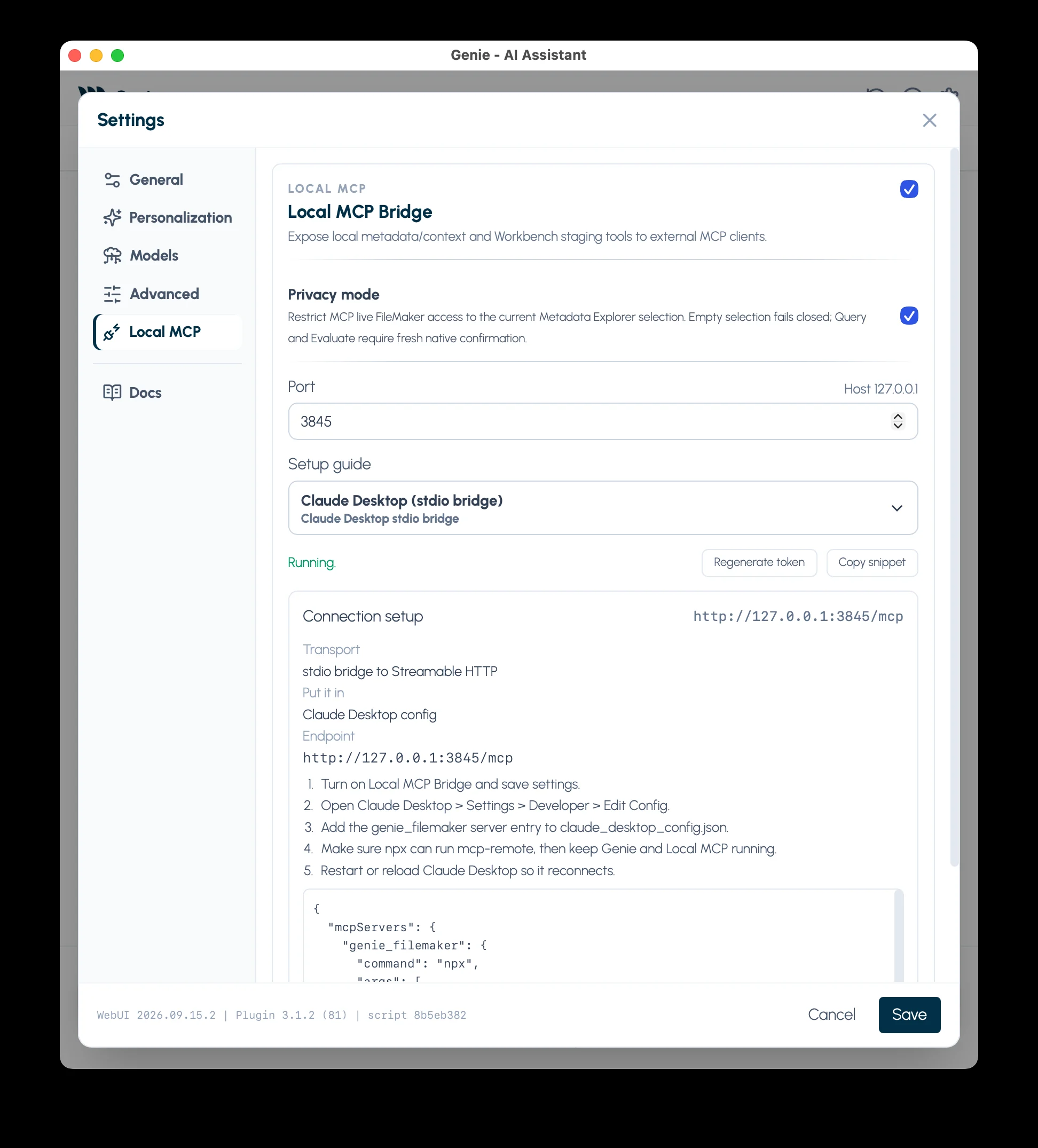
Use Local MCP Bridge for the dedicated guide and troubleshooting entry points.
What you configure
Section titled “What you configure”| Setting | Description |
|---|---|
| Enable Local MCP Bridge | Starts or stops the local bridge. |
| Privacy mode | Restricts live MCP access to the current Metadata Explorer allowlist and adds fresh confirmations for Query and Evaluate. |
| Port | Local port for the MCP server. The host is shown inline as 127.0.0.1. |
| Status | Running, disabled, or startup/error state. |
| Setup guide | Shows Codex Streamable HTTP, Cursor/generic JSON, endpoint URL, or bearer-token setup. |
| Copy snippet | Copies the selected setup snippet with the current local bearer token. |
Without Auto apply, scripts staged by an external client go to Workbench for review. With Auto apply on, an explicit execute from the client runs directly.
Local MCP reads are free. External staging, Workbench actions, script runs, and evaluation require a paid plan.
Local MCP Privacy Mode
Section titled “Local MCP Privacy Mode”Local MCP Privacy Mode is independent from the green Chat Privacy shield. When enabled, connected MCP clients can access only the items selected in Metadata Explorer. If nothing is selected, no live FileMaker data is shared. Selecting a table never includes all fields automatically; Query and every Evaluate request require fresh native confirmation; and broader live resources plus report_issue are unavailable. Turning Privacy Mode off restores normal MCP access without changing the saved product issue reporting preference.
Token behavior
Section titled “Token behavior”- The auth token is generated and stored by Genie.
- The token field is not directly edited in the visible UI.
- Visible previews mask the token when appropriate.
- Copy snippet includes the real current bearer token automatically.
For client configuration, tools, and resources, see Local MCP Bridge.
Activation access
Section titled “Activation access”Activation lives in Settings > General.
- Genie is free without activation.
- A paid key unlocks script writing, layout creation and editing, executable data changes, QuickCode, Auto apply, external MCP coding and execution, and Workbench actions.
- Provider credentials and product access are separate.
Save behavior
Section titled “Save behavior”- Save applies the current changes.
- Cancel or close discards unsaved changes.