

Support Ticket
Use Genie’s built-in Support flow when you need help beyond the troubleshooting guides or when you want to report a product issue, activation problem, or feature request from inside the app.
When to use it
Section titled “When to use it”Open a support ticket when:
- a problem persists after you follow the relevant troubleshooting guide
- activation or licensing recovery is blocked
- Genie behaves in a way you cannot explain from the current docs
- you want to suggest an improvement or request a feature
For common self-service fixes first, start with Troubleshooting and Recovery and Troubleshooting: First Response Checklist.
Where to open it
Section titled “Where to open it”- Click Support in the panel toolbar, next to History, or in the full Genie window.
- Genie opens the support form.
- Support works on the Free plan too, so you can report activation and access issues.
What the form includes
Section titled “What the form includes”The current support form includes:
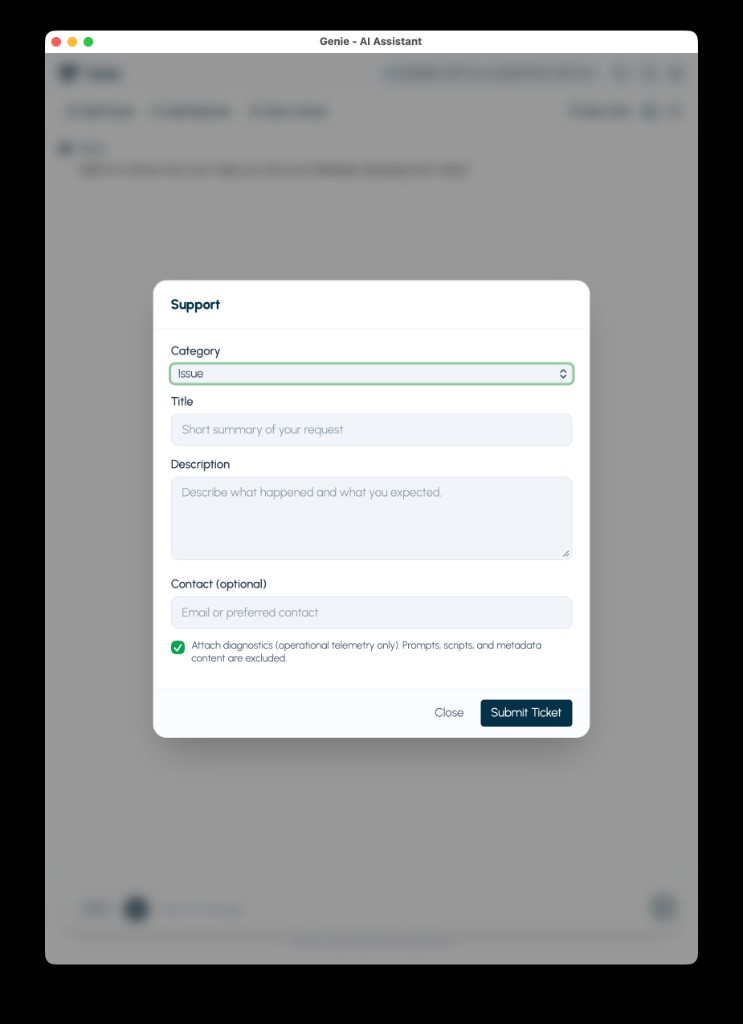
- Category:
Issue,Activation,Feature Request,Improvement,Suggestion, orOther - Title: a short summary of the request
- Description: what happened, what you expected, and how to reproduce it
- Contact (optional): an email address or preferred contact method
- Attach diagnostics: on by default
Genie requires a Title and Description before submission.
What diagnostics include
Section titled “What diagnostics include”If you leave Attach diagnostics enabled, Genie attaches a small operational diagnostics payload to the support ticket.
This diagnostics payload is designed to help support classify the environment and correlate failures faster. It includes product/runtime details such as:
- Genie version identifiers
- plan status summary
- the task you were asking Genie to complete and the context source
- Local MCP Bridge status
What diagnostics do not include
Section titled “What diagnostics do not include”The built-in diagnostics payload does not include:
- prompt text
- script contents
- metadata contents
In the current UI, the checkbox explicitly states that prompts, scripts, and metadata content are excluded.
Best practice before you submit
Section titled “Best practice before you submit”Before you submit a ticket:
- Write a short, specific title.
- Describe the exact action you took and what you expected.
- Note the approximate time the problem happened.
- Keep screenshots or a short screen recording ready for follow-up.
- Leave diagnostics enabled unless you have a specific reason not to.
The current support form does not show an in-form screenshot upload control, so screenshots and recordings are best treated as follow-up evidence you can reference in the ticket description.
What happens after submission
Section titled “What happens after submission”- Genie sends the ticket to Genie support.
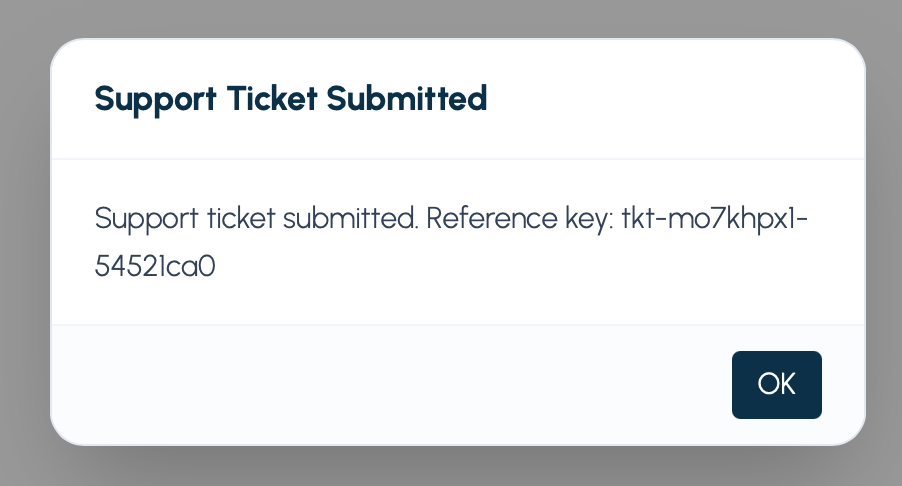
- A successful submission shows a confirmation.
- If the server returns a ticket reference, Genie shows that reference in the success message.
If submission fails with no network connection, Genie reports that support submission requires internet access.