

UI Overview
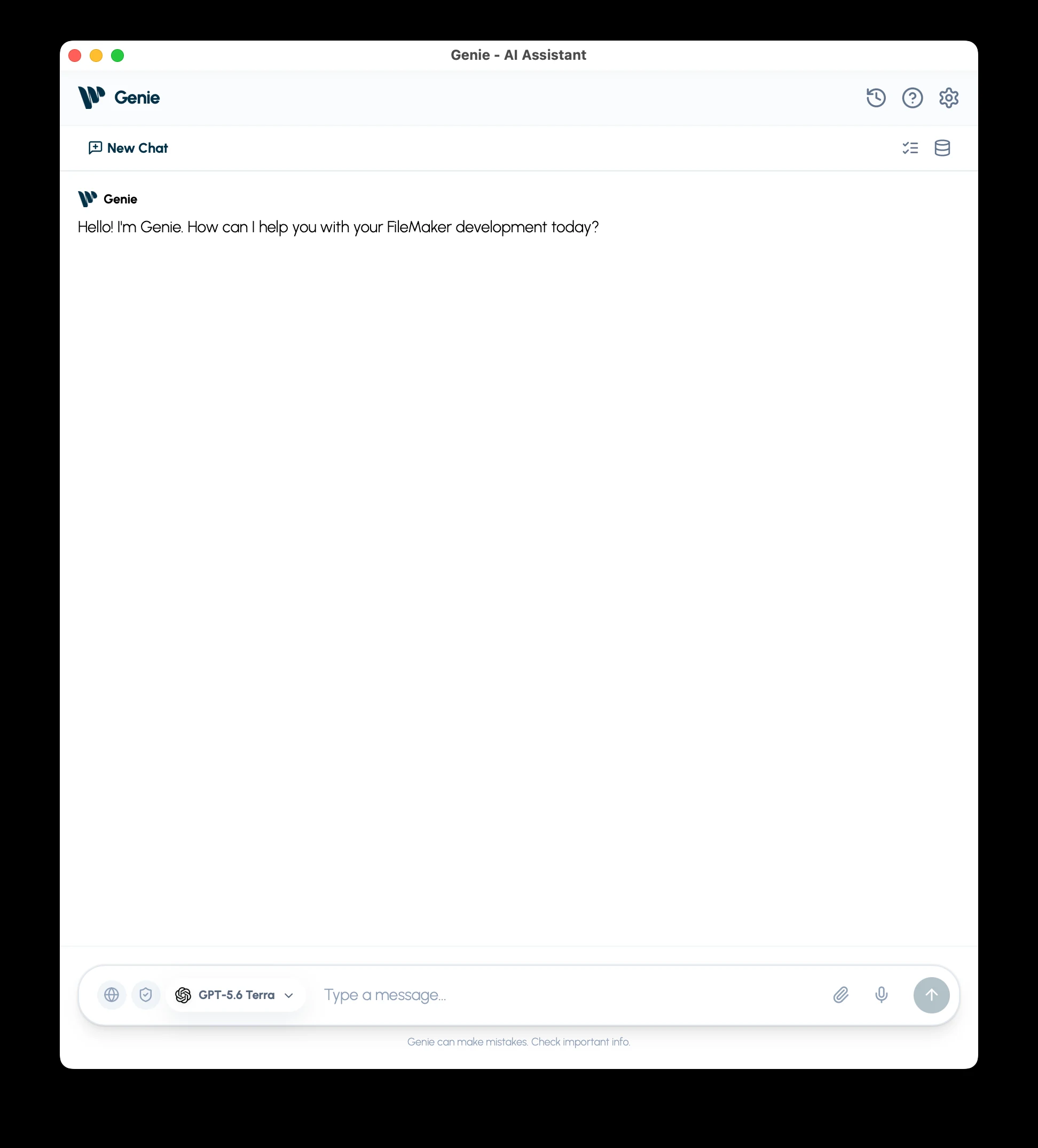
Genie has one chat for questions, scripts, calculations, data, layouts, and Web Viewers. Describe the result you want. Genie chooses the tools and steps, reads the relevant FileMaker context, and answers or prepares a result for review. Continue in the same conversation as the task develops.
Where Genie appears
Section titled “Where Genie appears”- Script Workspace: Genie docks as a panel on the right. The Genie button in the Script Workspace toolbar shows or hides it. Drag its left edge to resize it. Develop in Script Workspace.
- Layout mode: a Genie tab sits in the left panel beside Fields, Objects and Add-ons. Develop in Layout mode.
- Full Genie window: the pop-out button in either panel opens it with the same conversation and unsent draft. It holds the main chat, Metadata Explorer, Workbench, and Settings.
- Calculation editors: Calculation Quick AI inserts editable expression text in Data Viewer, Specify Calculation, and Custom Function editors.
Each FileMaker launch starts a fresh conversation. Earlier conversations are in History.
Panel toolbar
Section titled “Panel toolbar”The Script Workspace panel and the Layout mode tab share one toolbar.

| Control | What it does |
|---|---|
| Settings | Models, reasoning effort, Auto apply, personalization, permissions, and integrations. |
| History | Saved conversations and search. |
| Support | Opens the support ticket form. Support works on the Free plan too. |
| Workbench | Work prepared for review, including items from external MCP clients, and Auto apply changes. |
| Metadata Explorer | FileMaker scripts and metadata you can add as references. |
| Pop-out | Opens the full Genie window with the same conversation and unsent draft. |
The full Genie window gives you the same chat with Settings, History, Support, Workbench, and Metadata Explorer.
Project conventions belong in Settings > Personalization. Manage your plan and activation key in Settings > General.
Composer
Section titled “Composer”The composer holds the model picker, New Chat, attachments, and dictation. To control what the chat can read, use the shield at the left of the composer. Privacy Mode.
Model and reasoning
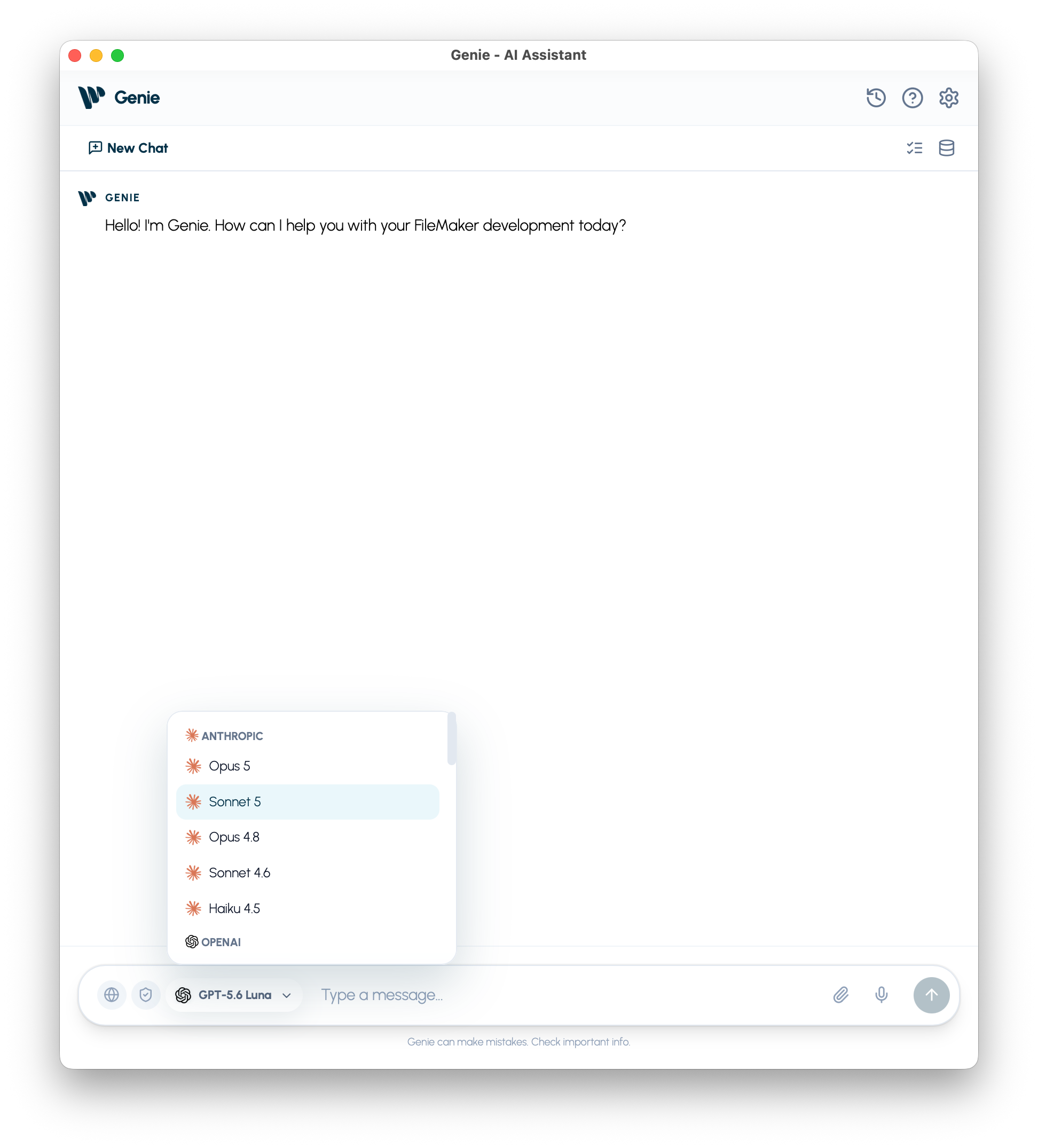
Section titled “Model and reasoning”Choose the provider and model from the picker in the composer.
Set reasoning effort in Settings > Models. A model change keeps your saved effort preference; the level actually used depends on the model. Reasoning guide.
Your own Claude Code or Codex
Section titled “Your own Claude Code or Codex”On macOS, the model menu has a Your own agent group at the top with Claude Code and Codex. When you choose one, one quiet footer line sits under the composer. On the left it shows your plan with a status dot (for example Claude Max), or the state with one link (Connect, Install, Turn on, Update). On the right, one text button shows the model and effort (for example Sonnet 5.5 · High, with Plan before it when Plan first is on). It opens a popover with the connection line, the model list, an Effort slider, a Plan first toggle, Check for updates or Update Claude Code to a new version, and Settings…. In a docked panel the footer stays on one line. Type / to list the program’s own commands. By default you review its changes on a card. Claude Code and Codex.
New chat
Section titled “New chat”New Chat starts a fresh conversation. Earlier conversations stay in History. Each FileMaker launch also starts a fresh conversation.
Send, stop, and dictate
Section titled “Send, stop, and dictate”- Enter sends your message; Shift + Enter adds a line.
- Stop cancels the response.
- On macOS, press the microphone to start recording and again to stop. Review the inserted text before sending; dictation does not send automatically.
Add context
Section titled “Add context”Use the attachment control for documents and images. Genie reads relevant contents as needed; images require a compatible model. Remove a badge when it no longer belongs to the task.
Type / for FileMaker steps and functions, or # for metadata references. Use the arrow keys and Tab to choose a suggestion. You can also name a script directly in your prompt. FileMaker context.
Web and privacy
Section titled “Web and privacy”Web Search is available where the selected provider supports it. Privacy Mode limits live reads to selected metadata and leaves out attachments, the selected Script Workspace lines, personalization, Web Search, and product issue reports.
Messages and actions
Section titled “Messages and actions”Chat responses in Genie include action buttons and export controls.
Standard message features
Section titled “Standard message features”- Markdown rendering for readable responses.
- Copy Code on code blocks.
- Thinking indicator while a response is being written.
- Stop in the composer while a response is in progress.
Advisory blocks
Section titled “Advisory blocks”Genie can show structured callout blocks inside its responses:
| Block | What it communicates | Typical trigger |
|---|---|---|
| Assumptions | Defaults Genie used to proceed. | The prompt leaves scope or details unclear. |
| Warnings | Risks, limits, or checks to do before running a change. | High-impact operations or uncertain context. |
| Sources | Links or references behind the answer. | Web Search is used, or references are cited. |
These blocks stand out visually and appear inline in the same response.
Table actions
Section titled “Table actions”| Feature | Description |
|---|---|
| Export CSV | Saves table output as CSV. |
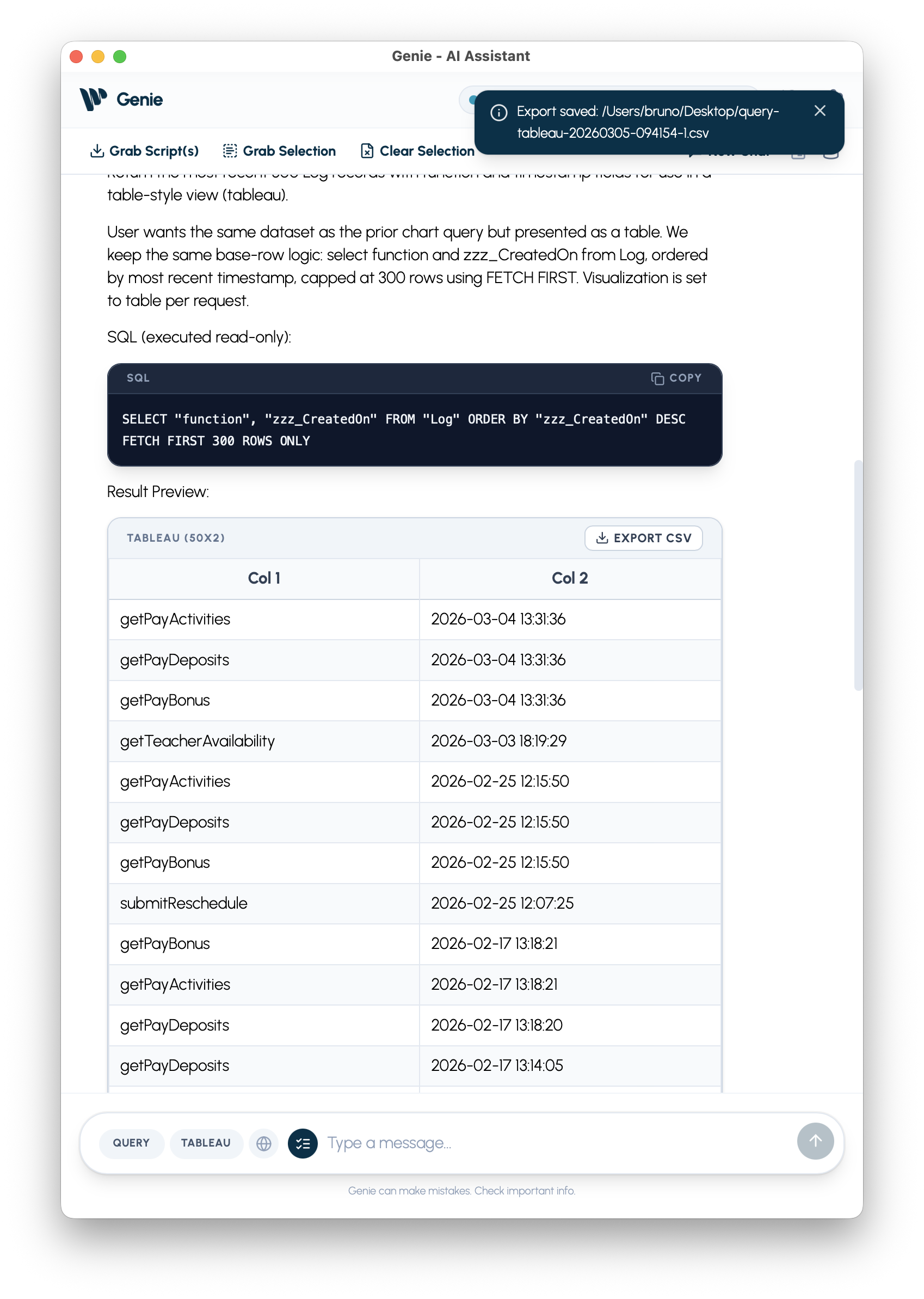
Chart actions
Section titled “Chart actions”| Feature | Description |
|---|---|
| Copy PNG | Copies the chart image to the clipboard. |
| Export PNG | Saves the chart image to a file. |
Script actions
Section titled “Script actions”On a paid plan, a script result offers:
| Action | Purpose |
|---|---|
| Preview | Opens the complete proposed script for reading. |
| Copy | Copies the script so you can paste it yourself. |
| Create | Adds a new script in FileMaker after a confirmation dialog. |
| Apply | Updates an existing script in FileMaker after a confirmation dialog. |
The script does not need to be open or selected. If it has unsaved edits in Script Workspace, Genie asks you to save first. On the free plan, Genie gives the complete script as human-readable steps instead.
If Genie can show a draft but cannot safely write it, Create and Apply stay unavailable. Preview and Copy may still work so you can inspect the draft. Treat it as something to review, not something ready to apply.
Warnings and blocking errors can include a numeric error code. Use Error Codes and Recovery when one appears.
Cards from Claude Code and Codex
Section titled “Cards from Claude Code and Codex”With Auto apply off, when Claude Code or Codex proposes a change, the reply ends with a card titled with the change, or Change ready to review, with a headline and a short list. It offers Apply, Review and Copy where they suit the change. Apply asks for the usual confirmation before anything changes in FileMaker. A layout change shows Layout edits ready with Apply to Layout. If a card cannot be shown, the change waits in Workbench. With Auto apply on, they apply supported changes directly. See Claude Code and Codex.
Data changes
Section titled “Data changes”On a paid plan, Genie shows a proposed data change in the chat. Before it runs, FileMaker shows a confirmation with the exact SQL and values. Typing in the chat does not replace that confirmation. See Change data and schema.
Sources and citations
Section titled “Sources and citations”When Genie relies on web results, schema context, or reference material, it may include a Sources block so you can check what it used.
Quick reference
Section titled “Quick reference”| Area | Controls and purpose | Guide |
|---|---|---|
| Script Workspace panel | Docked on the right. The Genie button in the Script Workspace toolbar shows or hides it. Shows the selected script lines; Refresh Selection updates them. | Script Workspace |
| Layout mode tab | Genie tab in the left panel. Shows how many objects are selected; up to 100 are used as context. | Layout mode |
| Panel toolbar | Settings, History, Support, Workbench, Metadata Explorer, pop-out | Toolbar |
| Full Genie window | Main chat, Metadata Explorer, Workbench, Settings; opened from pop-out | Where Genie appears |
| Composer | Model picker, prompt, New Chat, attachments, dictation on macOS, Send and Stop | Composer |
| Claude Code and Codex | Your own agent group in the model menu; footer under the composer with plan, model and effort, and a popover; cards for proposed changes | Claude Code and Codex |
| Settings > Models | Provider, model, reasoning effort, Custom endpoint | Reasoning |
| Auto apply (in Settings) | Apply supported changes without a confirmation for each one | Settings |
| Metadata Explorer | Scripts, tables, fields, relationships, layouts, value lists, custom functions | Metadata |
| Context badges | References and attachments; remove items that no longer belong to the task | Context |
| Privacy | Limit chat reads to selected metadata | Privacy Mode |
| Script card | Preview, Copy, Create, Apply | Create and edit scripts |
| Web Viewer card | Interface preview, installation details, and separate helper reviews | Web Viewers |
| Workbench | Items staged by external clients, Auto apply changes under Submitted, and Undo where available | Workbench |
| Calculation Quick AI | Inserts editable expression text in calculation editors | Calculation Quick AI |
Creating and applying scripts, layout edits, data changes, Auto apply, and Workbench actions require a paid plan. The docked panels are on macOS; Windows has its own feature set. See requirements.