

First Task: Run Your First Query
What you will do: Ask a plain-language question about your FileMaker data and get back a table, chart, or raw SQL result, without writing a single line of SQL yourself.
Time: About 3 minutes.
Before you start
Section titled “Before you start”- Genie is open and showing the chat interface.
- FileMaker is open with a solution that has at least one table with records.
- Have a question in mind, something you would normally dig into Manage Database or write a custom script to answer.
Step 1: Open Metadata Explorer
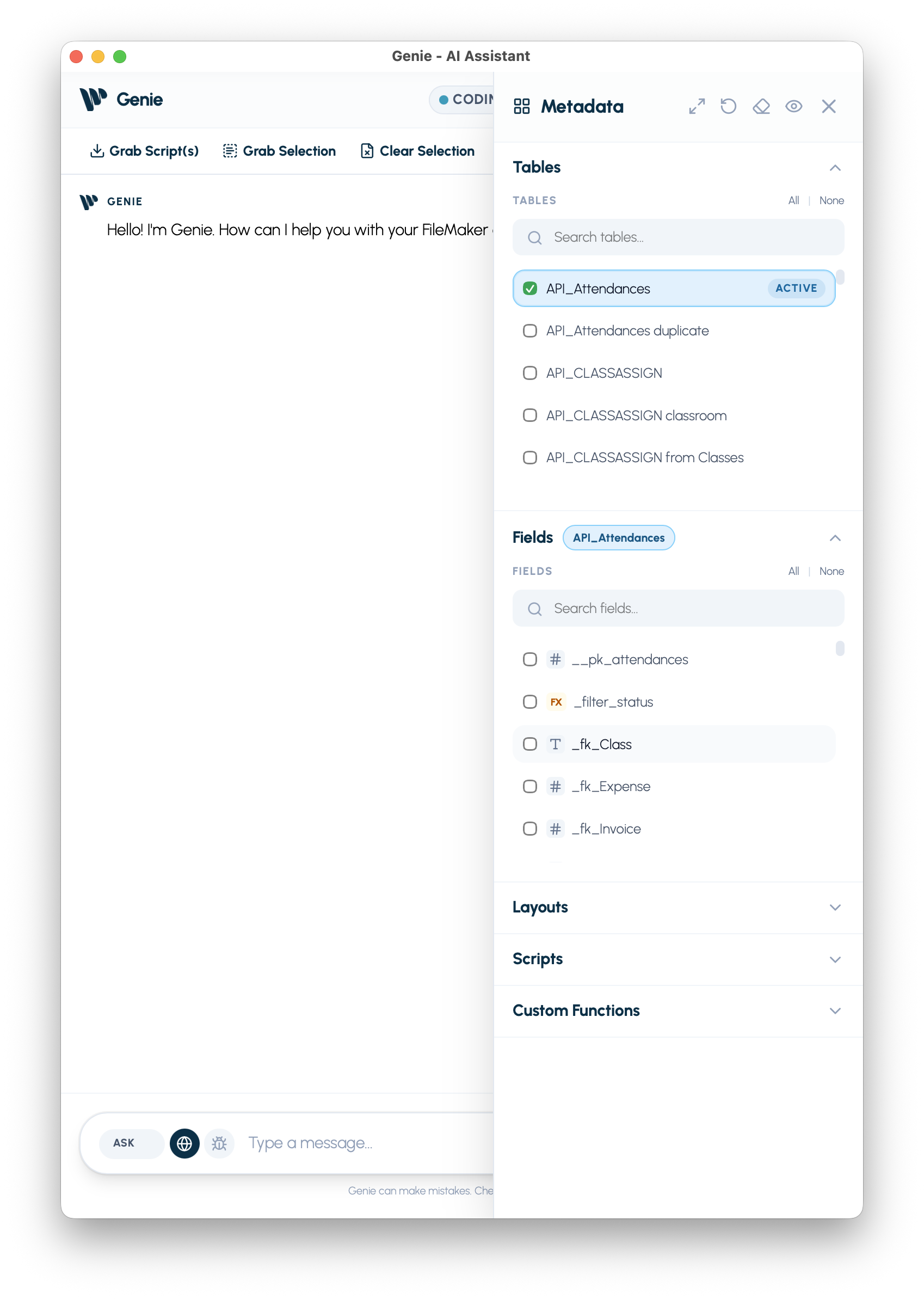
Section titled “Step 1: Open Metadata Explorer”Click Metadata Explorer in the tool belt at the top of Genie’s window. A panel opens on the right showing the tables and fields in your FileMaker solution.
Step 2: Select the tables your question is about
Section titled “Step 2: Select the tables your question is about”In Metadata Explorer, check the tables relevant to your question. For example:
- Asking about invoices: check the Invoices table.
- Asking about customers and orders: check both tables.
- Not sure which table has the data: check a few and Genie will resolve the right fields.
Why this matters: Genie uses your selected tables and fields as grounding. That is why it knows your actual field names instead of guessing.
Step 3: Switch to QUERY mode
Section titled “Step 3: Switch to QUERY mode”Click QUERY in the mode selector at the bottom of the chat window.
QUERY mode is read-only. It generates and runs SQL against your data but cannot write, update, or delete anything.
Step 4: Choose your output format
Section titled “Step 4: Choose your output format”Above the composer you will see three format options:
| Format | Best for |
|---|---|
| Table | Reviewing results row by row |
| Chart | Visualizing counts, totals, or trends |
| Raw | Seeing the generated SQL alongside results |
Pick the one that fits your question and move on to the next step.
Step 5: Ask your question
Section titled “Step 5: Ask your question”Type your question in plain language in the composer. Some examples:
How many invoices were created this month?Show me the top 10 customers by total order amount.List all records where Status is Pending and the date is before January 2025.What is the average project duration across all completed projects?
Hit Enter to send.
Step 6: Answer Preflight questions if they appear
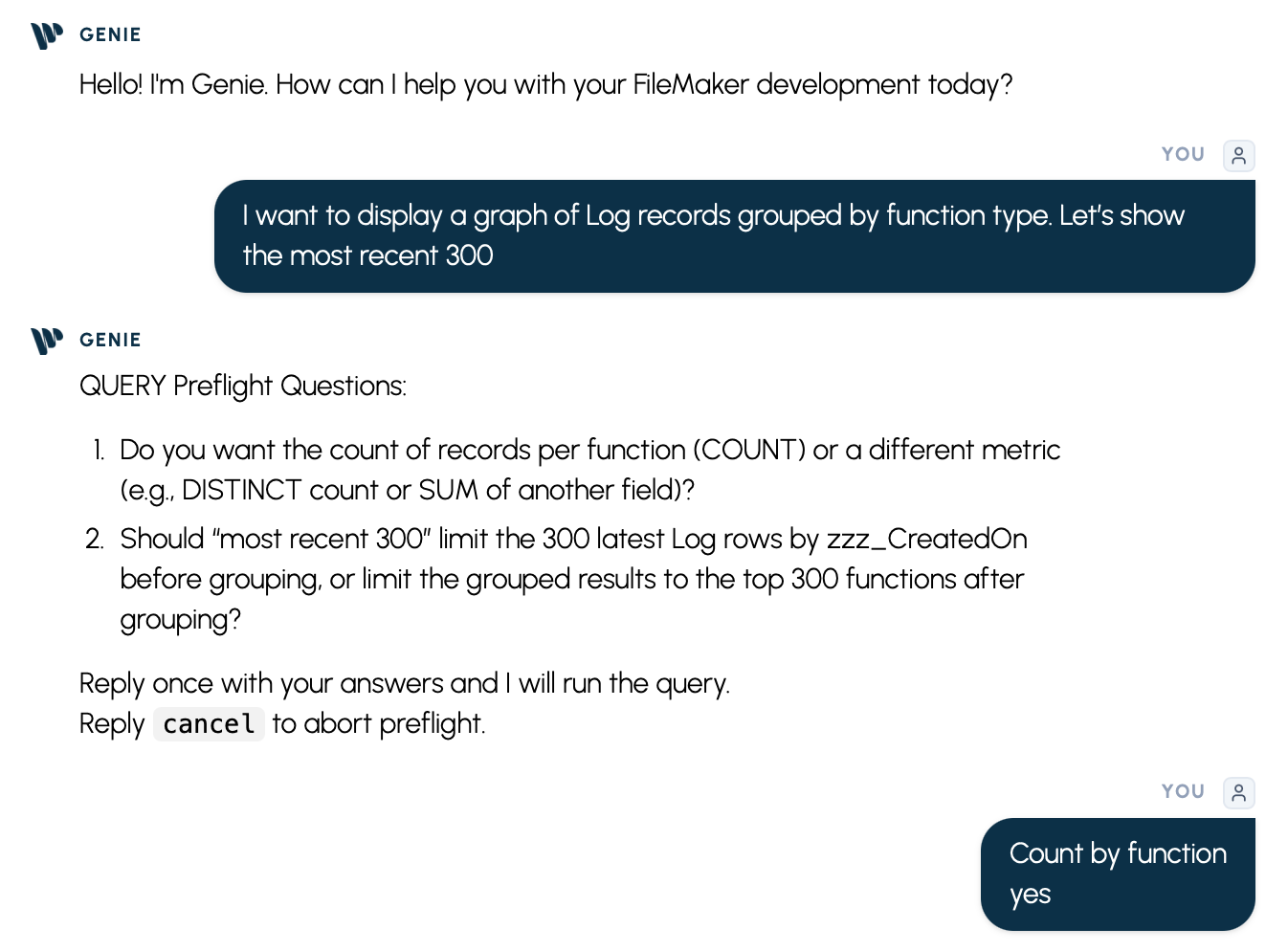
Section titled “Step 6: Answer Preflight questions if they appear”If your question is ambiguous about which date field to use or table to group by, Genie asks short clarifying questions first. Answer them and Genie will run the query.
Step 7: Review your result
Section titled “Step 7: Review your result”Your result appears in the format you selected. From here you can:
- Export CSV: Save the table result as a spreadsheet-ready file.
- Export PNG: Save a chart result as an image for presentations or handoff.
- Change format for the next run: Pick a different output format in the composer and rerun the query if you want a different view.
What success looks like
Section titled “What success looks like”- The result reflects the records you expected.
- Field names and values match what you see in your FileMaker solution.
- The row count makes sense given what you know about your data.
If the result looks off
Section titled “If the result looks off”- Check which tables are selected in Metadata Explorer. A missing table is the most common cause of wrong or empty results.
- Add more context to your question: specify the exact field name, date range, or filter condition.
- Switch to Raw output to read the SQL and spot field-name mismatches.
What to try next
Section titled “What to try next”- Try a Chart output for the same question to visualize the distribution.
- Compare two time periods in one question, such as
Compare invoice totals from Q1 2024 vs Q1 2025. - If you need to write data based on what you found, switch to DATA mode.