

First Task: Write Your First Script Change
What you will do: Take a script that is already in FileMaker, ask Genie to change something about it, and apply the result safely, without leaving Script Workspace.
Time: About 5 minutes.
Before you start
Section titled “Before you start”- Genie is open and showing the chat interface.
- FileMaker is open with a solution that has at least one script.
- Pick a script that does something simple for your first run: a navigation, a loop that sets fields, or a calculation you want to clean up. Avoid mission-critical scripts until you are comfortable with the workflow.
Step 1: Open the script you want to change
Section titled “Step 1: Open the script you want to change”In FileMaker, go to Scripts > Script Workspace… and click the script you want to work with.
Leave Script Workspace open. Genie reads your script directly from there.
Step 2: Add the current script context into Genie
Section titled “Step 2: Add the current script context into Genie”In Genie, click Add Selection in the tool belt at the top of the window.
A badge appears above the chat composer showing which script, and which lines if relevant, were captured. This is Genie’s live context for the conversation.
Why this matters: Generated output references your actual step names and parameter values, not generic FileMaker patterns. Capturing the right live context with Add Selection first is what makes the difference between a useful result and a generic one.

Step 3: Switch to CODE mode
Section titled “Step 3: Switch to CODE mode”Click CODE in the mode selector at the bottom of the chat window.
CODE mode generates FileMaker XML output that can be applied directly to Script Workspace. It is the right mode any time you want to create or change a script.
Step 4: Describe what you want to change
Section titled “Step 4: Describe what you want to change”Type a clear, specific request in the composer. Some examples:
Add error handling around the loop that performs finds.Rename all references to OldTableName to NewTableName in this script.Convert the hardcoded layout name on step 4 to use a variable instead.
Hit Enter to send.
Tip: Use the actual names of fields, tables, layouts, and scripts from your solution. The more specific your request, the better the output will be on the first pass.
Step 5: Answer Preflight questions if they appear
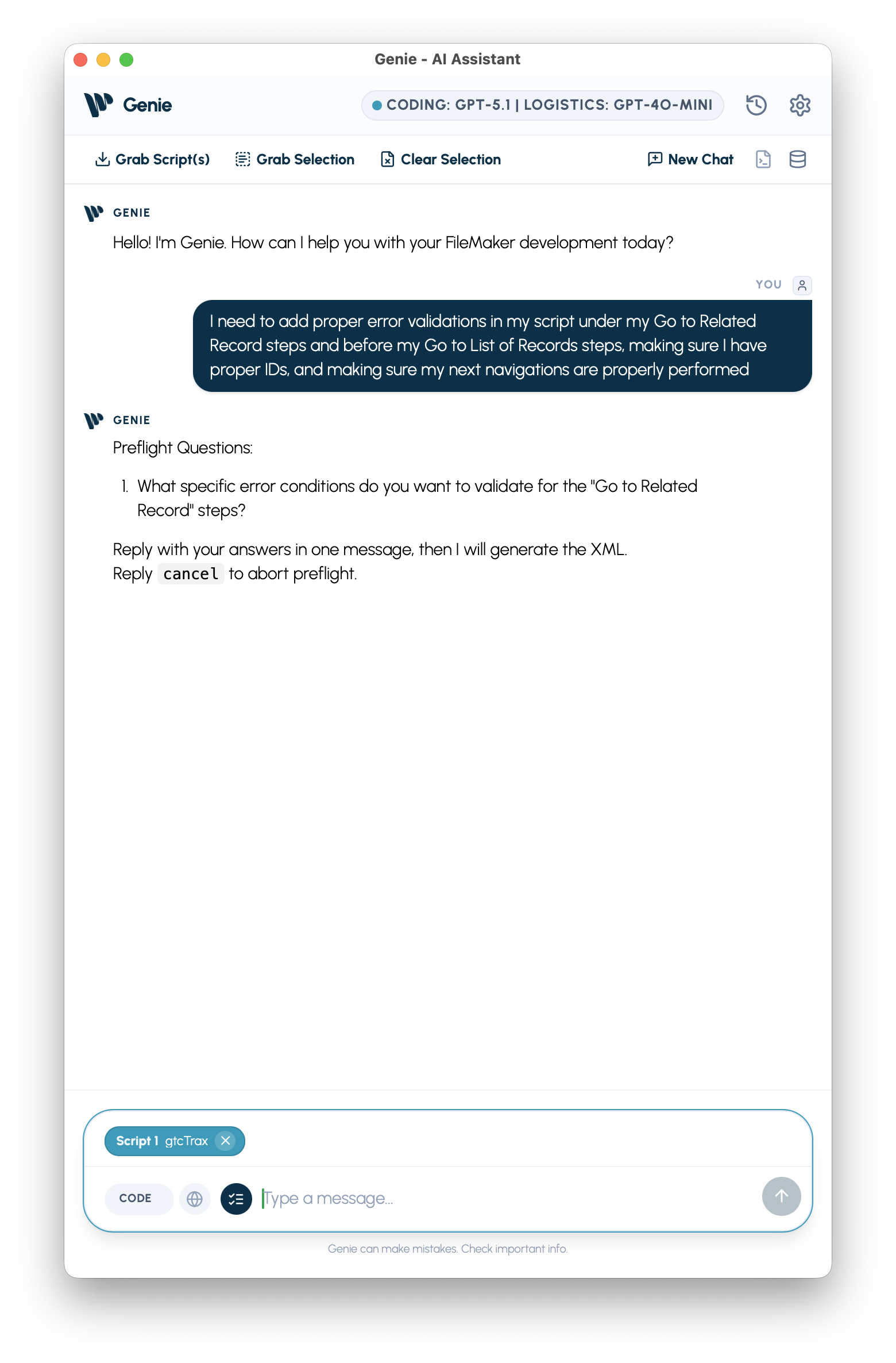
Section titled “Step 5: Answer Preflight questions if they appear”If your request is ambiguous about which table to target or which field to use, Genie asks short clarifying questions before generating output.
Answer each one and hit Enter. This usually takes less than a minute, and it significantly reduces the chance of getting output you have to redo.
Step 6: Review the generated output
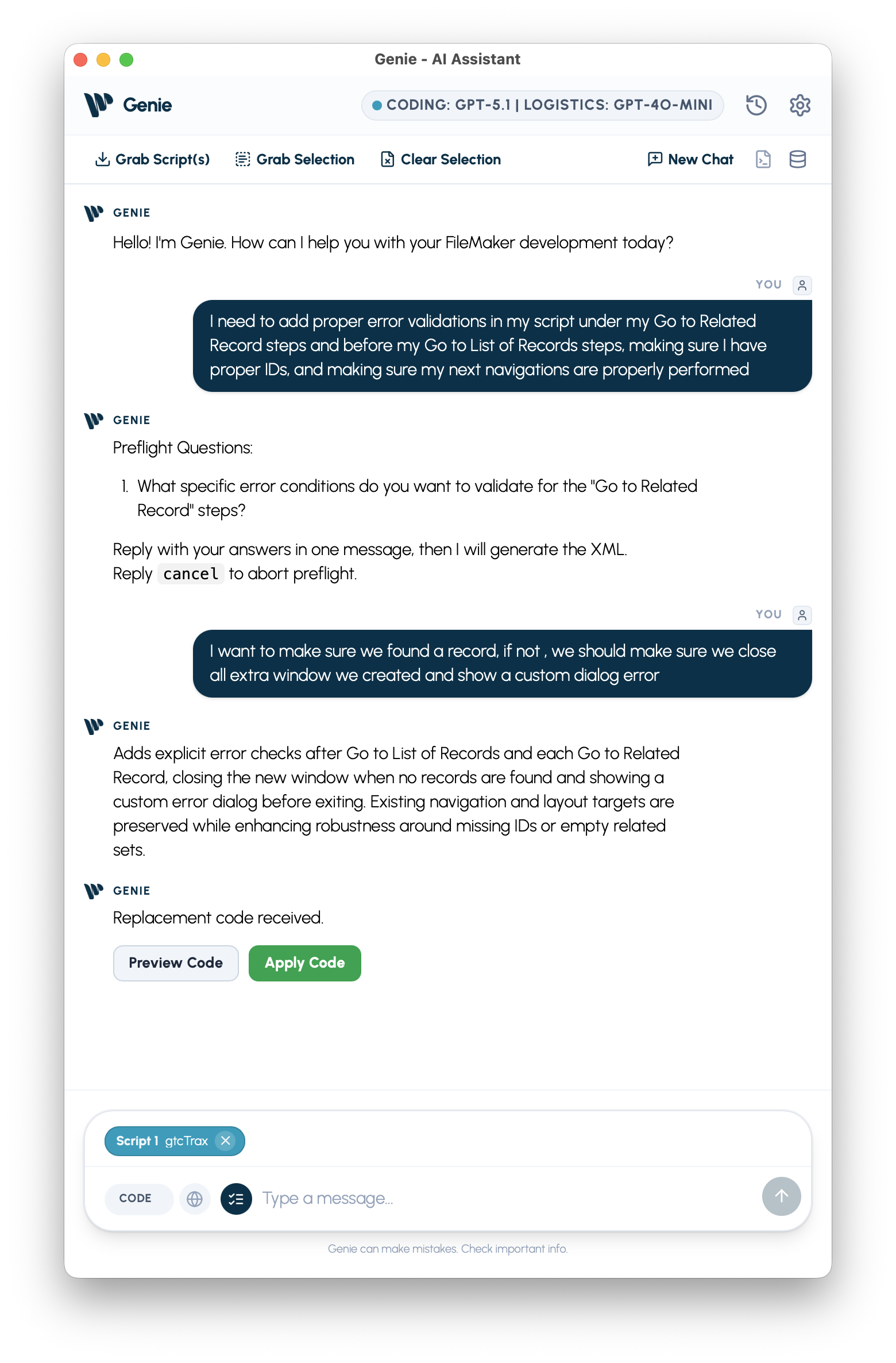
Section titled “Step 6: Review the generated output”When generation is complete, you will usually see two action links in the response: Preview Code and Apply Code.
Click Preview Code first. This opens the generated script in the Native Viewer so you can inspect it before anything touches your FileMaker file.
Look for:
- Step names that match your actual script structure.
- Field and table names from your solution, not placeholders.
- No unexpected additions like extra If blocks or unrelated variables.
If Genie shows a display-only draft instead of Preview Code and Apply Code, review the draft in chat, then capture the right context again with Add Selection or Add Scripts, or refine the request before trying again.
Step 7: Apply the change
Section titled “Step 7: Apply the change”If the preview looks right, click Apply Code.
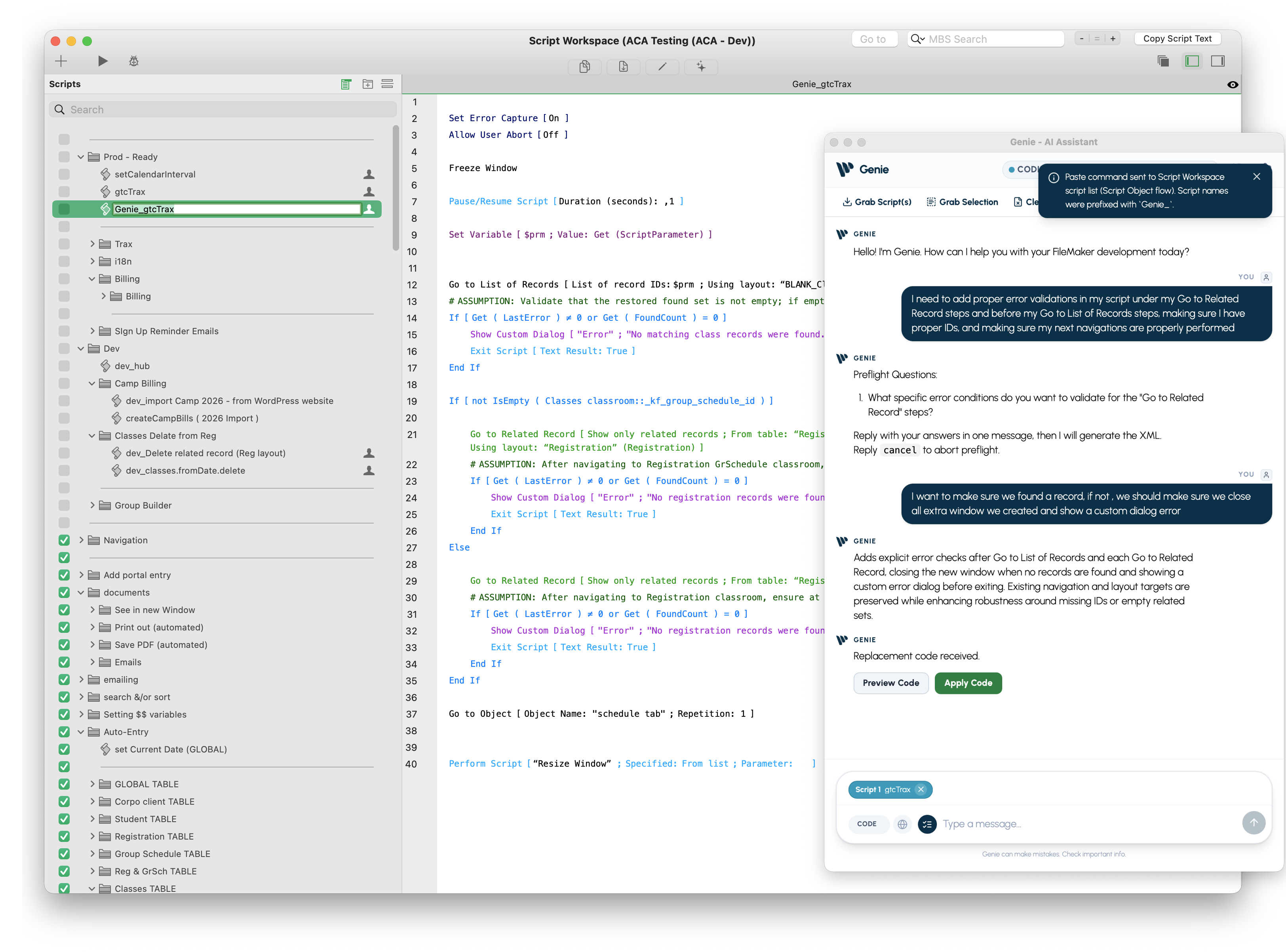
Genie writes the changes into Script Workspace using a native Delta Apply operation. This means it automatically targets the correct lines in your script; you do not have to manually select or paste anything. You will see an Applying… progress indicator during the operation. Switch to FileMaker to verify the updated script.
What success looks like
Section titled “What success looks like”- The preview matches what you intended before you apply.
- Script Workspace shows the updated steps after applying.
- There are no unexpected changes to surrounding logic.
If the first run is off-target
Section titled “If the first run is off-target”Your original script is unchanged until you click Apply. If you applied but the result is not right:
- Use FileMaker’s Undo to revert, or run Add Selection again to refresh live script context.
- Ask Genie to fix the specific part that is wrong. You do not have to start over.
- Narrow your scope: select just the relevant steps in Script Workspace, then click Add Selection again.
What to try next
Section titled “What to try next”- Use targeted selection in Script Workspace before clicking Add Selection to focus on just a few steps at a time.
- Use Add Scripts when the change depends on multiple open Script Workspace tabs instead of one live selection.
- Switch to ASK mode and ask Genie to explain the script before you edit it.
- Run a QUERY to check data in the tables your script touches. See First Task: Run Your First Query.