

Visite du produit Genie
Sous macOS, Genie se place à côté de votre travail dans deux panneaux ancrés : l’un dans Script Workspace, l’autre en mode Modèle. Windows possède sa propre interface ; consultez la configuration requise.
Panneau Script Workspace
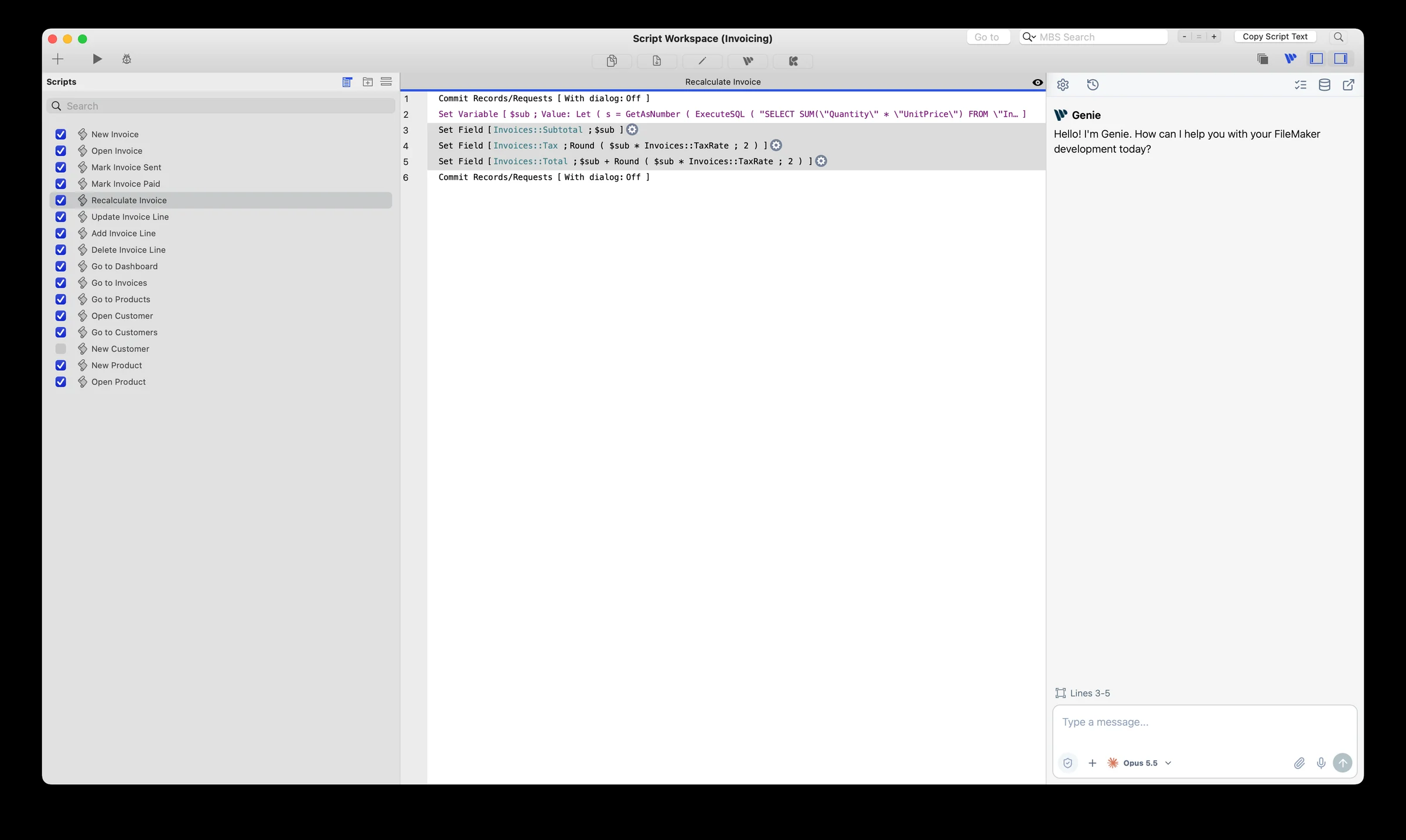
Section intitulée « Panneau Script Workspace »Genie s’ancre sur le côté droit de Script Workspace. Le bouton Genie de la barre d’outils de Script Workspace, à côté des commandes de volets de FileMaker, l’affiche ou le masque. Faites glisser son bord gauche pour le redimensionner.
Le panneau indique les lignes de script sélectionnées. Cliquez sur Refresh Selection après avoir changé la sélection. Posez des questions sur ces lignes, créez ou modifiez des scripts, ou demandez à Genie de créer des dossiers et d’y déplacer des scripts. Script Workspace.
Onglet du mode Modèle
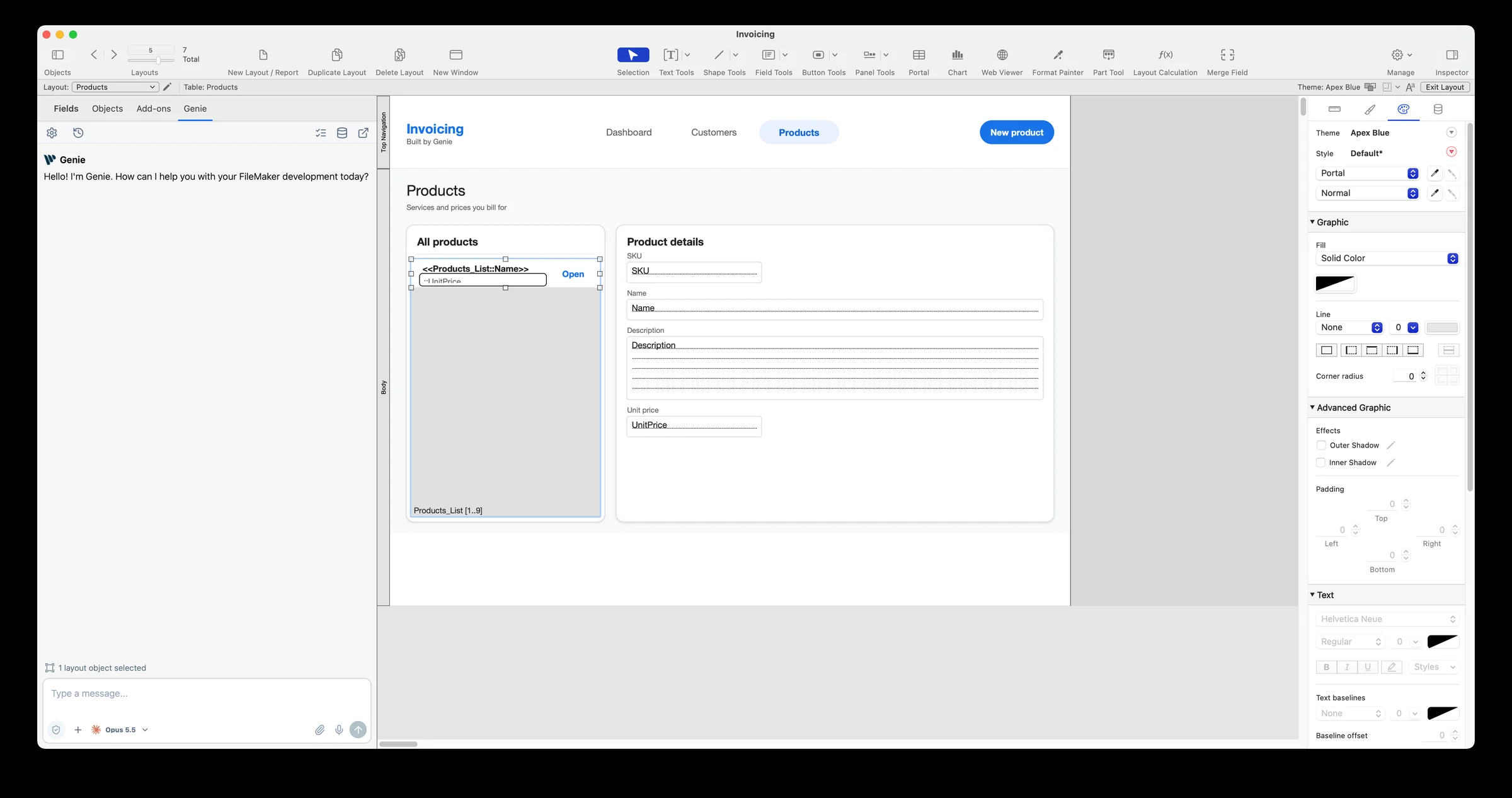
Section intitulée « Onglet du mode Modèle »En mode Modèle, un onglet Genie se trouve dans le panneau de gauche, à côté de Fields, Objects et Add-ons. Il indique le nombre d’objets sélectionnés ; jusqu’à 100 servent de contexte. L’Inspecteur reste indépendant.
Demandez à Genie de créer un modèle, d’y ajouter du contenu ou de modifier les objets sélectionnés, dans les fichiers locaux comme hébergés. Mode Modèle.
Barre d’outils commune et fenêtre complète
Section intitulée « Barre d’outils commune et fenêtre complète »Les deux panneaux partagent une barre d’outils : Settings, History, Workbench, Metadata Explorer, Privacy et détachement. Le détachement ouvre la fenêtre complète de Genie avec la même conversation et votre brouillon non envoyé. New Chat, les pièces jointes et la dictée se trouvent dans le composeur.
Chaque lancement de FileMaker démarre une nouvelle conversation. Les précédentes sont dans History.
Données et schéma
Section intitulée « Données et schéma »Genie peut ajouter des occurrences de table, créer et modifier des liens, organiser le graphe des liens et modifier des données. Avant toute modification de données, une confirmation FileMaker affiche le SQL et les valeurs exacts. Données et schéma.
Votre propre Claude Code ou Codex
Section intitulée « Votre propre Claude Code ou Codex »Sous macOS, vous pouvez faire fonctionner l’Agent de Genie avec votre propre Claude Code ou Codex, sur votre forfait Claude ou ChatGPT, sans clé API. Choisissez-le dans le menu des modèles du composeur. Il fonctionne dans la fenêtre principale et dans les deux panneaux ancrés, et, par défaut, vous révisez chaque modification qu’il propose sur une carte. Claude Code et Codex.
Révision ou mode Application automatique
Section intitulée « Révision ou mode Application automatique »Par défaut, Genie montre la modification et attend votre confirmation. Activez le mode Application automatique dans Settings pour appliquer les modifications sans confirmer chacune. Le lancement d’un script existant garde toujours sa propre confirmation. Révision et mode Application automatique.
Gratuit et Payant
Section intitulée « Gratuit et Payant »La version gratuite couvre la conversation, l’examen et l’explication de votre fichier, les requêtes et graphiques en lecture seule, Calculation Quick AI et la lecture par MCP local. Un forfait payant permet d’écrire des scripts et des modèles, d’exécuter des modifications de données, et d’utiliser QuickCode, le mode Application automatique et les actions Workbench. Votre fournisseur d’IA facture son utilisation séparément. Licence et activation.
Utiliser un agent externe
Section intitulée « Utiliser un agent externe »Le MCP local relie les clients externes du même Mac au même contexte FileMaker. Les lectures sont gratuites. Commencez par une demande en lecture seule.
Ensuite : votre première tâche utile.